GSC Wizard documentation
GSC Wizard turns your Google Search Console (and optional GA4 and Bing) data into reports SEOs actually use: striking-distance keywords, content decay, cannibalization, CTR optimisation, forecasting, and more. This documentation covers every report and feature, one topic per page.
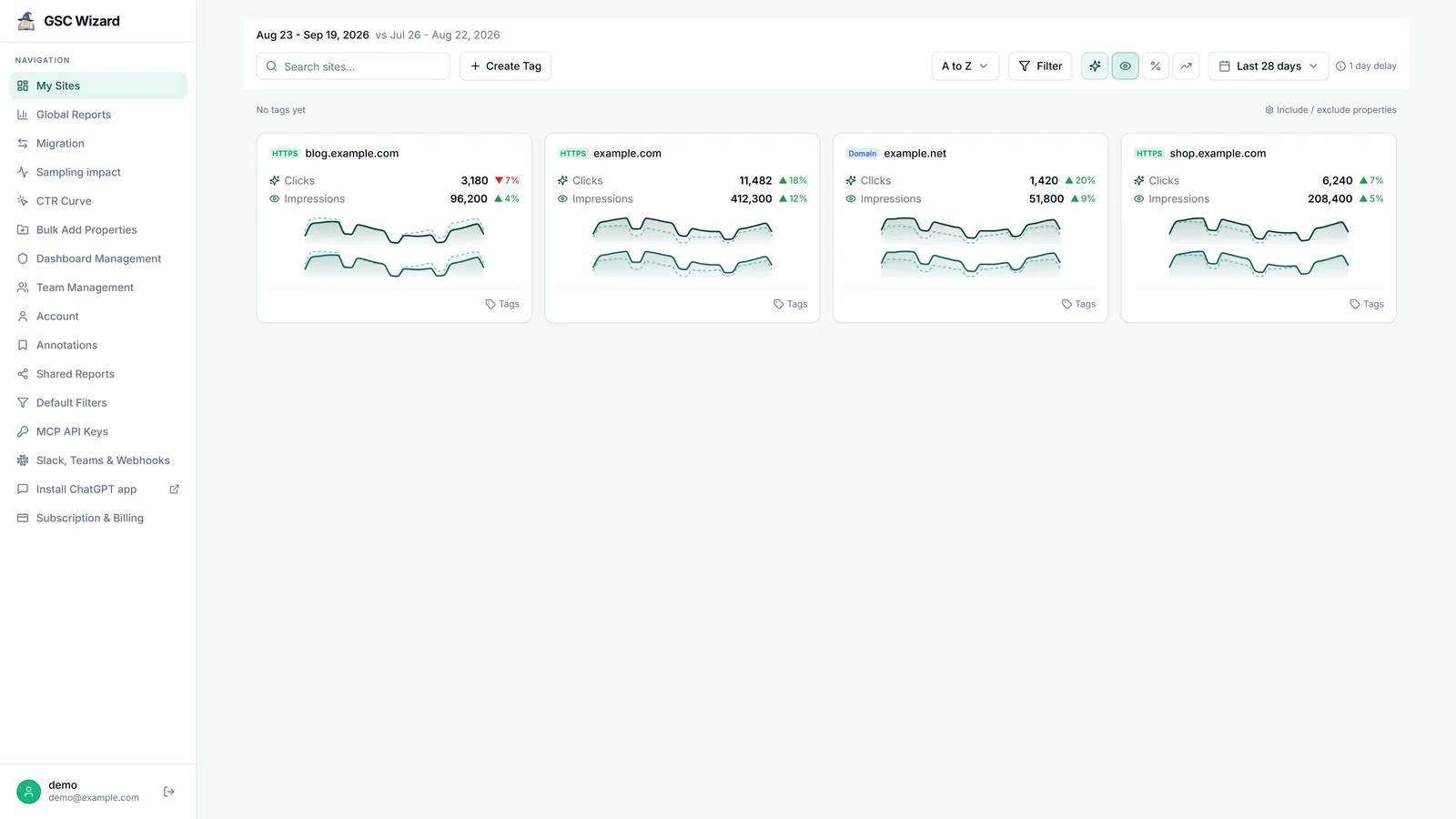
New to GSC Wizard? Start with Connecting Search Console, then take the tour of the dashboard.
New to SEO itself? Our Learn section is a curriculum covering SEO fundamentals, a 7-day quick-wins playbook, and task guides for striking distance, content decay, cannibalization, and CTR recovery.
New to Google Search Console? The GSC FAQ answers common questions about indexing, sitemaps, Core Web Vitals, property verification, and more.
Connect in three steps
- Click Try for free and sign in with the Google account that has access to your Search Console properties.
- Grant GSC Wizard read-only permission to your Search Console data. We never store your Google password, only a revocable access token.
- Pick the properties you want to analyse. Every report below then works against your real data.
Full walkthrough: Connecting Search Console.
Browse the docs
Getting started
Connecting Search Console
Sign in with Google, choose Domain or URL-prefix properties, and add or bulk-create the sites you track.
Dashboard & properties
The My Sites grid and the per-property dashboard: trend chart, top tables, and the cards beneath.
Filters, dates & privacy
Date ranges and comparisons, dimension filters, branded splits, saved filters, and privacy blur.
Search analytics
Queries, Pages & Countries (4)
The three core Search Console reports, with striking-distance and winners/losers views.
Rankings & rank changes (2)
What you gained, lost, and how positions moved between two periods.
Performance & Core Web Vitals (4)
Map traffic and page experience onto your URL structure.
Content Groups & Topic Clusters (2)
Analyse performance by theme instead of by single URL or keyword.
Optimization
Indexing & site analysis
Indexing & URL inspection (5)
Is this page in Google, and if not, why? Shares Google’s 2,000/day inspection quota.
Site analysis & annotations (3)
International targeting, data quality, migrations, and event annotations.
Migration analysis (5)
Measure a domain move, replatform or URL restructure around its go-live date: recovery, risk, redirect checks and what to fix first.
Integrations
Google Analytics 4 (13)
Connect GA4 to see sessions, key events, e-commerce, and AI traffic.
Google Merchant Center (10)
Connect Merchant Center to see free listing clicks, products held back by feed issues, a feed audit, and title checks next to your Search Console data.
Bing Webmaster Tools (4)
Add a Bing API key to see Bing queries, pages, crawl health, and issues.
Yandex Webmaster (4)
Connect Yandex Webmaster to see Yandex queries, indexing history, and the pages Yandex added to or removed from its results.
Slack, Teams & webhooks (6)
Send scheduled Search Console reports and SEO alerts to your Slack channels, post them as cards into Microsoft Teams, or POST alert events to any URL.
MCP & ChatGPT app
Connect Claude, ChatGPT, or any MCP client to your data with an API key.
Grok
Add GSC Wizard as a custom connector in Grok, build an SEO analyst Bot, or use it from Grok Build.
Microsoft Copilot Studio
Add GSC Wizard to a Copilot Studio agent as an MCP server, for Teams and Microsoft 365 Copilot.
Data Studio connector
Pull estimated revenue per search query into Google Data Studio.
Collaboration & data
Still need help?
Can't find what you're looking for? We're here to help.