How to use the Merchant Center MCP to analyze your shopping performance
Merchant Center tells you a lot about your products and very little about what to do first. It lists disapproved items without saying which ones cost you clicks, it keeps prices, competitors and best sellers on separate pages, and none of it sits next to your Search Console data. Once Merchant Center is linked in GSC Wizard, an AI assistant can read all of it through the MCP server and answer in one conversation. This playbook gives you the order to ask in, the prompts to use, and the traps that make shopping numbers look wrong when they are not.
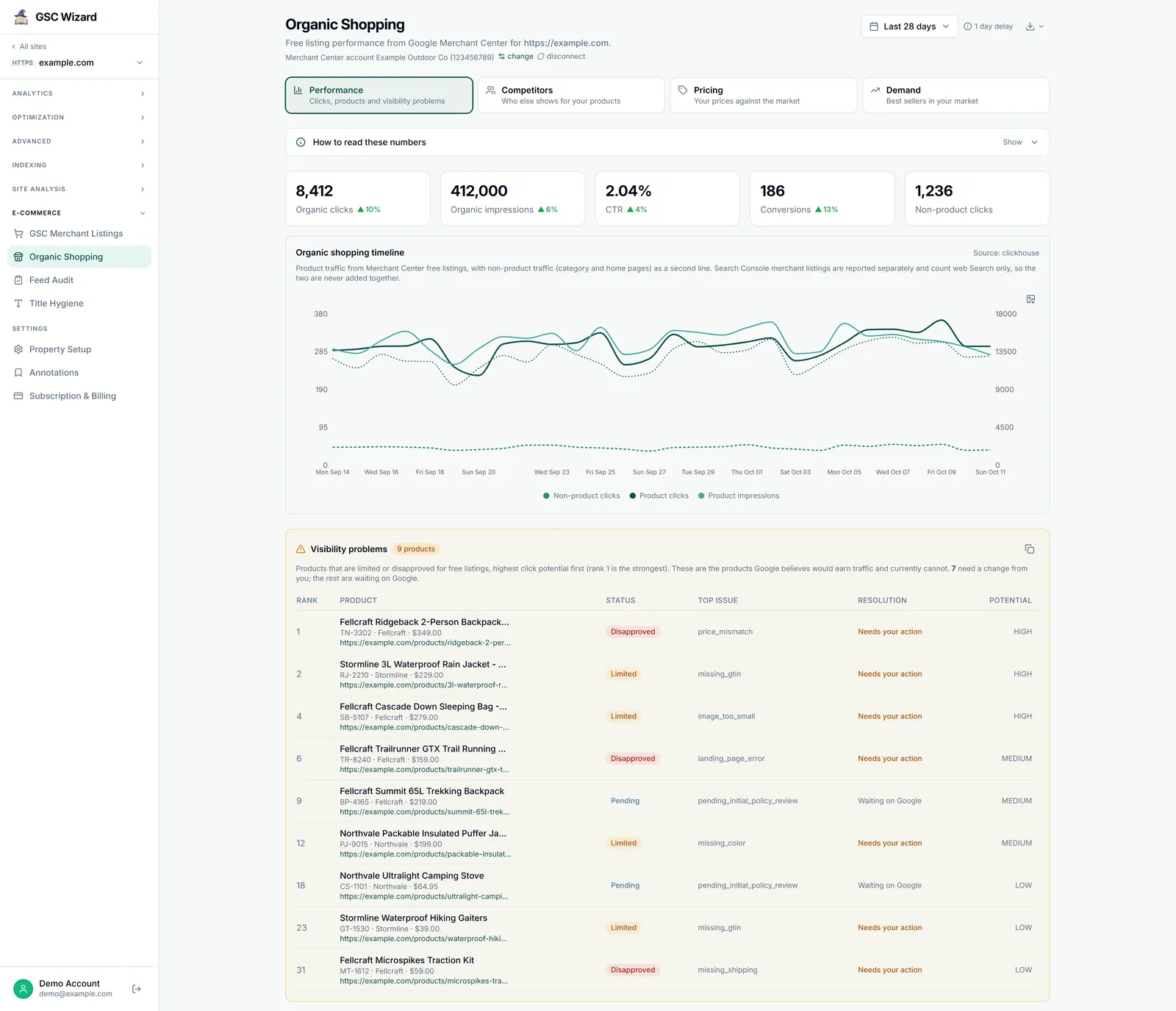
A ranked list of shopping fixes, and two reports that run themselves.
30 minutes for the first pass, then a few minutes a week.
A GSC Wizard account with Merchant Center connected and an MCP client.
Before you start
The shopping tools live on the same MCP server as the Search Console tools, at mcp.gscwizard.com, so if your assistant already reads your Search Console data there is nothing new to install. If it doesn't, add the server as a connector in Claude or ChatGPT, or paste an API key into any other MCP client; the setup guide has the config for each one.
The Merchant Center side takes two steps in GSC Wizard. First, connect Merchant Center on the Account page. Google has no read-only permission for Merchant Center, so its consent screen asks to manage your product listings, but GSC Wizard only reads your reports and catalog and never edits a product or your feed. Second, open the property, expand E-commerce in the sidebar, click Organic Shopping and pick the Merchant Center account that belongs to that shop. The shopping tools find the account through that link, so you never paste a merchant ID into a prompt. If a site has no linked account, the tools return a short notConfigured note instead of an error, and the assistant will tell you what is missing. On a property someone shared with you, the owner also has to switch on Merchant Center access for your invite, because Google treats pricing and best-seller data as the retailer's own.
To check the connection, ask: "Which Merchant Center accounts can you see, and which site is each one linked to?" That calls list_gmc_accounts, and if your shop is in the answer you are ready.
What the assistant can see
Ten tools, in three groups. You don't need to name them, because the assistant picks the right one from your question, but knowing what exists tells you what is worth asking.
| Tool | What it answers |
|---|---|
| Performance | |
get_organic_shopping_performance | Free listing clicks, impressions and conversions per day, plus the top offers, grouped by brand, Google category or your own product type. |
get_merchant_listings_performance | Merchant listings and product snippets in web Search, from Search Console. Works without a Merchant Center link. |
list_gmc_accounts | The Merchant Center accounts you can read and the site each one is linked to. |
| Product health | |
get_product_listing_status | Every product's eligibility and top issue, sorted by Google's click-potential rank, with whether the fix is yours or Google's. |
run_feed_audit, get_feed_audit_results | Queue the audit, then read the Feed Score, failures by severity, pass rates per check and the score history. |
get_gmc_title_hygiene | Title and description lengths, duplicate titles, repeated words and the most common title words, over a sample of up to 5,000 offers. |
| Market | |
get_gmc_competitors | Who you compete with in one country and Google product category, how often they show up compared with you, and how often they rank above you. |
get_gmc_pricing_insights | Your price against the market benchmark, and Google's suggested price with its predicted effect on clicks. |
get_gmc_best_sellers | Google's weekly or monthly best sellers for a country, optionally one category, with the ones you don't stock flagged. |
Step 1: Get the baseline, from both sources
Start with how the shop is doing before you look for problems, because a list of issues means more once you know whether traffic is rising or falling. Ask for both sources in one go:
For example.com, show free listing clicks, impressions and conversions
for the last 28 days against the 28 days before, grouped by brand.
Then show merchant listing clicks from Search Console for the same
periods. Compare the two trends, not the totals, and tell me which
brands moved the most.
The last instruction matters. Search Console's merchant listings count enriched product results in web Search only, while Merchant Center's free listings also count the Shopping tab, Images, Lens, YouTube and Maps. The Merchant Center number is usually the higher one and the two never reconcile, so an assistant that adds or subtracts them produces a figure that means nothing. The tools say this in their own descriptions, but it does no harm to say it again in the prompt.
Conversions only show up if you set up a conversion source in Merchant Center, so a column of zeros there usually means "not measured" rather than "no sales". The tool adds a note when that happens, and it is worth asking the assistant to repeat it rather than draw conclusions from it.
Step 2: Find the products Google won't show
This is where most of the money is. Merchant Center lists your disapproved and limited products, but it doesn't tell you which to fix first. get_product_listing_status sorts every product by Google's own click-potential rank, so a disapproved best seller comes before a limited accessory nobody searches for. It also separates the problems that need a change from you, such as a missing GTIN or a price that doesn't match the page, from the ones that are only waiting on Google's review.
List the products on example.com that are disapproved or limited in
free listings and need a fix from us, not from Google. Page through all
of them. Group them by issue, sort the groups by the click potential of
the products in them, and for each group name the top three products
and the fix.
"Page through all of them" is there on purpose. The tool returns at most 200 products per call, and an assistant that stops after the first page will tell you about the first page. The counts at the top of the answer always cover the whole catalog, so if the assistant's list is shorter than the problem count, tell it to keep going. It reads the catalog snapshot GSC Wizard syncs every day, so every offer is counted, even in a catalog of tens of thousands, and the answer says when the snapshot was taken. When a site has no snapshot yet, it falls back to a live scan of up to 5,000 products and says so.
Fix in group order. One feed rule that adds GTINs often clears hundreds of offers at once, which is a better use of an afternoon than ten hand-edited products.
Step 3: Read the feed audit
Listing status tells you what Google has already acted on. The Feed Audit finds the weaknesses it hasn't punished yet: titles too short to carry any ranking signal, thin descriptions, small images, missing categories, and product pages whose price or title disagrees with the feed. It runs twenty-one checks over the synced catalog plus a crawl of your product pages, and rolls them into one Feed Score from 0 to 100.
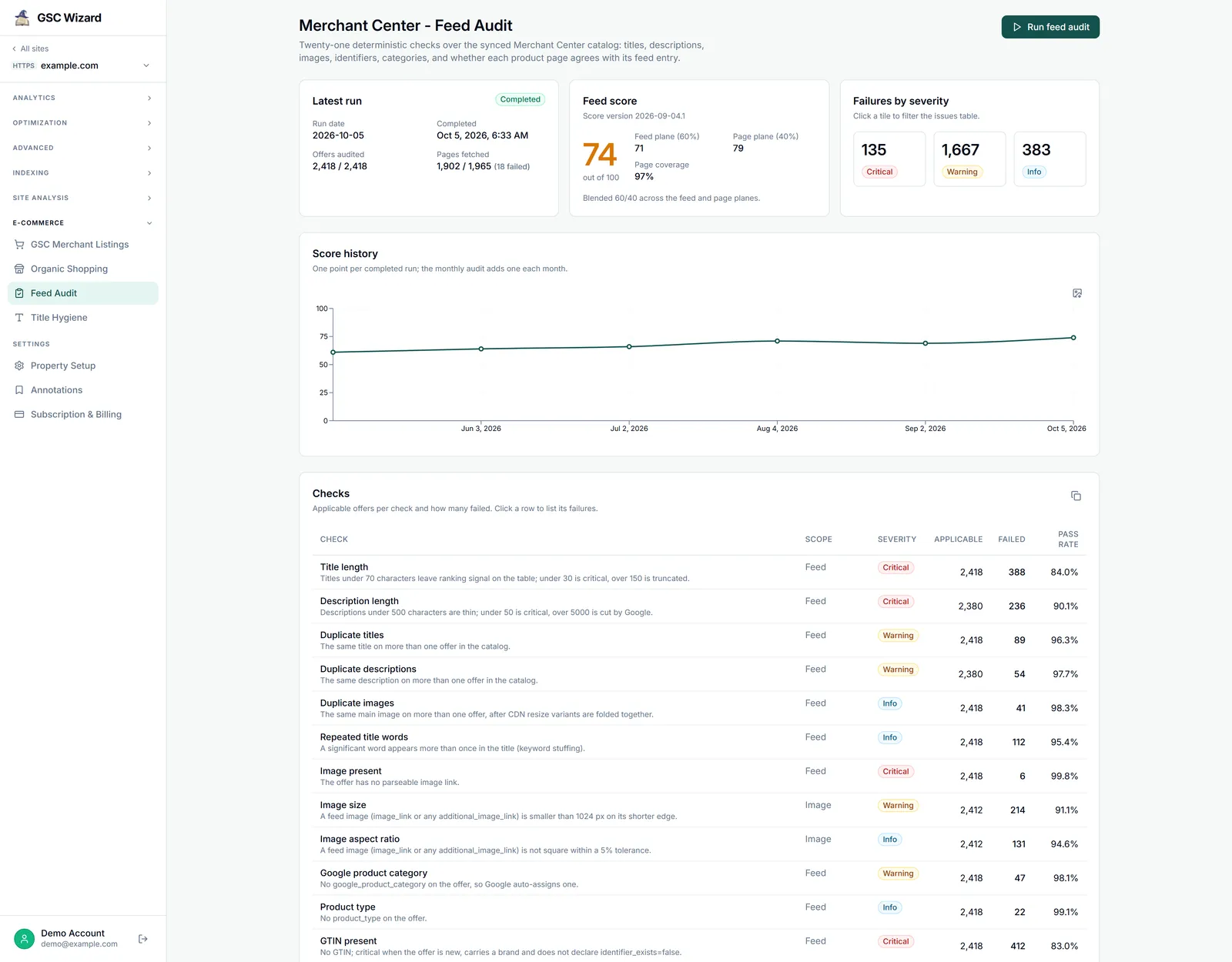
The audit reruns on its own once a month, on one day in the first week that GSC Wizard picks for each site, so there is usually a recent result to read:
Get the latest feed audit for example.com. Give me the Feed Score, how
it moved over the last runs, and the five checks with the most failures,
critical ones first. For each, say what it means for free listings.
If you just fixed something and want to see it counted, ask the assistant to queue a new audit with run_feed_audit. You get one audit per site per day and up to three a day across your properties; if the last one finished less than 28 days ago, tell the assistant to force it. Queuing never starts a second audit while one is still running, and the tool needs a connection with write access, since it is the only one that starts anything. The feed checks finish within minutes, but the page crawl runs at a polite pace, so on a large catalog ask for the result again later rather than waiting in the same conversation. The MCP returns scores and counts per check; the list of failing products behind each check is in the Feed Audit report in the app.
Step 4: Check the titles
Titles are the strongest signal you control in a product feed, and the problems are rarely visible one product at a time. get_gmc_title_hygiene looks across the catalog at once. It reads the live product list, 2,000 offers by default and up to 5,000, so on a bigger catalog ask for the maximum and treat the result as a sample. The Title Hygiene report in the app covers the full synced catalog.
Check title hygiene for example.com, using the maximum sample. How
many titles are too short or too long, which titles are shared by more than one offer, and which
offers repeat a word? Suggest one title template per product type that
fixes the most common problem.
Duplicate titles usually come from variants: ten colours of one jacket with the same title. Adding the colour and size to the title fixes both the duplicate and the missing detail shoppers filter on.
Step 5: Look at the market
The last three tools read Google's market data for your shop rather than your own catalog. They are the most interesting to explore and the easiest to over-read, so ask narrow questions: one country and one category at a time.
Competitors. get_gmc_competitors shows relative visibility: how often a competitor appears compared with you. It is a ratio, so 3.4 means they show up 3.4 times as often, not 3.4%. It needs a country and a Google product category, by the category's numeric ID from Google's product taxonomy (166 is Apparel & Accessories), so give both in the prompt. Google only produces this report for merchants above its own traffic thresholds; if yours is not one, the tool says the report is unavailable rather than returning an empty list.
Who are example.com's biggest competitors in free listings in the
United States, in Google product category 166 (Apparel & Accessories),
over the last 28 days? How often does each show up compared with us,
and how often do they rank above us on the same result page?
Prices. get_gmc_pricing_insights puts Google's benchmark price beside yours and adds Google's suggested price with the predicted change in clicks. Treat the prediction as Google's estimate, not a promise, and check your margin before you act on it. Both halves have conditions: benchmarks only exist for products with a valid GTIN that other merchants also sell, and suggestions need purchase conversions reported to Merchant Center. If an account meets neither, the answer is empty, which means a missing prerequisite rather than a perfectly priced catalog.
Which example.com products are priced more than 10% above the market
benchmark? For the ten with the largest predicted click gain at Google's
suggested price, show the current price, the suggested price and the
predicted change.
Demand. get_gmc_best_sellers lists Google's best sellers for a country and category and flags the ones you don't stock. That is demand you are not competing for at all, which no amount of feed work will reach. Two caveats: Google publishes these reports with up to two weeks of lag, and the "not in stock" flag looks at your whole account rather than the country you asked about.
Which of Google's weekly best sellers in the United States, in
category 166 (Apparel & Accessories), does example.com not stock?
Which ones are climbing in rank, and how high is their demand?
Two prompts to put on a schedule
Once you have done the first pass by hand, two of these questions are worth asking on a fixed rhythm. Claude, ChatGPT and most agent tools can run a saved prompt on a schedule; the prompts below work as written in any of them.
1. Monday morning feed triage
When: every Monday at 8:00 · Tools: get_product_listing_status
Product problems appear all week, as prices change and Google re-crawls pages, so a weekly sweep catches them before they cost a month of clicks. This one turns the sweep into tickets before anyone starts work.
Every Monday at 8:00, check example.com for products that are
disapproved or limited in free listings and need a fix from us. Page
through all of them. Group them by issue, highest click potential first,
and draft one ticket per issue with the affected product IDs and the
fix. Leave out anything that is only waiting on Google. If nothing new
needs a fix since last week, reply with one line saying so.
2. Month-over-month shop report
When: the 8th of each month · Tools: get_feed_audit_results, get_organic_shopping_performance
The monthly view answers the question every shop owner eventually asks: is the feed work paying off? It needs a fresh audit and a complete month of clicks. The monthly audits run in the first week, on a different day for each site, so the 8th is the first day you can count on both.
On the 8th of every month, for example.com, compare the latest feed
audit with the one before it, and last month's free listing clicks and
conversions with the month before. Say what improved, what got worse,
and which single fix to do next, with the number of offers it affects.
State the dates each number covers.
Rules that keep the answers honest
- Name the site in every prompt. Each tool works per site, and an assistant that has to guess the shop will eventually guess wrong.
- Compare trends across sources, never totals. Free listings and Search Console merchant listings count different places.
- Make it page to the end. Ask for all problem products, not the first page of them.
- Ask for units and dates. Predicted changes and competitor rates are fractions from 0 to 1, competitor visibility is a ratio, CTR is a percentage, and every period should be stated.
- Read the market data narrowly. One country and one category at a time, and Google's price predictions as estimates.
- Let it draft, then decide yourself. Apart from queuing an audit, the tools only read, so the assistant can't change your feed, and it shouldn't be the one deciding to cut a price either.
Frequently asked questions
Why don't Merchant Center clicks match the merchant listings in Search Console?
They count different surfaces. Search Console merchant listings cover enriched product results in web Search only. Merchant Center free listings also cover the Shopping tab, Images, Lens, YouTube and Maps, so their clicks are usually higher. Compare the two trends, never the totals.
Can the Merchant Center MCP change my products or my feed?
No. Google offers no read-only Merchant Center permission, so its consent screen asks to manage your product listings, but GSC Wizard only reads your reports and catalog. The one tool that writes anything, run_feed_audit, queues an audit inside GSC Wizard and changes nothing in Merchant Center; it needs a connection with write access, so a read-only connection can still use the other nine.
Do I need a Merchant Center account for every tool?
No. get_merchant_listings_performance reads Search Console, so it works for any property with product results in Search. list_gmc_accounts only needs Merchant Center connected to your GSC Wizard account. The other eight need a Merchant Center account linked to the site; without one they return a short notConfigured note instead of an error. On a property someone shared with you, the owner also has to switch on Merchant Center access for your invite.
Why does my assistant say a price change adds 0.12% clicks?
Because it misread a fraction. The pricing and competitor tools pass on Google's rates as fractions from 0 to 1, so a predicted clicks change of 0.12 means +12%, while CTR in the performance tools is already a percentage from 0 to 100. Competitor visibility is a third kind of number: a ratio, where 3.4 means a competitor shows up 3.4 times as often as you. Ask the assistant to state the unit with every figure.
How often can I run a feed audit?
The audit reruns on its own once a month, on one day in the first week that GSC Wizard picks for each site. You can ask for one sooner: one audit per site per day, up to three a day across all your properties, and if the last audit finished less than 28 days ago the assistant has to force it. Queuing never starts a second audit while one is still running. The feed checks finish within minutes; the page crawl runs at a polite pace, so a large catalog can take hours.
Next playbook
Your product pages also rank in ordinary web results, and the same title work pays off there. Rewrite title tags with Search Console data → shows how to pick the pages and the words.
Ask your Merchant Center data in plain language
Free listings, product issues, the feed audit and market insights, next to your Search Console data, in Claude, ChatGPT or any MCP client. 7-day free trial, no credit card needed.
Written by Jan-Willem Bobbink · Published October 16, 2026