Connecting Merchant Center
The screens, in order. Merchant Center takes two steps: grant access once per Google account, then pick the Merchant Center account once per property.
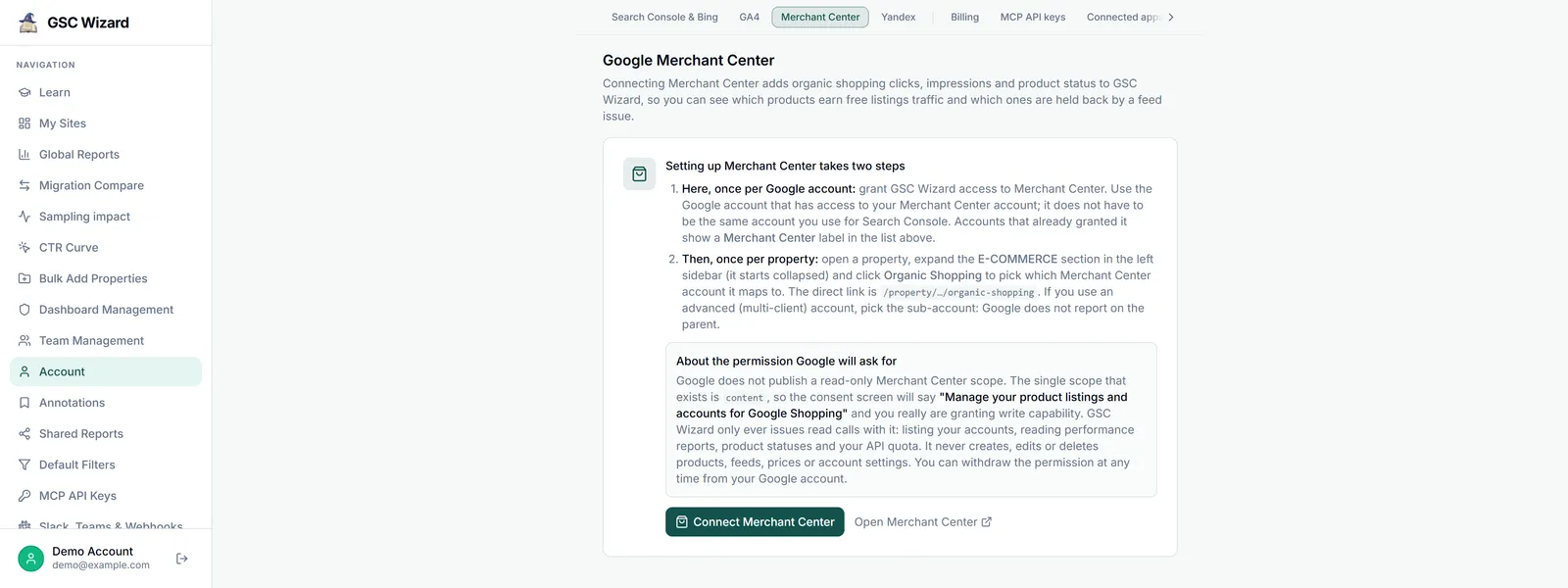
Each Search Console property in GSC Wizard points at one Merchant Center account. Granting GSC Wizard access to Merchant Center happens once per Google account, from Account settings or from inside a property. Choosing which Merchant Center account belongs to a property happens on that property’s Organic Shopping page, under E-COMMERCE in the left sidebar.
Before you start, you need an active subscription or a running trial, the property connected through Search Console as a property you own, and a Google account with access to the Merchant Center account. There is no plan tier or admin gate.
Approve with the Google account behind the property’s Search Console connection if you can. Any Google login with Merchant Center access works for the live reports, but the nightly sync, Feed Audit runs and Merchant Center alerts read Merchant Center only through that one account. With another login, the reports show Merchant Center is on a different Google account and Feed Audit runs are refused.
Open the Merchant Center section in Account settings
Open Account from the left sidebar, or click your profile at the bottom of it. Click Merchant Center in the jump bar at the top of the page, or go straight to /account#merchant-center. The Google Merchant Center section explains the two steps. Click Connect Merchant Center.
- Here, once per Google account: grant GSC Wizard access to Merchant Center.
- Then, once per property: pick the Merchant Center account it maps to.
You can also start from the property. Open it, expand E-COMMERCE in the left sidebar and click Organic Shopping: without access, the page shows Connect Google Merchant Center. Its Connect Merchant Center button skips the explainer in step 2, goes straight to Google, and brings you back to this property’s Organic Shopping page.
Grant access to Google Merchant Center to see how your products perform in free listings. GSC Wizard only reads your data; it never changes a listing or an account.
Connect Merchant CenterRead the explainer, then continue
The Connect Google Merchant Center page explains the one permission Google will ask for. Google publishes no read-only Merchant Center scope, so its consent screen will read “Manage your product listings and accounts for Google Shopping”. GSC Wizard only issues read calls with it: it lists your Merchant Center accounts and reads organic shopping performance, product status and diagnostics, and your Merchant API quota. It never creates, edits or deletes products, feeds, prices, promotions, or account settings. Click Connect Merchant Center to continue, or Not now, back to the dashboard to stop here.
- The Merchant Center accounts your Google account can see
- Organic shopping performance
- Product status and diagnostics
- Your Merchant API quota
Choose the Google account and tick the Merchant Center box
Google shows its account chooser, then its consent screen. Pick the Google account that can see your Merchant Center account, and make sure the Merchant Center permission is ticked before you click Continue. Permissions that login already granted, such as Search Console or GA4, are kept.
Finish the Google screens within an hour. The connect link expires after that, and you have to start again.
Land back in GSC Wizard
Where you land depends on where you started. From a property, you go back to its Organic Shopping page. From Account settings, you go to the Organic Shopping page of your only property without a Merchant Center account yet. If you have none, or several, you land on Account settings with this banner:
From now on, the Google account shows a Merchant Center label in the list of linked Google accounts.
Open the property’s Organic Shopping report
Open the property, expand E-COMMERCE in the left sidebar (it starts collapsed), and click Organic Shopping. The direct address is /property/<your-site>/organic-shopping. On a phone, open the menu with the ☰ button at the top left first.
- GSC Merchant Listings
- Organic Shopping
- Feed Audit
- Title Hygiene
Pick the Merchant Center account and save
Choose a Merchant Center account appears. The dropdown lists every Merchant Center account your connected Google logins can see, grouped under each login’s email address, with the account name and its numeric id below it. Type in Filter accounts... to match on name, id or email. Select the account and click Save.
Couple a Merchant Center account to example.com to see organic shopping performance here. Advanced (multi-client) accounts are parents and cannot be reported on, so pick one of their sub-accounts.
- Example Group 111222333 · advanced account, pick a sub-account below
- Example Shop EU 123456789
- Example Shop US 987654321
Account on a different Google login? Connect another account
Which number is mine? Your Merchant Center id is shown at the top right in Merchant Center. Pasting it into the filter box is the fastest way to find the account in a long list.
Only the property owner can link, change or disconnect the Merchant Center account. If the account sits on another Google login, use Connect another account under the picker and approve with that login.
If no account is listed: register GSC Wizard with Merchant Center
Google refuses every Merchant API call from a Google Cloud project that your Merchant Center account has not registered as an API developer. When that happens, the picker says No Merchant Center accounts found for your connected Google accounts. and shows One more step in Merchant Center instead.
No Merchant Center accounts found for your connected Google accounts.
- Enter your numeric Merchant Center id (top right in Merchant Center) and click Register project. GSC Wizard registers itself using your own Google logins that have Merchant Center access.
- Google accepts this only from an admin of that Merchant Center account. Managing shops through an advanced (multi-client) account? Enter the advanced account’s id: Google refuses to register a sub-account through a parent login.
- Registration can take a few minutes to apply. Then click Check again to list the accounts afresh.
- Once registered, other users of that Merchant Center account do not need to repeat it. An admin can also register the project in Merchant Center itself, under Settings, then Apps and services.
Check that it took
The page reloads into the report. The header names the linked account (Merchant Center account followed by its name and id), with change and disconnect beside it, and four tabs appear: Performance, Competitors, Pricing and Demand. Feed Audit and Title Hygiene now work for this property too.
What happens next
Saving the link starts a history sync. You do not have to wait for it: the reports read live from Merchant Center until it is done.
- GSC Wizard queues 180 days of performance history up to yesterday, 28 days of competitive visibility, and snapshots of product status, product links and prices.
- Until the warehouse holds the property’s data, every report reads live from the Merchant API, and the Organic Shopping timeline shows Source: merchant-api. Once synced, it shows Source: clickhouse.
- The sync works through its queue every 5 minutes. After that, a nightly run re-fetches the last four days and refreshes the snapshots, as long as the property owner has an active subscription or trial.
- Feed Audit does not run on its own straight away: start the first run on the Feed Audit page. A scheduled audit then repeats monthly.
Troubleshooting
What you see, why it happens, and what to do.
- “Merchant Center access was not granted, because its checkbox was left unticked”: Google’s screen was approved without the Merchant Center permission, so nothing was saved. Click Connect Merchant Center again and tick the box before you click Continue.
- The connect link expired, or failed a security check: more than an hour passed on Google’s screens, the browser dropped the cookie, or two connect rounds ran at once. Close any other tab where you started a connect, then start again and finish without pausing.
- Access was cancelled, came back incomplete, or your session ended: try again. If your GSC Wizard session ended, sign in first.
- “Search Console reconnected, but Merchant Center access was not granted again”: a Search Console reconnect asks again for the permissions that login held, and the Merchant Center box was left unticked. Connect Merchant Center again from Account settings.
- “No Merchant Center accounts found” with “One more step in Merchant Center”: Merchant Center has not registered GSC Wizard as an API developer yet. Follow the registration step above.
- Registration says none of your connected Google accounts is an admin: connect Merchant Center with an admin’s Google login, or ask an admin to register the project in Merchant Center under Settings, then Apps and services.
- “No Merchant Center accounts found” with an amber message naming a login: that login’s connection expired (reconnect Merchant Center from Account settings), Google refused to list its accounts (it may have no Merchant Center access; reconnect with one that does), Merchant Center is rate limiting the account, or the listing failed. For the last two, try again shortly.
- “Only advanced (multi-client) accounts were found” in the dropdown, or entries greyed out as “advanced account, pick a sub-account below”: Google does not report on advanced (multi-client) parents. Pick a sub-account, or ask for access to one in Merchant Center.
- Save says the account “is not available on your connected Google accounts”: none of your logins can see that id. Connect the Google login that can, then save again.
- Save says “Invalid site URL”: the property is not one you own in GSC Wizard (for example, it was shared with you), or it is not connected through Search Console. The owner links the account.
- “Merchant Center sync is paused”: Merchant Center no longer lets the property’s Google account read the linked account. Stored data stays, but nothing new arrives. Add that Google account again under People and access in Merchant Center, then reconnect Merchant Center from Account settings, or use Link a different account. The sync also retries on its own, first after 15 minutes and then less often.
- “Merchant Center is on a different Google account”: Merchant Center is connected on another login than the property’s Search Console account. The reports show live data, but the warehouse stays empty and Feed Audit runs are refused. Connect Merchant Center with the Google account that owns the property in Search Console.
- “Merchant Center’s daily API quota for this account is used up” or “Merchant Center is rate limiting this account”: the quota belongs to your Merchant Center account. The daily quota resets at midnight Pacific time, and the message says roughly when. For the rate limit, try again shortly.
- On a shared property, Organic Shopping, Feed Audit and Title Hygiene are missing: the owner has not switched on Merchant Center for your invite. Ask them to turn it on in Team Management, next to the GA4 toggle.
Changing or disconnecting later
Both controls sit in the Organic Shopping header, next to the account name. Only the property owner can use them.
- change reopens the picker. Choose another account and click Save. Switching to a different merchant clears the old merchant’s stored data and syncs the new one from the start.
- disconnect unlinks the account straight away, without a confirmation step. It pauses the sync and deletes the property’s stored Merchant Center data and its Feed Audit runs and score history. Nothing in Merchant Center itself is touched, and linking again queues the full history again.
- To withdraw the permission altogether, remove GSC Wizard at myaccount.google.com/permissions, or unlink the Google account in Account settings.
Part of Google Merchant Center. Related: Organic Shopping, Feed Audit, Connecting a GA4 property.