Coming to the monday.com apps marketplace

SEO reporting in monday.com, from your own Search Console data

Your content plan lives on a monday.com board. The numbers that say whether a page works live in Google Search Console. GSC Wizard SEO Performance puts clicks, impressions, CTR and average position next to every item, with the change against the previous period.

The app is free and read-only. It reads data through a GSC Wizard account.
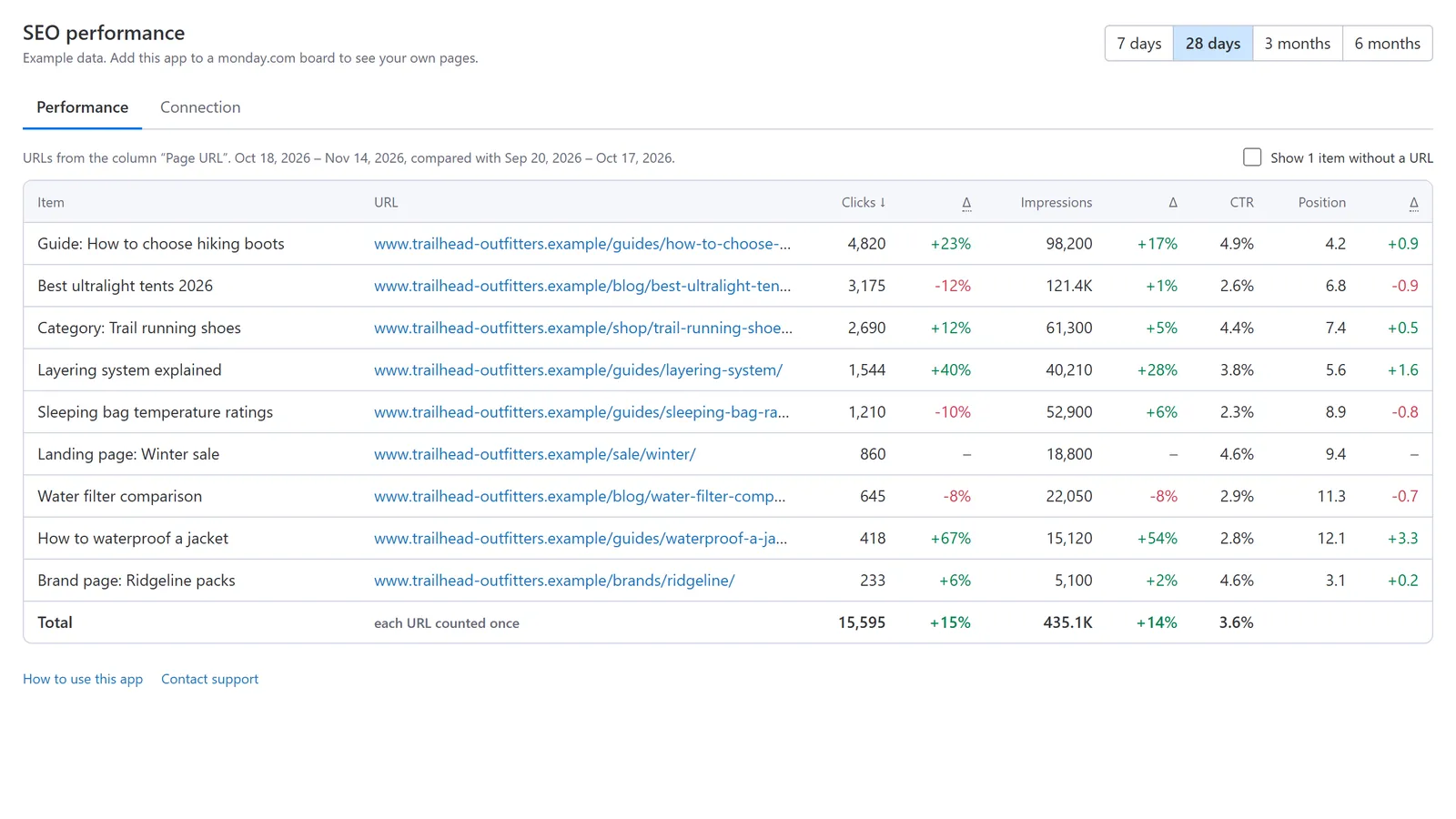
The SEO performance board view on monday.com: content items with their page URL, clicks, impressions, CTR and average position, each with the change against the previous 28 days
The board view on a content board: every item with its page’s Search Console numbers for the last 28 days (example data).
Why on the board

SEO results where the content work is planned

Most SEO reporting in monday.com is a monthly CSV someone pastes into an update. I built this app so the board itself answers which pages gained or lost search traffic.

Numbers per item, not per site

Each item gets the Search Console numbers of its own page URL. A content calendar becomes a performance review without exporting anything.

Change, not just totals

Every number comes with its change against the period before, so the article that dropped 30% stands out before anyone asks for a report.

Your board’s filters apply

Filter the board by owner, status or group and the view follows, so the numbers always match the slice of work you are looking at.

What you get

Two views, both read-only

The app never changes your boards, your items or your Search Console settings.

SEO performance board view

  • Clicks, impressions, CTR and average position for every item’s page URL.
  • The last 7 days, 28 days, 3 months or 6 months, each against the period before.
  • Sort by any column; click an item to open it.
  • A total row that counts each URL once, even when two items share a page.
  • Up to 2,000 items, read in pages and loaded in batches with a progress bar.
The board view listing items with clicks, impressions, CTR and position and their change

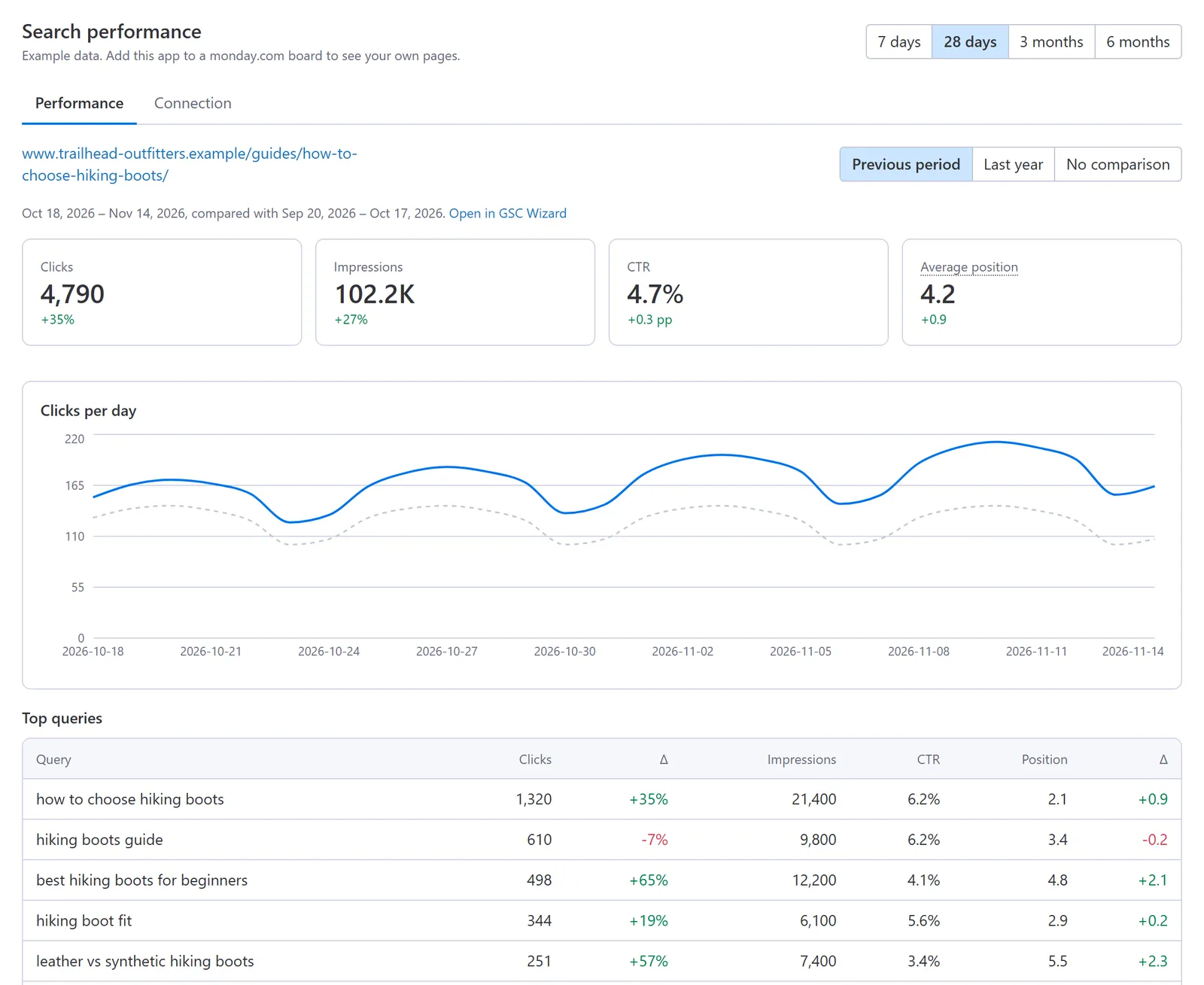
Search performance item view

  • One page’s clicks, impressions, CTR and position with their change.
  • Daily clicks against the previous period or the same period last year.
  • The ten queries that bring the page the most clicks, each with its change.
  • A link to open the page in GSC Wizard for the full picture.
The item view with metric tiles, a daily clicks chart against the previous period and the top queries
How teams use it

Search data for the decisions made on the board

Content refresh queue

Sort the published-articles board by click change and the pages that need an update come to the top.

Launch follow-up

Open a new landing page’s item a few weeks after launch and see whether impressions are building and which queries it picked up.

Agency client boards

Share only the client’s Search Console property with the account, so the board shows that client’s pages and nothing else.

Weekly content stand-up

Filter to the team’s own group, switch to 7 days, and the meeting starts from what changed in search.

How it is set up

An admin connects it once for the whole account; after that anyone adds the views.

1

Create an API key

In GSC Wizard, open Account, then API keys, and create one. A read-only key is enough.

2

Connect it in monday.com

Add the board view, open the Connection tab, paste the key, and choose which Search Console properties the account may see.

3

Pick the URL column

In the view settings, choose the Link or Text column with each page’s URL. The first Link column is used if you skip this.

Every step, setting and error message is in the monday.com setup guide.

Data and permissions

What moves between monday.com and GSC Wizard

From your board

The page URLs in the column you chose, read through monday.com as the person looking at the view, and sent to GSC Wizard only to look up their numbers. The app asks monday.com for read access to boards and nothing else, and writes nothing back.

Kept by GSC Wizard

No copy of your boards, items or users: only your account ID with a version number of its connection, deleted when you disconnect or uninstall. The API key is encrypted and kept in your monday.com account’s app storage; Search Console answers are cached for up to an hour. Guests see no data unless an admin allows it, and the views run no analytics.

Full detail is in the Privacy Policy. Questions go to support@gscwizard.com.

Frequently asked questions

Can I see Google Search Console data in monday.com?

Yes, with the GSC Wizard SEO Performance app. Put each page’s URL in a Link or Text column, add the SEO performance board view, and every item shows its Search Console clicks, impressions, CTR and average position for the period you pick, with the change against the period before. The app is on its way to the monday.com apps marketplace; the setup guide gets the install link as soon as it is approved.

Does the app import Search Console rows into my board?

No. It writes nothing to your boards. It reads the page URLs your items already hold and shows their numbers in its own views, so the board stays the plan and the view shows how each planned page is doing. If you want raw Search Console rows as new items, a data import tool is the better fit.

What does it cost?

The monday.com app is free. It reads data through a GSC Wizard account, which has a 7-day free trial and plans from €17 per month. One GSC Wizard account can serve a whole monday.com account.

Who in my monday.com account can see the search data?

Members and viewers of the account, for the Search Console properties the admin chose to share. Guests see a message instead of numbers unless the admin allows them. Each view reads board items as the person looking at it, so nobody sees an item the board would not show them.

Where is the API key stored?

Encrypted on GSC Wizard’s server and kept in your monday.com account’s app storage. The browser only ever holds the encrypted copy and nobody on a board can read the key back. Changing the shared properties or replacing the key makes older copies stop working, and uninstalling the app removes the connection.

Why do some items show no search data?

Search Console records every URL exactly, so https and http, www and no www, and a trailing slash or none are different pages. When an item shows no data, the URL in the column usually differs from the one Google indexed. The other common cause is a property that is not connected in GSC Wizard or not shared with the monday.com account.

Other places your Search Console data can land

Put Search Console data on the board your team already uses

Start a GSC Wizard trial and connect your properties today, so your boards show their numbers the day the app goes live on the marketplace.

Search Console tips in your inbox

Practical GSC and GA4 workflows, product updates and SEO experiments. No spam, unsubscribe anytime.