Asana
See how the page a task is about performs in Google Search. The GSC Wizard app for Asana puts clicks, impressions, click rate and average position from Search Console on the task, compared with the 28 days before, so a content update, a technical fix or a launch can be judged on real numbers.
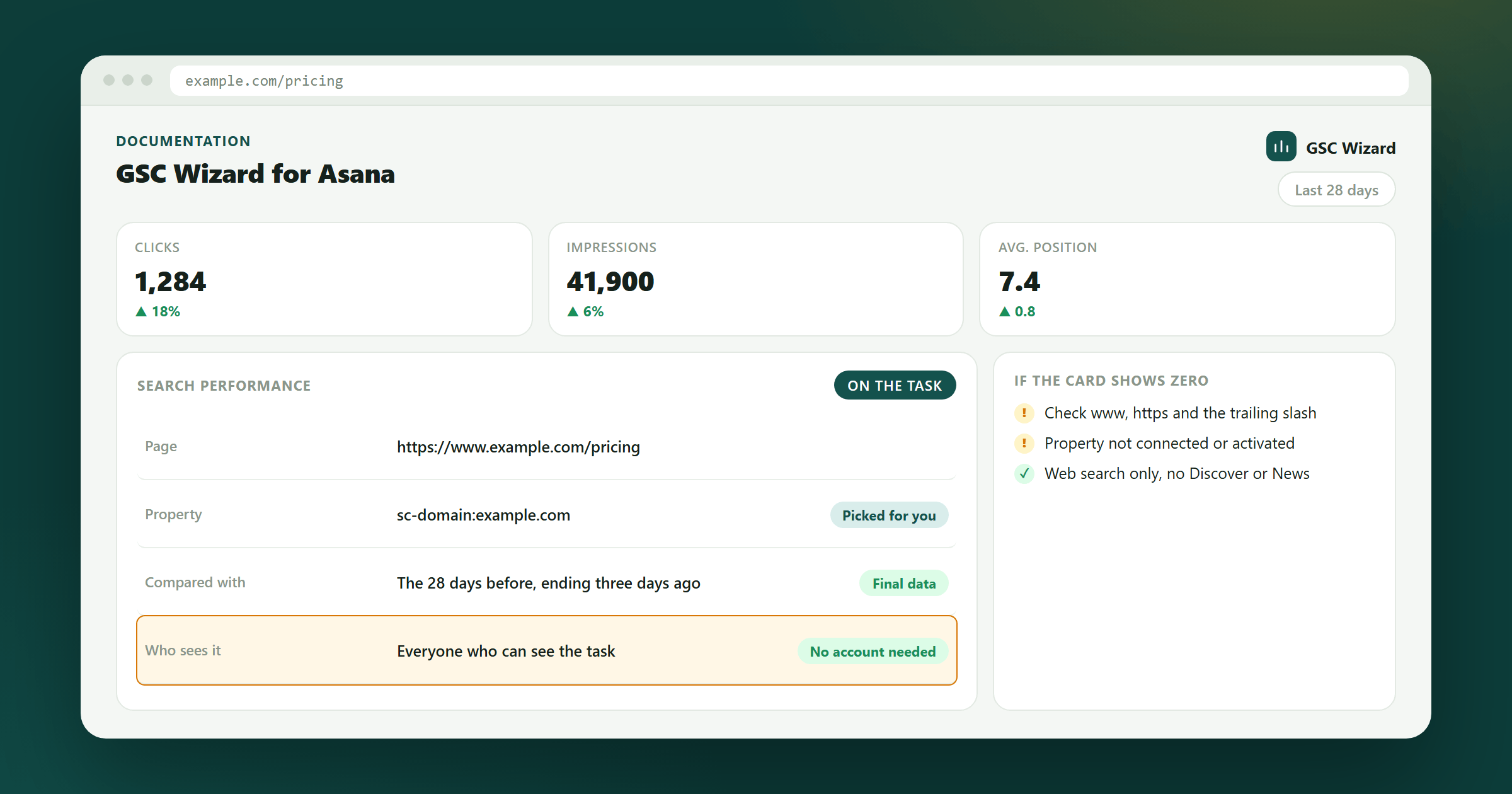
You add a page to a task once, with a lookup. Everyone who can see the task then sees the card, with or without a GSC Wizard account. Add GSC Wizard from a project’s Customize menu.
What the app adds to Asana
Two pieces, both read-only. The app never changes anything in Asana or in Search Console.
Search performance card
A card on the task for one page of your Search Console properties: clicks (with the change from the period before), impressions, click rate, average position and the search that brought the page the most clicks. The numbers refresh each time the task opens. Selecting the card opens the page in GSC Wizard, on the property dashboard filtered to that page.
Lookup
On a task, choose Search performance and paste a page address. The suggestion names the Search Console property the numbers come from, and selecting it adds the card. Remove the card from the task whenever you like.
Before you start
- A GSC Wizard account with a 7-day free trial or a paid plan. The card reads its data through that account, so it stops showing numbers when the trial or plan ends.
- The Search Console properties you want to use, connected and activated on the GSC Wizard dashboard. See Connecting Search Console and Dashboard Management.
- Nothing else: no Asana admin rights are needed.
Connecting your account
Each person who wants to add pages connects their own GSC Wizard account once.
- Open a project, choose Customize, then Add app, and pick GSC Wizard.
- A window opens. Allow access on Asana’s screen. GSC Wizard asks only for your Asana identity, not your tasks or projects.
- If you are not signed in to GSC Wizard, choose Sign in to GSC Wizard. A new tab opens, and the window moves on by itself once you are signed in.
- Check the GSC Wizard account the window shows and choose Connect. The window closes and Asana shows the app as connected.
Teammates who only want to look at the cards do not need to do any of this. A teammate who wants to add pages connects their own account the same way, or opens https://tool.gscwizard.com/api/asana/oauth/start in the browser.
Adding a page to a task
- On a task in that project, choose Search performance.
- Paste a full page address, for example
https://www.example.com/pricing. - The suggestion names the Search Console property the numbers come from. Select it.
- The card appears on the task. GSC Wizard reads the numbers once when you add the page, so a property you cannot read, or a Google connection that needs renewing, is reported right then and not later.
How to read the numbers
Periods
The card shows the last 28 days against the 28 days before. Search Console data settles two to three days behind today, so the period ends three days ago and only final data is shown.
Which property
A page is read from the longest URL-prefix property it starts with, such as https://www.example.com/blog/. When no URL-prefix property covers it, the Domain property for its host is used instead. The suggestion in the lookup tells you which one was picked.
Exact URLs
Search Console records every URL exactly. https://example.com/page, https://www.example.com/page and https://example.com/page/ are three different pages, and only the one Google indexed has data.
Web search only
The numbers cover Google web search. Discover, News and image search are not included.
Who sees what
The card
Everyone who can see the task sees the card, whether or not they have a GSC Wizard account. Asana’s own task permissions decide who that is.
Whose access
The numbers are read with the access of the person who added the page. If that person loses their trial or plan, loses access to the property or disconnects the app, the card stops showing numbers.
Sharing a property
Adding a page to a task shows that page’s numbers to everyone who can open the task. Add pages from client or private properties only to tasks whose audience may see them.
Permissions and data
The app asks Asana for the OpenID Connect scopes and nothing else.
openid and profile
Tell GSC Wizard which Asana user is connecting. There are no Asana API scopes, so the app cannot read your tasks, projects or comments.
No Asana tokens
The Asana tokens are dropped after the sign-in and the app never calls the Asana API. GSC Wizard keeps only your Asana user ID, linked to your GSC Wizard account.
What is stored
For each page you add: the page address, its Search Console property, and the IDs of the Asana workspace and task. Search Console numbers are read live and cached for up to an hour.
Disconnect
Under Account → Asana, Disconnect Asana removes the link and every page you added. Cards that were already on tasks then say the page is no longer linked. Deleting your GSC Wizard account removes it too.
Every request from Asana is signed and checked before anything is read. See the privacy policy for how GSC Wizard handles this data.
Troubleshooting
“Connect your GSC Wizard account first”
You have not connected yet. Follow the steps under Connecting your account, or open the link in the message.
“None of your GSC Wizard properties covers …”
The page’s site is not connected or not activated in GSC Wizard, or your account has no access to it. Connect it and activate it on the dashboard, then try again.
“This page is no longer linked”
The person who added the page disconnected the app or removed the page. Remove the card from the task and add the page again.
“No active trial or subscription”
The trial or plan of the account behind the card has ended. Renew it under Settings → Subscription, or add the page again from an account that has one.
The card shows zero clicks and impressions
Search Console usually records the page under a slightly different address: www or no www, http or https, a trailing slash or none. Check the exact address in the Pages report and add that one.
Still stuck? Email support@gscwizard.com.