Jira & Rovo
See how the pages behind your Jira issues perform in Google Search. The GSC Wizard app for Jira shows clicks, impressions, CTR and average position from Search Console, compared with the previous period, in an issue panel, a dashboard gadget and a Rovo agent.
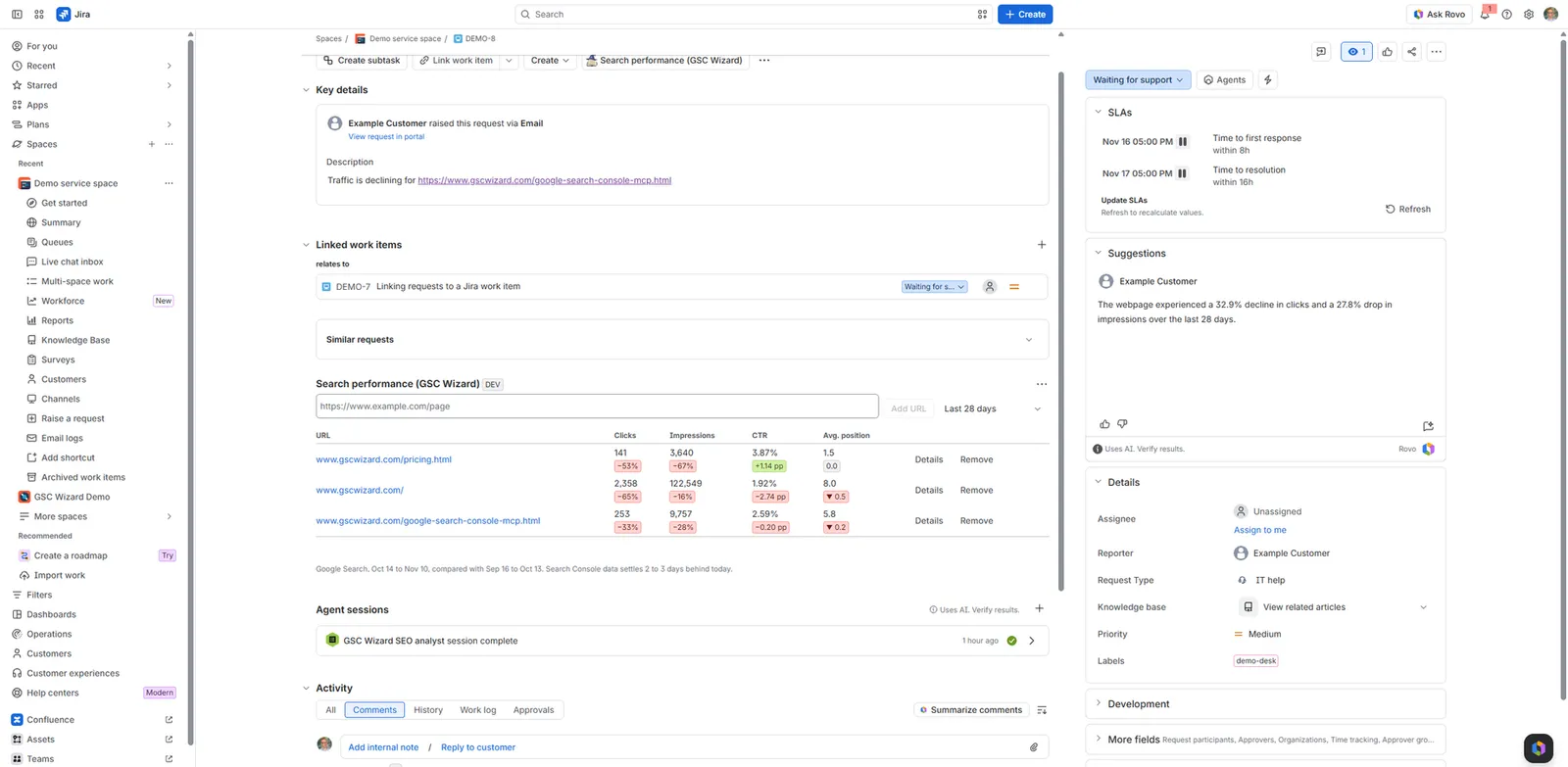
A Jira administrator connects the app once, with a read-only GSC Wizard API key, and chooses which Search Console properties people in that Jira site may read. Everyone else just opens an issue.
What the app adds to Jira
Four pieces, all read-only. The app never changes anything in GSC Wizard or in Search Console.
Issue panel
Add the URLs an issue is about, or let the panel pick them up from the issue summary and description, and see each URL’s clicks, impressions, CTR and average position for the last 7 days, 28 days, 3 months or 6 months next to the change from the period before. Details opens the daily clicks and impressions and the ten queries that bring the most clicks, against the previous period or the same period last year.
Dashboard gadget
The same table for a fixed list of up to 25 URLs, on any Jira dashboard: launch pages, top landing pages, the pages a team owns.
Rovo agent
The GSC Wizard SEO analyst agent answers questions such as “how are the URLs in this issue doing in Google Search?” with the real numbers. It can also look up URLs you paste into the chat.
Admin page
Connect or disconnect the GSC Wizard account, see which account and plan it is, and limit Jira to the properties you select.
Before you start
- A GSC Wizard account with an active plan or trial. The app reads its data through that account, so it stops working when the plan ends.
- The Search Console properties you want in Jira, connected and activated on the GSC Wizard dashboard. Properties that are not activated cannot be read through the API; see Dashboard Management.
- Jira Cloud, and a Jira administrator to install and configure the app.
Installing and connecting
- Install GSC Wizard: Search Console Data for Jira from the Atlassian Marketplace (in Jira: Apps → Explore more apps, then search for GSC Wizard).
- In GSC Wizard, open Account → API keys and create a key with Read only access. Copy it: it is shown once.
- In Jira, open Apps → Manage apps, find GSC Wizard and choose Configure.
- Paste the key and choose Connect. The app checks the key with GSC Wizard first, then stores it encrypted in Forge secret storage, so it never reaches a browser again.
- Under Which properties can Jira users read?, keep All active properties or choose Only the properties I select and pick them. Save.
Every person signed in to the Jira site can look up URLs on the properties you allow, whether or not they can see a particular issue. If the connected account holds client or private properties, select only the ones that belong in this Jira site. Anonymous visitors of public Jira projects never see data: the app refuses them.
Using the issue panel
On an issue, open the Apps menu (or the panel button under the summary) and add Search performance (GSC Wizard). The panel then stays on that issue.
- Paste one or more full URLs into the field and choose Add URL. Separate several with spaces, commas or new lines. An issue tracks up to 25.
- If the summary or description already mentions pages on an allowed property, they appear under Found in this issue; Track all adds them in one go.
- Pick Last 7 days, Last 28 days, Last 3 months or Last 6 months. The choice is saved on the issue with the URL list.
- Choose Details on a row for the totals, the daily charts and the top queries. Details has its own period and comparison: vs previous period, vs same period last year (shifted 364 days, so Mondays line up with Mondays) or No comparison. With a comparison, both charts draw it as a second line and every top query shows its change. Open in GSC Wizard opens the full property.
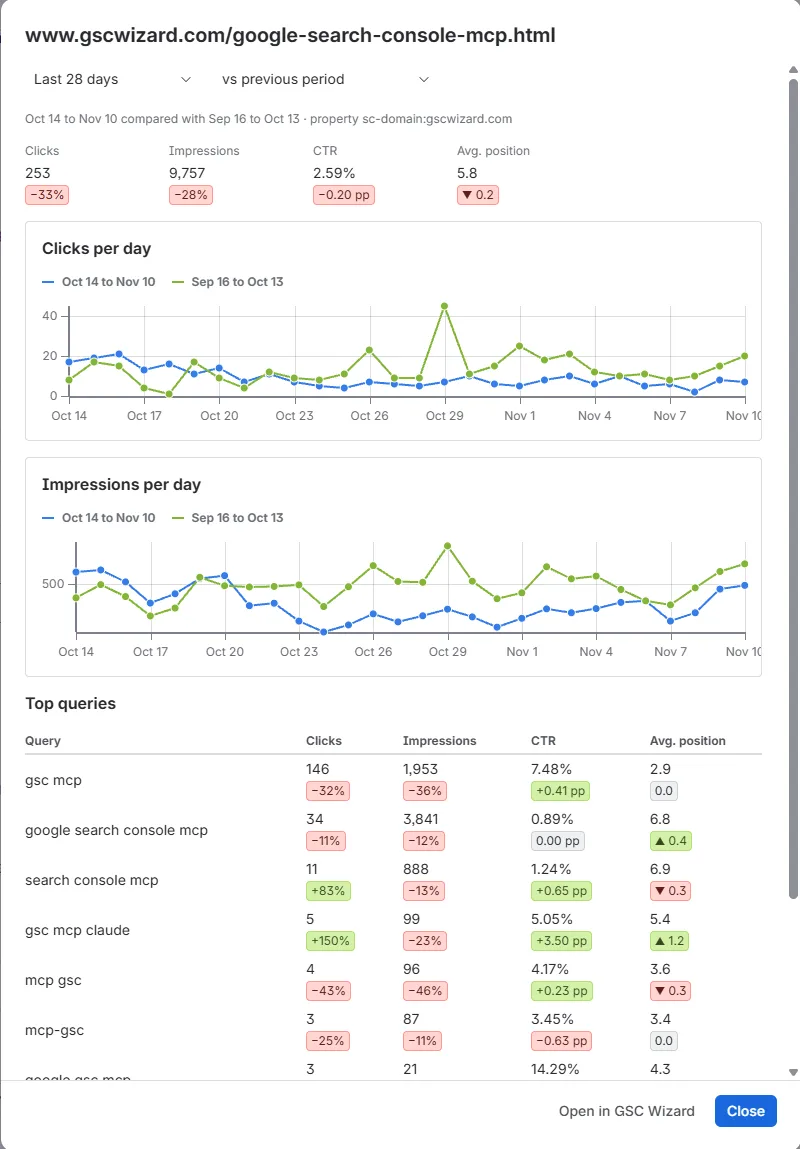
The URL list is saved on the issue itself (an issue property), so Jira’s own permissions apply: anyone who can view the issue sees the list, and only people who can edit the issue can change it.
Adding the dashboard gadget
- On a Jira dashboard, choose Add gadget and search for Search performance for URLs.
- In the gadget’s edit view, enter up to 25 URLs, one per line, pick the period, and save.
Asking Rovo
In Rovo chat, pick the GSC Wizard SEO analyst agent. From an issue it uses that issue’s tracked URLs, or the URLs in its description when none are tracked; anywhere else, paste the URLs into your question.
- “How are the URLs in this issue doing in Google Search?”
- “Did clicks to https://www.example.com/pricing drop compared with last month?”
- “Which search queries bring visitors to this page over the last 3 months?”
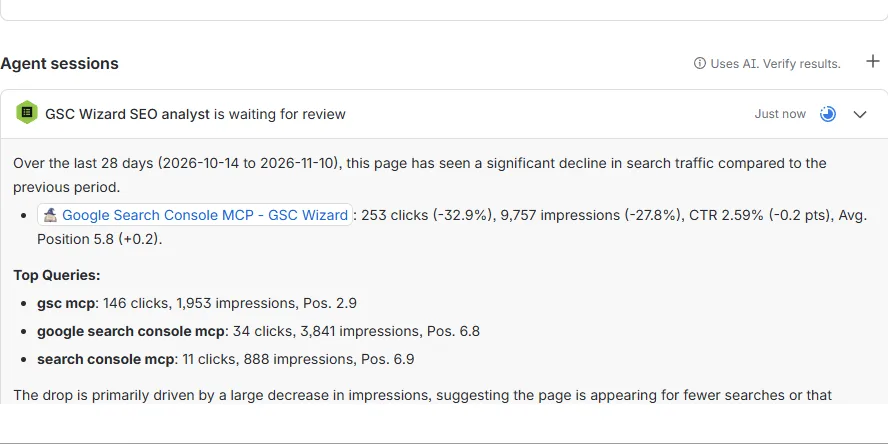
The agent only repeats numbers the app returned, and always says which period they cover. Its action, Get Google Search performance for URLs, can also be added to your own Rovo agents.
How to read the numbers
Periods
Search Console data settles two to three days behind today, so every period ends three days ago. The comparison is the period of the same length directly before it: the last 28 days against the 28 days before.
Changes
Clicks and impressions change in percent. CTR changes in percentage points (pp). Position is an average where lower is better, so ▲ means the page moved up.
Exact URLs
Search Console records every URL exactly. https://example.com/page, https://www.example.com/page and https://example.com/page/ are three different pages, and only the one Google indexed has data. A row marked No data usually has one of those differences.
Which property
A URL is read from a Domain property that covers its host when there is one, otherwise from the longest URL-prefix property it starts with. Web search only; Discover, News and image search are not included.
Permissions and data
The app asks Jira for three permissions and talks to one outside address.
storage:app
Keeps the API key (as an encrypted Forge secret), the property selection, and a cache of answers that expires after an hour (ten minutes for the property list).
read:jira-work
Reads the issue summary and description for URL suggestions and the issue’s tracked-URL list, and checks that the person on the admin page is a Jira administrator.
write:jira-work
Saves the tracked-URL list on the issue. Nothing else is written.
mcp.gscwizard.com
The GSC Wizard REST API. The app sends it the page URLs being looked up and the date range; it returns the metrics. GSC Wizard does not store the arguments of read requests.
The app stores no Atlassian account IDs or other personal data. Calls count toward the connected account’s API rate limit (180 a minute, 2,000 an hour); the cache keeps a busy Jira site well inside it. See the privacy policy for how GSC Wizard handles data.
Troubleshooting
“GSC Wizard is not connected to this Jira site yet”
No key is stored. A Jira administrator connects it under Apps → Manage apps → GSC Wizard → Configure.
“GSC Wizard did not accept the API key”
The key was revoked or deleted. Create a new read-only key, then disconnect and connect again on the admin page.
“The connected GSC Wizard account has no active plan”
The plan or trial behind the key ended. Renew it under Settings → Subscription.
A URL shows No property
No allowed property covers it: the property is not connected or activated in GSC Wizard, or the administrator did not select it for this Jira site.
A URL shows No data
Search Console has no clicks or impressions for that exact URL in either period. Check the protocol, www and trailing slash against the URL in the Pages report.
“You need permission to edit this issue”
Changing the URL list needs the Edit issues permission in that project. Viewing the data does not.
The rate limit was reached
Every Jira user shares the connected account’s limit. Wait a minute; repeated lookups of the same URLs are served from the cache.