monday.com
See how the pages your team plans on monday.com perform in Google Search. GSC Wizard SEO Performance adds Search Console clicks, impressions, CTR and average position to your boards and items, compared with the previous period, so content work can be judged on real numbers without leaving the board.
Install link coming once the app is approved: GSC Wizard SEO Performance is on its way to the monday.com apps marketplace.
A monday.com account admin connects the app once, with a GSC Wizard API key, and chooses which Search Console properties people in the account may see. Everyone else adds the views and reads the numbers. The app is free; it reads data through a GSC Wizard account. Background and examples: SEO reporting in monday.com.
What the app adds to monday.com
Two views, both read-only. The app never changes your boards, your items or your Search Console settings.
SEO performance (board view)
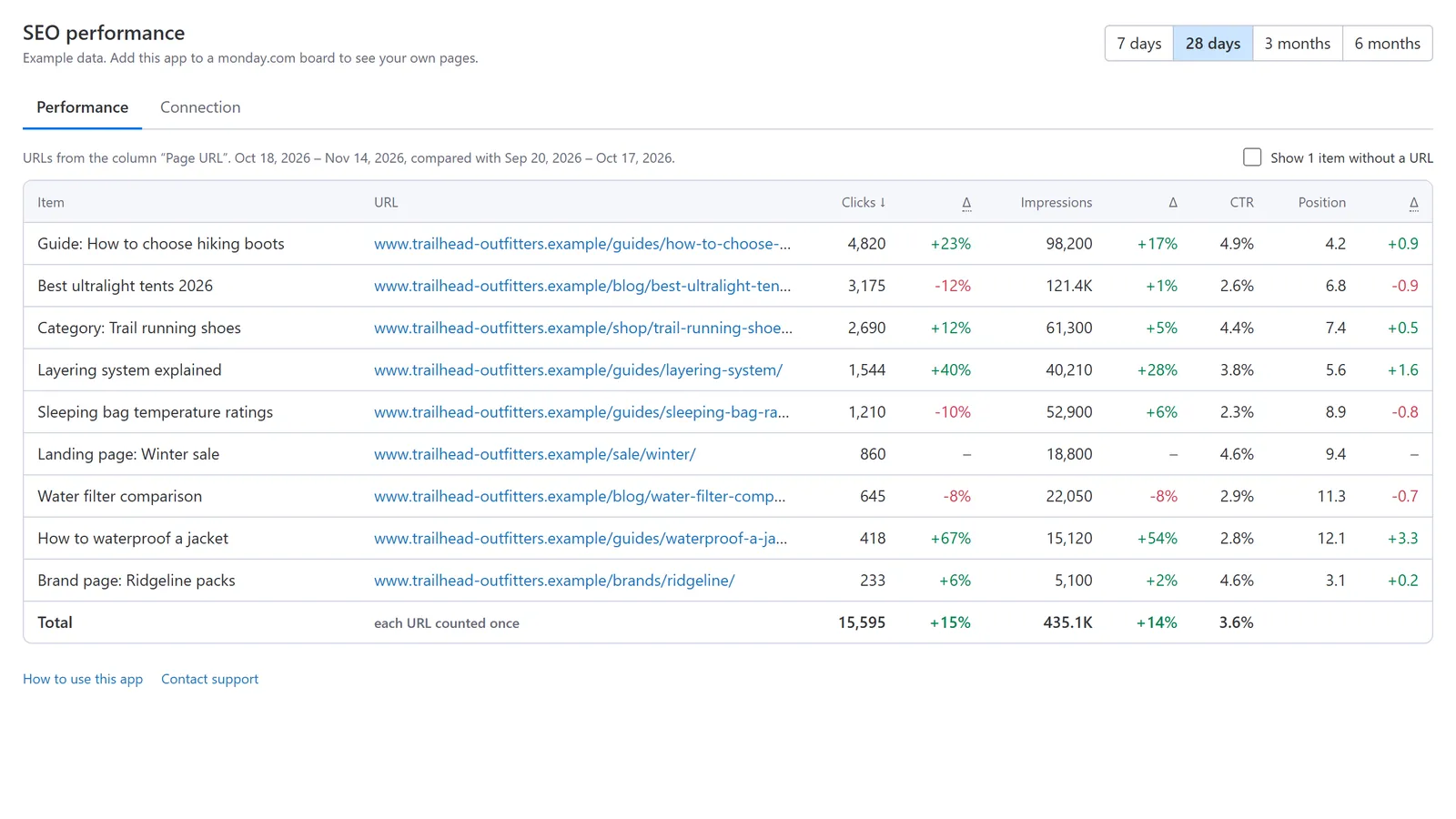
Every item on the board with the Search Console numbers of its page URL for the last 7 days, 28 days, 3 months or 6 months: clicks, impressions, CTR and average position, each with the change from the period before, and a total row that counts each URL once. Sort by any column, click an item to open it, and use the board’s own filters and search bar: the view follows them.
Search performance (item view)
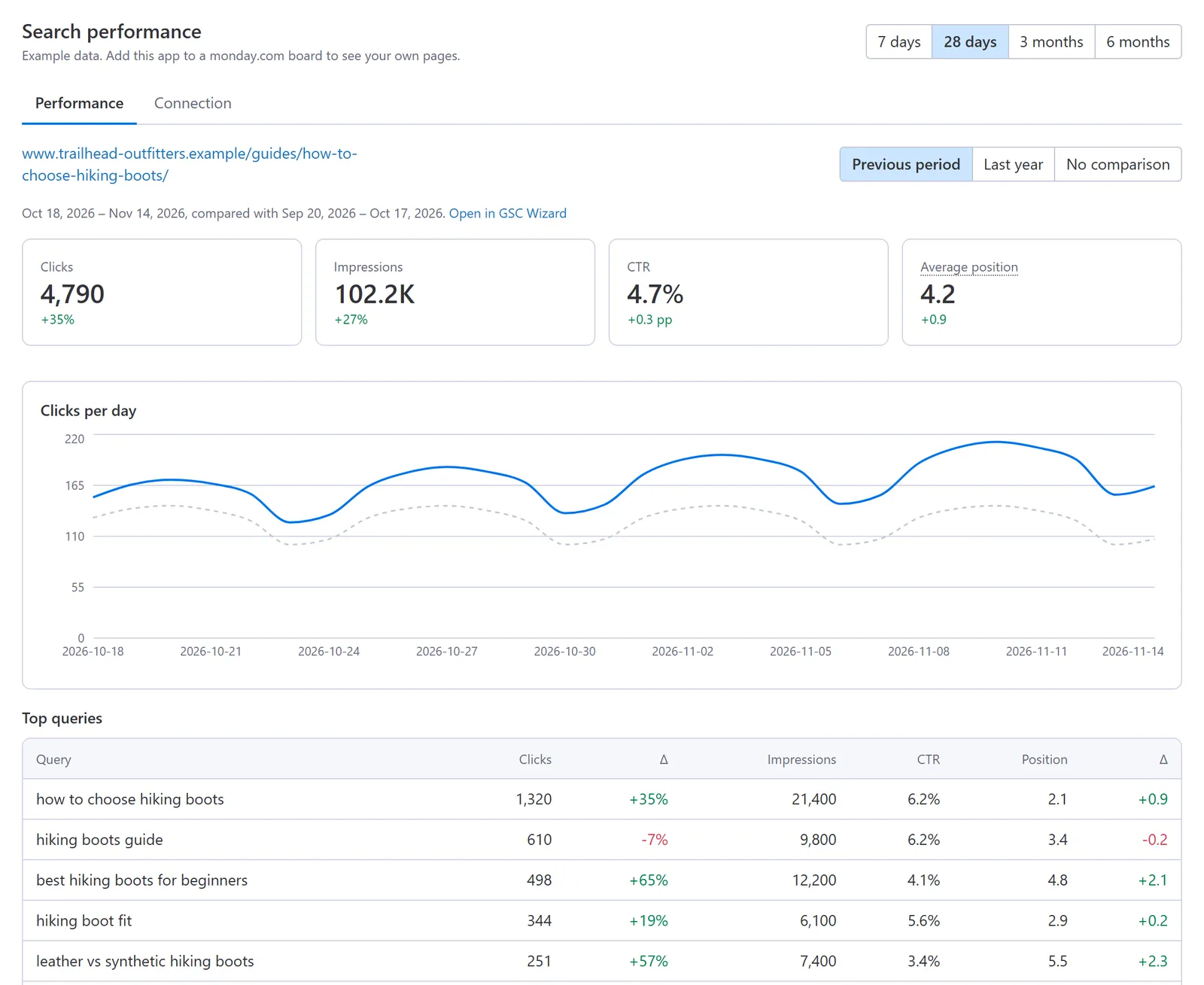
One item’s page in detail: the four totals with their change, daily clicks with the comparison drawn as a second line (the previous period or the same period last year), and the ten queries that bring the page the most clicks, each with its change.
Connection tab
Where an admin connects or replaces the API key, limits the app to selected properties, decides whether guests see search data, and disconnects.
Before you start
- A GSC Wizard account with a 7-day free trial or a paid plan. The app reads its data through that account, so it stops showing numbers when the trial or plan ends.
- A GSC Wizard API key: in GSC Wizard, open Account → API keys and create one. A read-only key is enough.
- The Search Console properties you want on monday.com, connected and activated on the GSC Wizard dashboard. See Connecting Search Console and Dashboard Management.
- A monday.com board where each item has its page URL in a Link, Text or Long text column.
Installing and adding the views
- Install GSC Wizard SEO Performance on your monday.com account.
- On a board, click + next to the board views and choose SEO performance.
- To see one page in detail, open an item, click + next to the item tabs and choose Search performance.
- The first time, each view shows a short welcome page with the steps below. Choose the button at its foot to continue.
Connecting GSC Wizard (account admin, once)
One connection serves every board in the monday.com account.
- Open either view and go to the Connection tab.
- Paste the API key and choose Connect. The app checks the key with GSC Wizard first.
- Under Who can see which properties, keep every property of the connected account or choose Only the properties I select and tick them.
- Leave Let guests see search data off unless people outside your account should see the numbers. Save.
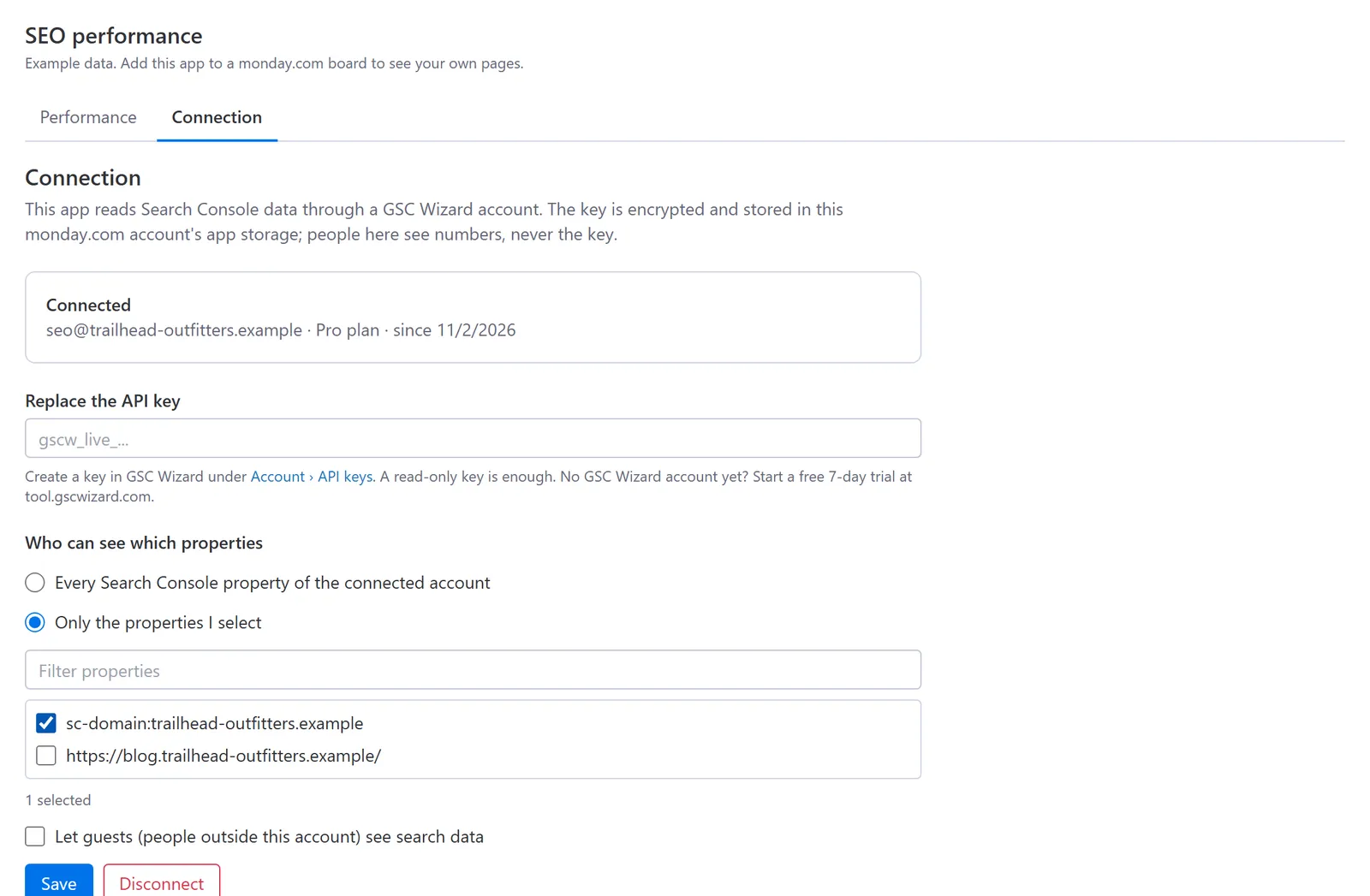
Everyone in the monday.com account can read the numbers of the properties you share, on any board where they add a view. If the connected GSC Wizard account holds client or private properties, select only the ones that belong in this monday.com account.
Choosing the URL column
The board view reads each item’s page URL from one column.
URL column
Open the view’s settings (the gear icon) and pick the column under URL column. Without a choice the first Link column is used, then the first Text column. A Link column’s address is used, not its label; in a text column the first URL in the text counts.
Period
The Period setting chooses the view’s starting period. The buttons above the table change it for you without changing the setting.
Exact URLs
Search Console records every URL exactly. https://example.com/page, https://www.example.com/page and https://example.com/page/ are three different pages, and only the one Google indexed has data. Put the full address in the column as Search Console shows it.
Reading the numbers
Periods
Search Console data settles two to three days behind today, so every period ends three days ago. The comparison is the period of the same length directly before it; in the item view you can switch to the same period last year (shifted 364 days, so Mondays line up with Mondays) or to no comparison.
Changes
Clicks and impressions change in percent, CTR in percentage points. Position is an average where lower is better, so the change shows places gained (+) or lost (−).
Which property
A URL is read from a Domain property that covers its host when there is one, otherwise from the longest URL-prefix property it starts with. Web search only; Discover, News and image search are not included.
Large boards
The view reads up to 2,000 items, in pages of 500, and loads their numbers in batches with a progress bar. Filter the board to narrow a larger one down.
Who sees what
Members and viewers
See the numbers in any view they can open. Only an account admin can change the connection; viewers get a short note saying so.
Guests
See a message instead of numbers, unless an admin allowed guests in the Connection tab.
Board access
The view reads items through monday.com as the person looking at it, so nobody sees an item the board would not show them.
Permissions and data
The app asks monday.com for one permission and talks to GSC Wizard.
boards:read
Reads item names and the Link, Text and Long text columns of the board you are looking at, to find the page URLs. Nothing is written to your boards.
The API key
Encrypted on GSC Wizard’s server and kept in your monday.com account’s app storage. The browser only ever holds the encrypted copy, and nobody on a board can read the key back. Replacing the key or changing the shared properties makes older copies stop working.
tool.gscwizard.com
Receives the page URLs being looked up and the period, and returns the numbers. GSC Wizard keeps no copy of your boards, items or users: only your monday.com account ID with a version number of its connection, deleted when you disconnect or uninstall. Search Console answers are cached for up to an hour.
Disconnect and uninstall
Disconnect in the Connection tab, or uninstall the app: the connection goes with it. Revoking the key in GSC Wizard also stops the app at once.
The views run no analytics and set no cookies. See the privacy policy for how GSC Wizard handles this data.
Troubleshooting
“GSC Wizard is not connected yet”
No connection is stored for this monday.com account. An account admin connects it in the Connection tab.
“GSC Wizard did not accept the API key”
The key was revoked or deleted. Create a new one and paste it in the Connection tab.
“The connected GSC Wizard account has no active plan”
The trial or plan behind the key ended. Its owner renews it under Settings → Subscription.
“No connected Search Console property covers this URL”
The property is not connected or activated in GSC Wizard, or the admin did not share it in the Connection tab.
“No search data for this exact URL”
Search Console has no impressions for that exact address in either period. Check the protocol, www and trailing slash against the Pages report.
“This board has no column for page URLs”
Add a Link or Text column with each page’s URL, then pick it in the view settings.
Guests see a message instead of numbers
Guests are off by default. An admin can allow them in the Connection tab.
The rate limit was reached
Everyone in the account shares the connected key’s API limit. Wait a minute; numbers already loaded come from the cache.
Still stuck? Email support@gscwizard.com.