Build a report in GSC Wizard from your Search Console, GA4 and Bing data, with your own filters, date range and comparison, then share it with a client through a private client portal. For clients who want to look for themselves, give them read-only access to the live dashboards of their own property.
Build your first client reportA report starts as a view you already use in the app, so building one takes three steps and no separate design tool.
Open the report your client cares about, such as queries, pages, countries, ranking changes, a content group, GA4 LLM traffic or Bing queries, and set the filters, the date range and the comparison period you want to show.
The share button on the table saves it as a named report, with up to 1,000 rows, the totals and the change against the comparison period. Then you pick a client from your list or add one with an email address and an optional name.
The client is emailed a link to the portal and signs in with a magic link sent to their address. They see the list of reports you shared with them and nothing else from your account.
A shared report opens in the client portal as an interactive page rather than a static file, so the client can sort and search the table instead of scrolling through a screenshot. It is a saved copy of the rows at the moment you shared it, which keeps the numbers in a monthly report fixed once you have sent it.
The Shared Reports page in your account lists every report with the clients who can open it. From there you can extend a report, revoke it for everyone, remove one client, or resend the sign-in email to a client who lost it.
The portal has no public link. Every viewer signs in with their own email address, so a report forwarded to the wrong person does not open for them, and revoking access stops it at once.
Report clients do not use a seat on your plan. You can keep up to 50 saved reports per account and delete old ones to make room. The sharing documentation covers the details.
Some clients want the monthly numbers and nothing else, while others want to check your work between calls. GSC Wizard has an option for each, and you can use both for the same client.
| Shared report | Read access to a property | |
|---|---|---|
| What the client gets | The tables you chose to share, in the client portal | The full dashboards and reports of the properties you picked |
| Data | A saved copy, fixed at the moment you shared it | Live, read with your Google connection |
| Sign-in | Email and magic link | A GSC Wizard account, with no Search Console access needed |
| Seat | No seat used | One seat per person, however many properties |
| Google Analytics 4 | Any GA4 table you saved | Optional per property, switched on by you |
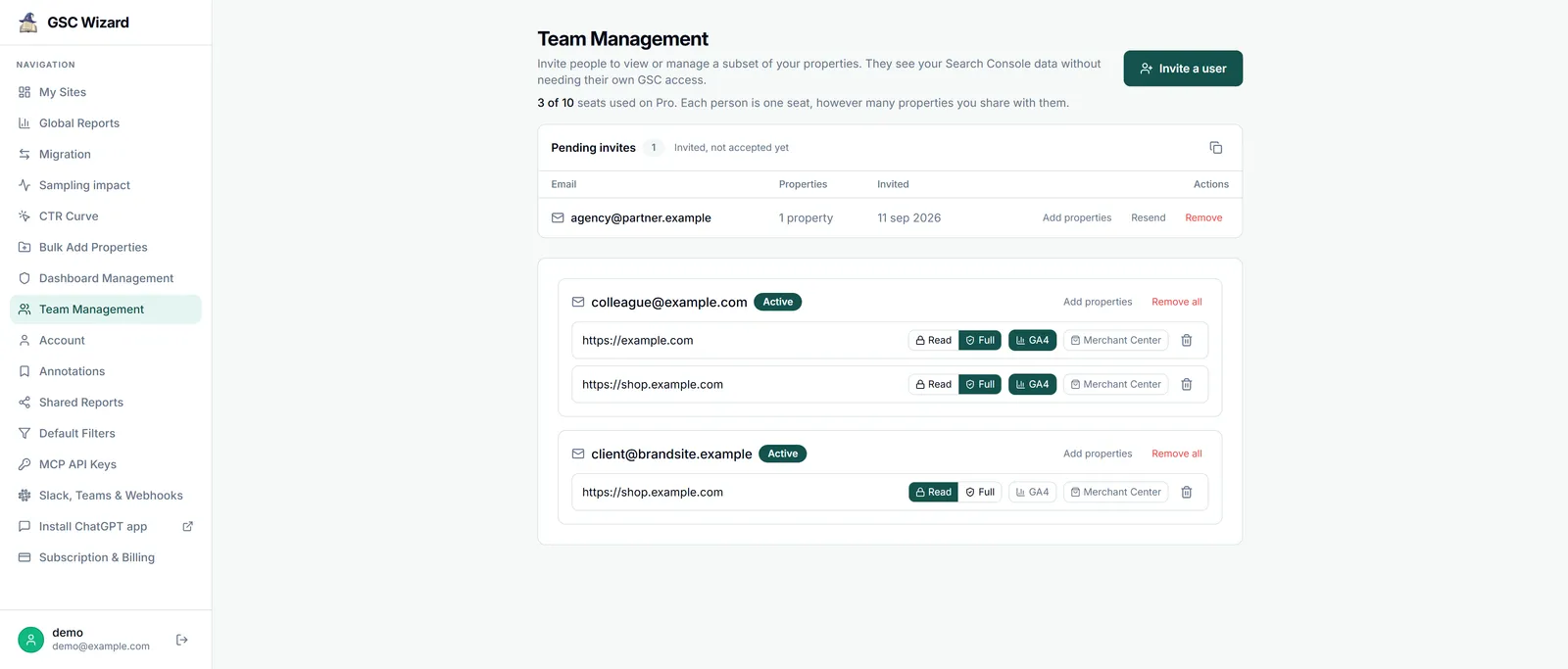
Team Management with per-property Read or Full access, shown with example data. Neither access level can touch your integrations or billing, or invite other people.
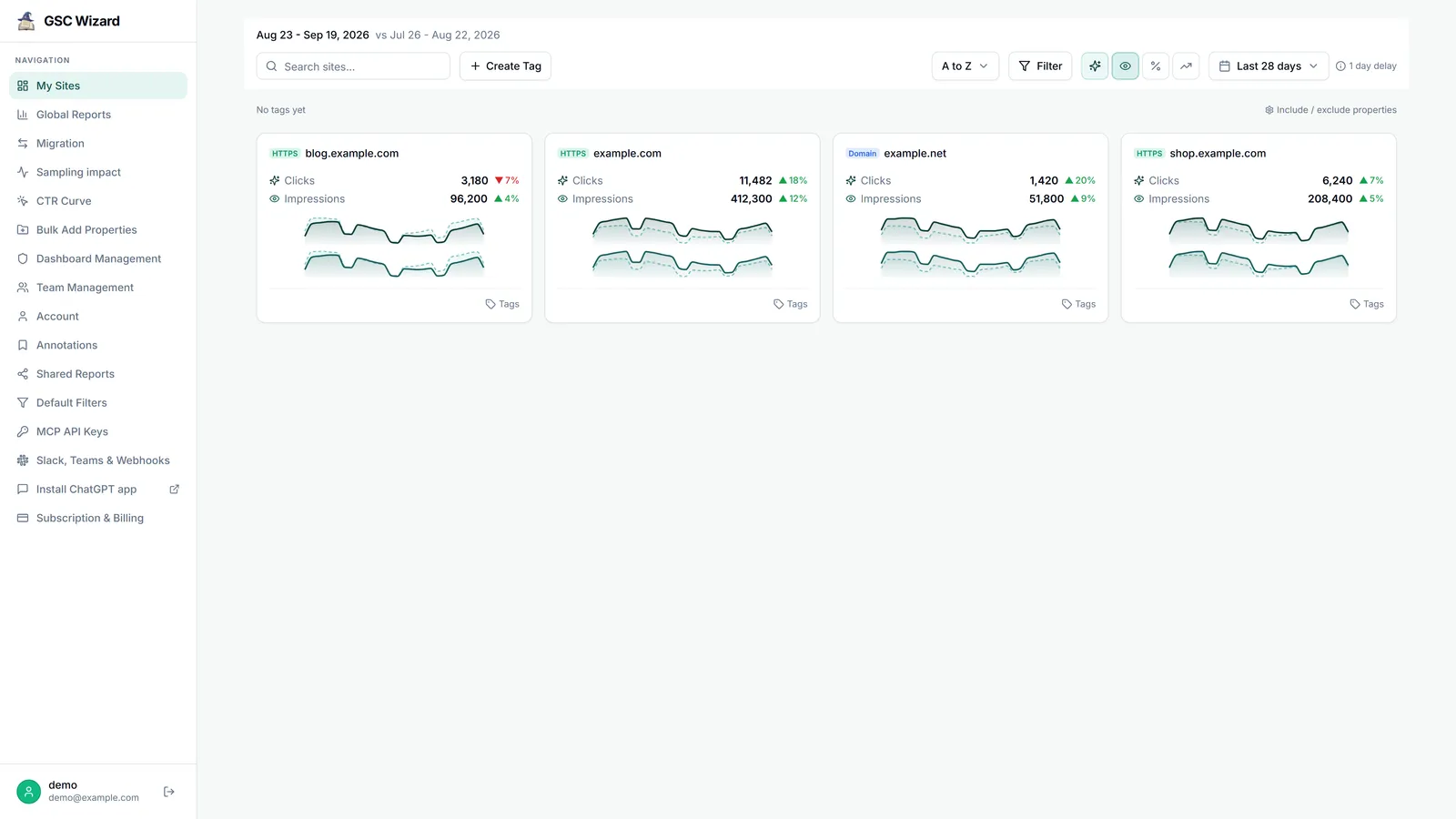
A client report is only as good as the analysis behind it. Every connected property sits on one screen with its clicks, impressions and movement against the previous period, so the weekly check across all your clients takes a minute, and each property opens into the reports you build client tables from.
The client portal is for reports you put together by hand. Two other routes produce a report without that step.
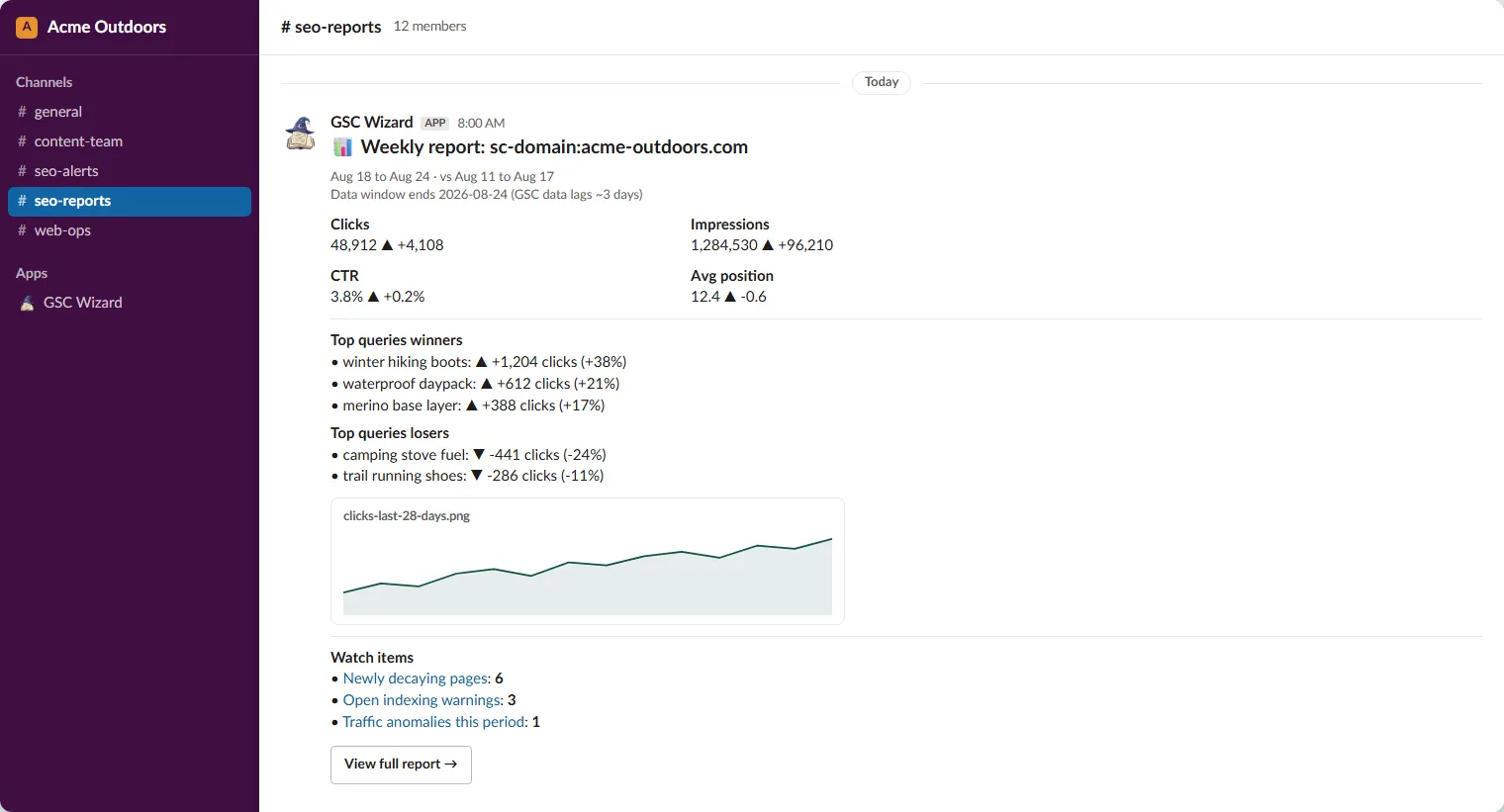
A Slack channel can receive a daily, weekly or monthly report for one property, with the headline metrics, the biggest winners and losers, ranking movers and a short list of things to watch. That suits a shared channel with a client or your own team's Monday check. Microsoft Teams receives traffic alerts rather than scheduled reports.
Through the GSC Wizard MCP server, an AI assistant can run generate_seo_report, which returns a finished HTML report for one property covering the overview, top queries and pages, opportunities, ranking changes, decay, cannibalization and GA4 when it is linked.
The assistant can also deliver a table into the client portal with create_shared_report, create_report_client and manage_report_access, with your own title and columns. When it shares with someone you have never shared with before, GSC Wizard emails you to confirm first, so an assistant cannot send client data to a new address on its own.
The assistant writes the commentary, so read it against the numbers before a client does.
It is better to know this before the trial than after the first client call.
Shared reports open on GSC Wizard's own domain and carry its name, and there is no way to put your agency's logo on them. If every report has to look like your own product, a client reporting platform with white-label branding is the better fit, and my comparison of SEO reporting tools shows how each one prices it.
Tables export as CSV or as a self-contained interactive HTML report, which you can download and attach, and charts export as PNG. A client who expects a PDF in their inbox on the first of the month will not get one from GSC Wizard.
You build a report by setting up a view in the app and saving its table, so you cannot lay out a free-form page with text blocks and widgets. Your own commentary goes in the email or the call that comes with the report.
The data comes from Search Console, GA4, Bing Webmaster Tools and Yandex Webmaster. There are no Meta, LinkedIn or other social sources, and no backlink index, so one report across all of a client's channels needs a second tool.
More on reporting SEO results to clients.
A section-by-section template for AEO and SEO reporting, and what each number can prove.
Read playbookTen SEO reporting tools compared on data source, Search Console depth, white-label delivery and price.
Compare toolsEvery client property on one screen, annotations, and the history that outlasts a retainer.
See the agency setupConnect Search Console, build the report your client needs, and share it through the client portal. 7-day free trial with no credit card, then paid from €17 a month.
Start your 7-day free trialPractical GSC and GA4 workflows, product updates and SEO experiments. No spam, unsubscribe anytime.