Sharing & team access
Share properties with teammates and clients without giving up your Google login, and send saved reports through a client portal.
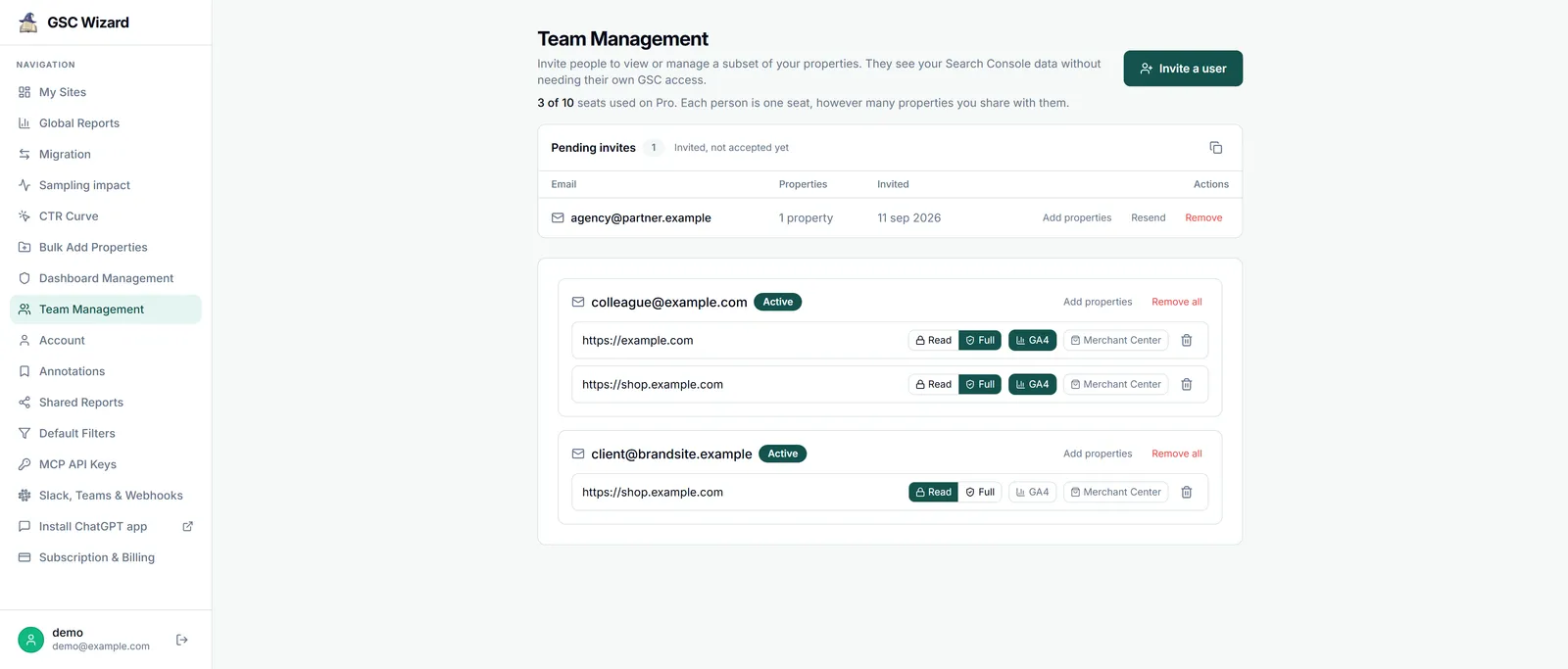
Team management
As a property owner you can share specific properties with someone by email, even if they have no Search Console access of their own.
Inviting a collaborator
On the invite page, enter an email, select properties, and for each pick an access level: Read (view dashboards, reports, and exports) or Full (also create and edit annotations, tags, content groups, topic clusters, saved filters, and experiments). An optional GA4 toggle also shares that property’s Analytics reports, and an optional Merchant Center toggle shares its Merchant Center reports. Yandex reports stay with the owner. One summary invite email is sent.
How grants work
Each shared property is a separate grant, so you decide exactly what each person can see.
- Invitees see your live Search Console (and optionally GA4) data, fetched with your Google token, so they never need their own connection.
- If they already have a GSC Wizard account, the grant activates immediately; otherwise it stays pending until they sign in to accept.
- Neither access level can touch your integrations, billing, or invite others.
- You can change a grant’s level, revoke a single property, or remove a person entirely at any time. Revoking stops access at once.
Issuing invites requires an active subscription. Only the owner of a property can share it.
Shared reports & client portal
Save a report and share it with named clients through a secure portal.
Save & share
The Save & share action on any exportable table stores the report and lets you pick or add clients (email and optional name), who are emailed a link. Clients sign in to the portal with a magic link (valid for three days), see their report list, and open each report, including an embedded, session-protected view.
Shared reports are an authenticated client portal, not an anonymous public URL: every viewer signs in per email, and you can revoke or resend access. This keeps client data private by default.