Site migration in Search Console: change of address, redirects and checking traffic after the move
To migrate a website to a new URL in Search Console, verify both the old and the new site as properties, redirect every old URL to its new equivalent with a permanent 301, submit a sitemap of the new URLs in the new property and, when the domain or subdomain changes, file the move with the Change of Address tool in the old property's Settings. After that the work is watching: indexing and clicks should drain out of the old property and build up in the new one, which Google says takes a few weeks for most pages of a small to medium site and longer for a large one. This playbook covers what to do before, during and after the move, and which parts of it the Change of Address tool does not cover.
Move a site to new URLs and win back its Google traffic, with proof per URL that the redirects work.
A few days of preparation, one launch day, then weekly checks for three to six months.
Owner access to both Search Console properties, access to the server's redirect rules, and a crawler.
Which kind of site move is this?
Google treats a change of domain, a switch to HTTPS and a new URL structure as the same kind of job: a site move with URL changes, where every old URL needs a permanent redirect to its new one. The Change of Address tool is only part of that job, and only for some moves, so it pays to know which row of this table you are in before you plan anything. Everything in it comes from Google's site move guide and its Change of Address help page.
| Move | 301 redirects | Change of Address tool |
|---|---|---|
| New domain (example.com to example.net) | Yes, every old URL | Yes, for every verified variant of the old domain, including www and non-www |
| New subdomain (a.example.com to b.example.com) | Yes | Yes |
| Whole domain into a folder of another domain (example.com to example3.com/new/location/) | Yes | Yes, Google allows this direction |
| HTTP to HTTPS | Yes | No: "Google will figure out your changes for you" |
| www to non-www on the same domain | Yes, or canonical tags | No |
| New paths on the same domain (/blog/ to /articles/) | Yes, plus updated sitemaps | No |
| A subfolder as the source (example.com/petstore/ to anywhere) | Yes | No: path-level properties cannot be moved |
| New host or CDN, same URLs | No, nothing moves | No: Google has a separate guide for moves without URL changes |
Google also asks you to change one thing at a time. If you plan a new domain, a new CMS and a new design, its guide recommends doing them one after the other, and the Change of Address page warns that combining a move with a new URL structure will "probably" cost some traffic while Google relearns the individual pages. Time the move for a quiet period if your traffic is seasonal, because fewer visitors are hit by teething problems and more server capacity is left for Googlebot.
Before the move: what to set up in Search Console
- Verify both properties, every variant. Google's guide says to "verify all variants of both the old and new sites", for example www and non-www, and HTTP and HTTPS if you use HTTPS. A Domain property covers all subdomains and both protocols in one go, and it needs DNS verification. The Change of Address tool adds a stricter rule: you must be an owner of both properties, and you must use the same Google account to manage both. Check too that verification survives the move: an HTML verification file has to be copied to the new site, and a meta tag has to be in the new templates.
- Carry settings over and check a bought domain. If you uploaded a disavow file for the old site, Google recommends uploading it again in the new property. If the new domain was bought second-hand, look for manual actions and for URL removals the previous owner left behind, "especially a site-wide URL removal".
- Build the URL map. Write down where every old URL goes. Google suggests starting from your sitemaps, your server logs or analytics, the Links report in Search Console and your CMS, and reminds you to include images, videos, JavaScript and CSS files, which move like any other URL. Add every page that had clicks in the Performance report, but note that the Search Console interface exports only 1,000 rows per table, so on a larger site you need the API to get them all (see the 1,000 row limit).
- Crawl the old site. A full crawl with a desktop crawler gives you the status code of every old URL before anything changes, the internal links you will need to update, and the list you will test the redirects against on launch day. Google itself points to Screaming Frog for checking that redirects work as expected. Save the list of sites linking to you from the Links report while the old property still has it, so you can ask the most valuable ones to update their links later.
- Export a benchmark. Export clicks, impressions and position per page and per query for at least the last 28 days, and for the same weeks last year if your traffic is seasonal. After the move the old property's numbers fall away, and Search Console keeps only 16 months of data (see data retention), so this export is how you will know in month three whether the new site is back where the old one was.
- Prepare the new pages. Each new URL needs a self-referencing canonical tag, hreflang annotations need the new URLs, internal links should point straight at the new URLs, and a sitemap of the new URLs should be ready to submit. If the new site was hidden with a noindex or a robots.txt block during development, make the list of what to remove on launch day now. Deleted or merged pages that have no replacement should answer 404 or 410.
The move: 301 redirects, Change of Address and sitemaps
Redirect every old URL, one to one, with a 301
Google recommends server-side permanent redirects, HTTP 301 or 308, from each old URL to the new URL in your map. Its redirects documentation explains why the type matters: with a permanent redirect "the indexing pipeline uses the redirect as a signal that the redirect target should be canonical", while with a temporary 302, 303 or 307 it does not, and the old URL can stay in the results. Point each old URL straight at its final destination. Googlebot follows up to 10 hops, but Google advises keeping a chain to "ideally no more than 3 and fewer than 5", and a direct redirect is better still. Do not send many old URLs to one unrelated page such as the new home page, which Google says "might be treated as a soft 404", although several old pages consolidated into one new page can all redirect to it. Google also reassures that 301s and other permanent redirects "don't cause a loss in PageRank".
Test the redirects as soon as they are live. Google suggests the URL Inspection tool for single URLs and command line tools or scripts for many, and names redirects to non-existent URLs on the new site as one of the most common migration mistakes. Then switch on the parts you prepared: remove the development noindex and robots.txt blocks, and check that canonical tags on the new site use the new URLs.
How to use the Change of Address tool
Use it only after the site has moved and the redirects are live; Google's help page says "use this tool after you've moved and redirected your site". The requirements, from that page:
- You are an owner of both the old and the new property, with the same Google account.
- The old property is at the domain level (example.com, m.example.com or http://example.com), not a path such as http://example.com/petstore/.
- A 301 redirects the old home page to the new home page. Google also recommends 301s for the canonical pages of the old site, and the tool checks for 301s on a few pages before it accepts the request.
The steps themselves are short. Open the old property, go to Settings → Change of address, pick the new property under Select new site and click Validate & update. The tool runs its pre-move checks: a failed critical check has to be fixed before you can continue, while a failed non-critical check shows a warning and lets the request through. Once it is accepted, both properties show a notice that the move is in progress for 180 days. Repeat the request for each variant of the old domain you have verified, because the tool moves all protocols of the property you name but none of the subdomains below it, www included.
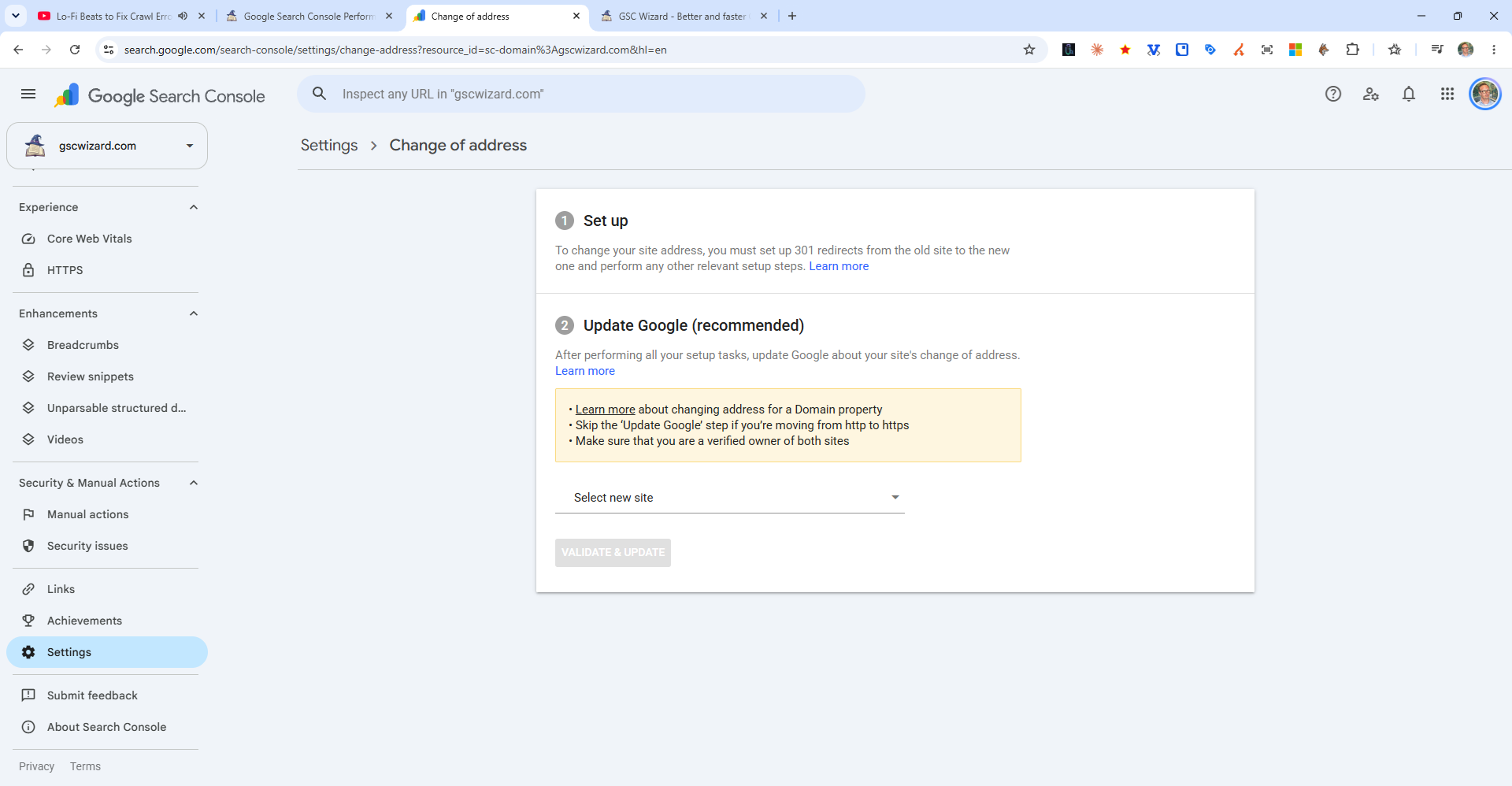
The short version of the same steps is in the FAQ How to use the Change of Address tool.
What the Change of Address tool does, and what it does not cover
According to Google, a change of address tells Google to crawl and index the new site in preference to the old one, forwards signals from the old site to the new one, and makes Google prefer the new site when it picks canonical pages, for 180 days from the request. It does not replace any part of the redirect work, and it has clear limits:
| Not covered | What Google says to do instead |
|---|---|
| HTTP to HTTPS, www to non-www, paths within one site | Redirects (and canonical tags for www), with updated sitemaps. |
| A subfolder as the source | Redirects only: path-level properties cannot be moved. |
| Subdomains below the property, www included | Verify each variant and file a request for each one, "even if you're not actively using these variants". |
| A second move straight after the first (A to B, then B to C) | Do not chain moves: the second request cannot follow immediately. |
| Several sites merged into one (A, B and C into D) | Move one site at a time and wait for traffic to settle before the next. |
| Removing the old site from the index | The tool does not erase it. Redirects and canonical tags reduce the old URLs shown. |
| Anything after 180 days | After that Google "treats the old site as an unrelated site" if it is still crawlable, so the redirects have to keep doing the work. |
If you change your mind, a request can be cancelled within those 180 days: remove the old-to-new redirects, add redirects from the new site back to the old one, and click Cancel Move in the Change of address tool of the old property.
Sitemaps for the old and the new URLs
Submit the sitemap with the new URLs in the new property on launch day. Google's guide also suggests submitting a second sitemap that lists the old URLs, as a gauge: at first the new sitemap has no indexed pages and the old one has many, and over time the old count drops to zero while the new count rises. Search Console will warn that the URLs in the old sitemap redirect, and Google says "this is normal and you can ignore these warnings". That is the one exception to the usual rule that a sitemap lists only final URLs (see Page with redirect), and it is temporary: once the old sitemap's indexed count is near zero, remove it and keep only the new one.
Keep the redirects in place for a long time. The site move guide says "generally at least 1 year" so that every signal can transfer, and suggests keeping them indefinitely for users; the Change of Address page sets a minimum of 180 days, longer if the old URLs still get traffic from Google Search, and recommends paying for the old domain for at least a year so nobody else can buy it and misuse it.
After the move: what to check in Search Console, week by week
Google's monitoring advice comes down to one pattern: "Ideally the traffic on the old site will go down, while on the new site the traffic goes up." The schedule below is how I spread those checks over the first months. The timings are my working practice, not Google's; Google only says that a small to medium-sized site "can take a few weeks for most pages to move" and that larger sites take longer, depending on the number of URLs and the server speed.
| When | Where in Search Console | What you want to see |
|---|---|---|
| Launch day | URL Inspection (live test) on the old home page and your top old URLs; Sitemaps in the new property; Change of address in the old one | Old URLs redirect in one hop to the mapped page, the new sitemap is accepted, the move request passes its checks. |
| Week 1 | Performance in both properties; Page indexing in the new property; Crawl stats | First impressions and clicks on new URLs, no spike in Not found (404) or Redirect error, Googlebot crawling more than usual without server errors. |
| Weeks 2 to 4 | Sitemaps (both); Page indexing (both) | Indexed count of the new sitemap rising and of the old one falling; Page with redirect growing in the old property. |
| Months 2 and 3 | Performance against your benchmark export | Clicks per day on the new property approaching what the old one had; old URLs fading from the results. |
| Month 6 | Performance in the old property | Little or no traffic left on old URLs as the 180 days of the change of address run out. |
| Month 12 | None: a decision | Redirects still live; keep them as long as old URLs get visits or links. |
Indexing of old against new. The Page indexing report (Google's guide still calls it Index Coverage) should show the indexed count falling on the old property and rising on the new one. On the old property, the status to expect is Page with redirect, which Google defines as "a non-canonical URL that redirects to another page", adding that such a URL "will not be indexed" while its target "might or might not be indexed". That status is the move working, not a fault. The ones to act on are Redirect error, which Google lists as a chain that was too long, a redirect loop, a redirect URL that exceeded the maximum URL length, or a bad or empty URL in the chain, and an unusual number of Not found (404) URLs on the new site, which usually means redirects pointing at pages that do not exist. For a single URL, the URL Inspection tool shows whether Google has seen the redirect and which canonical it chose; the technical indexing playbook covers the other statuses.
Traffic moving from property to property. Search Console keeps the two properties apart, so the Performance report never shows the move as one line: the old property loses clicks while the new one gains them, and you add the two up yourself, per day, to see whether the total holds. Compare per day rather than per period, because the windows before and after launch rarely have the same length, and leave out the last two or three days, which Search Console is still filling in. If the old property still collects a large share of impressions a month after launch, the redirects are missing or Google has not recrawled those URLs yet; the change of address notice in the new property also says "other sites are moving to this site", and Google explains that its traffic grows as users are redirected from the old one.
Server load. Google warns that after a migration it will crawl the new site "more heavily than usual", because crawls of the old site are redirected on top of the normal crawling. The Crawl stats report under Settings shows that load, and a rise in server errors there means the new host needs more capacity.
How GSC Wizard helps: Migration Compare
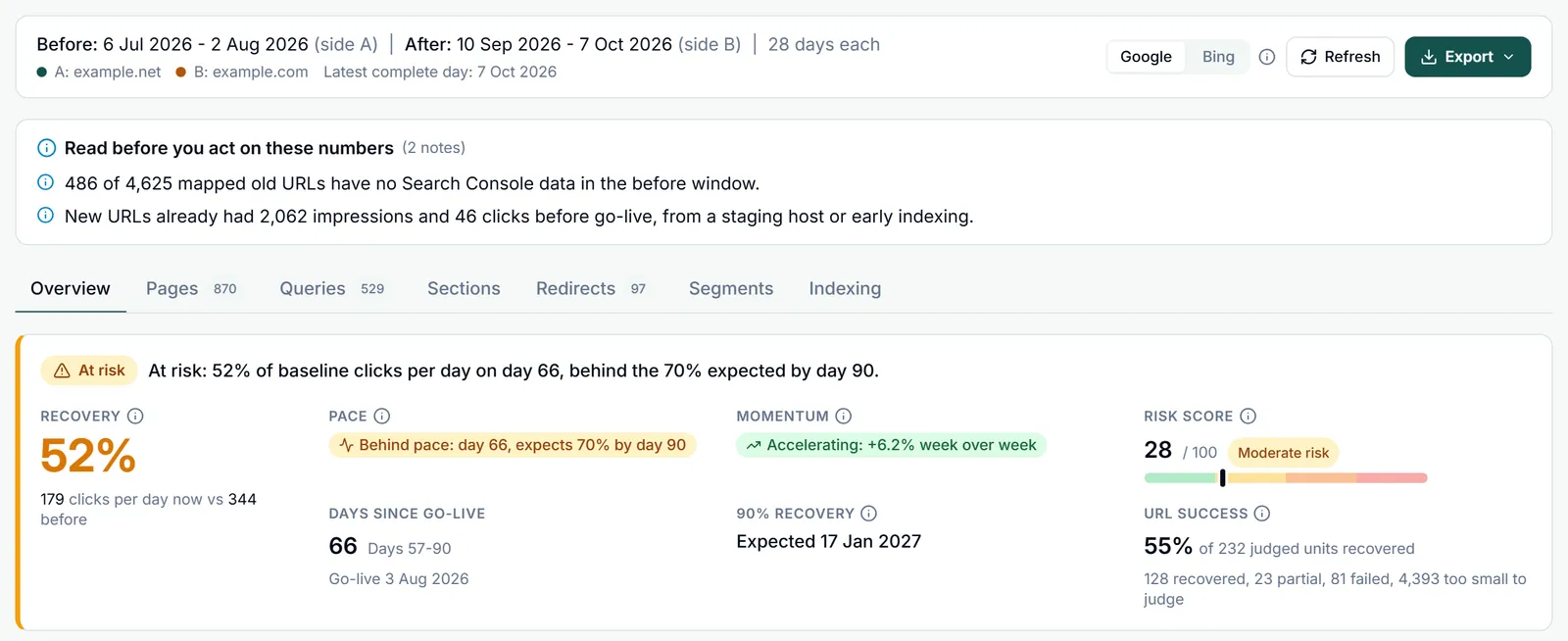
Search Console shows each property on its own, which is exactly what makes a migration hard to judge in it. GSC Wizard's Migration Compare report puts the old setup (side A, before the go-live date) and the new setup (side B, after it) into one analysis. It sits under Site analysis in a property's left menu and in the main menu, and it handles three kinds of move: Property vs property for a domain move or an HTTPS switch between two properties, URL prefixes for a folder move inside one property, and Regex patterns for a new URL structure. Nothing is fetched until you click Run analysis.
- A verdict against a migration on track. With a go-live date, the Migration health banner gives recovery (the new side's clicks per day as a share of the old side's before go-live), pace against the expected stage, momentum, a 0 to 100 risk score and URL success, with a status of Healthy, Recovering, At risk, Critical or Insufficient data. The expected stages are rules of thumb I built into the report, such as 60% of the old clicks by day 56 and 90% by day 180, not a promise for any one site. The health, recovery and risk page explains every number.
- Your URL map, checked on the live server. Upload the old-to-new map as a CSV (up to 10,000 rows per file, up to 50,000 per analysis) and click Verify redirects. GSC Wizard requests each old URL, follows up to five hops, respects robots.txt and gives every mapping one verdict: Migrated, Redirect chain, Temporary redirect, Wrong target, Not redirected, Broken target, Old URL broken, Redirect loop, Kept or Unknown. It also flags redirects to the home page, noindexed targets and canonicals that still point at the old site. See redirect maps and verification.
- Google's view of the move. The Inspect in Google button runs URL Inspection on the top 20 to 200 old and new pairs and places each pair on a handover stage, from Redirect not seen yet to Canonical moved.
- Where the traffic went. Pages, queries, URL sections, countries, devices and search types before and after, plus a launch checklist and up to 12 recommendations ordered by the clicks at stake. When the domain changed and old URLs keep collecting impressions, one of those recommendations is to file the Change of Address in Search Console.
- Alerts after launch. Save the migration and switch on Alerts, and a daily re-check verifies the redirects again and posts to Slack, Microsoft Teams or a webhook when new redirect problems appear, or when recovery stalls or drops. See saving, sharing and alerts.
What it needs, and what it does not do
The health verdict, recovery curve, risk score and recommendations need a go-live date and at least one post-launch day with final data, and recovery needs at least 10 clicks in the before window. Redirect checks only request URLs on the hosts of properties you can access, so add both the old and the new site to GSC Wizard, and allow the GSCWizard-Bot crawler through any firewall or old URLs read as broken. Only the owner of a property can start an Inspect in Google run, which uses the URL Inspection quota of 2,000 calls per property per day. Alerts need a saved migration (up to 50) and go only to the account that saved it, through its Slack, Teams or webhook subscriptions, not by email. In Property vs property mode the same windows can be read from Bing Webmaster Tools, which needs a Bing API key and covers about 16 months for an established property. GSC Wizard does not file the Change of Address for you, it does not set up redirects on your server, and the built-in check follows HTTP redirects only, so a JavaScript or meta refresh redirect reads as Not redirected. It checks the URLs in your map rather than crawling the whole site, so for the full pre-launch crawl a desktop crawler such as Screaming Frog is the better tool, and its export can be imported into the report.
Migration Compare is part of every plan, and every plan starts with a 7-day free trial (see pricing). It also helps with the benchmark problem from the preparation step: a property stored in GSC Wizard keeps up to 10 years of history instead of Search Console's 16 months, so the before window of an old domain is still there long after Google has dropped it.
Ask an AI assistant about the migration
With GSC Wizard connected to Claude, ChatGPT or another MCP client, the same analysis is available as tools, so an assistant answers from the measured data instead of guessing.
| Tool | What it does |
|---|---|
| list_migrations | Lists the migrations saved in the app, with the last health snapshot from the daily re-check. |
| get_migration_health | The app's health check for a go-live date or a saved migration: recovery, pace, momentum, projected milestones, URL success, the risk score and its factors, recommendations, redirect status counts from the stored checks and the checklist. It analyses up to 10,000 redirect mappings per call. |
| compare_migration | Before and after comparison in any of the three modes, with daily trend, totals per side and the query and page winners and losers. |
| add_migration_redirects | Saves old-to-new mappings for a property pair, up to 10,000 rows per call. Rows are appended, so sending the same list twice stores it twice. list_migration_redirects and delete_migration_redirects manage what is stored. |
The MCP tools read the redirect checks stored by the app; they do not run new checks themselves, so click Verify redirects in the app first. The MCP documentation lists every tool.
List my saved migrations, then run a health check on the shop
replatform. Tell me which three fixes matter most, with the clicks
at stake for each, and state the go-live date and both windows.
Frequently asked questions
How do I migrate a website to a new URL in Search Console?
Verify the old and the new site as properties in Search Console, including every variant you use, and redirect every old URL to its new equivalent with a permanent server-side redirect (301 or 308). Submit a sitemap of the new URLs in the new property. If the domain or subdomain changes, open the Change of Address tool in the old property's Settings, select the new site and run Validate and update. Then watch both properties: indexing and traffic should fall on the old one and rise on the new one.
Do I need the Change of Address tool for an HTTP to HTTPS move?
No. Google's help page says not to use the tool for an http to https move: follow the site move guide and Google will work out the change itself. The tool is also not for www to non-www on the same domain, for moving paths within one site, or for a hosting or CDN change without URL changes.
Can I use Change of Address to move a subfolder?
Not as the source. The tool only works on properties at the domain level, such as example.com, m.example.com or http://example.com, and Google says you cannot move properties at the path level, such as http://example.com/petstore/. The other direction is allowed: a whole domain can move to a path on another domain, such as example.com to example3.com/new/location/. A folder move inside one site needs only redirects and updated sitemaps.
How long does a site migration take to show in Search Console?
Google's site move guide says a small to medium-sized website can take a few weeks for most pages to move, and larger sites take longer, depending on the number of URLs and the server speed. The move happens URL by URL, and it is complete only when Googlebot has visited every old and new URL at least once. A change of address request keeps working for 180 days.
How long should I keep 301 redirects after a site move?
Google's site move guide says generally at least one year, so that all signals can transfer, and suggests keeping them indefinitely for users. The Change of Address help page sets a minimum of 180 days, longer if the old URLs still get traffic from Google Search, and recommends paying for the old domain for at least a year so nobody else can buy and misuse it.
Should I keep the old sitemap after a domain migration?
For a while, as a measuring tool. Google suggests submitting a sitemap of the old URLs next to the new one, so you can watch the old sitemap's indexed count fall towards zero while the new one rises, and says the redirect warnings on the old sitemap are normal. Once the old count is close to zero, remove it and keep only the sitemap with the new URLs.
Why does my old site still show in Google after the move?
Because the move runs per URL and an old URL only drops out after Googlebot recrawls it and sees the redirect. Google also says the Change of Address tool does not erase the old site from the index, and that old URLs can keep showing when they have no equivalent page on the new site. Redirects and self-referencing canonical tags on the new pages reduce the number of old URLs shown.
Can GSC Wizard file the Change of Address for me?
No. The Change of Address is filed by hand in Search Console. GSC Wizard measures the migration: its Migration Compare report reads the old and the new property around the go-live date, checks every redirect in your map on the live server, scores recovery and risk, and can alert you in Slack, Microsoft Teams or a webhook when redirects break or recovery stalls.
Next playbook
Once the move has settled, look for the pages that never fully recovered and the ones Google still struggles to index: fix technical indexing issues →
Measure your migration, not just file it
Compare the old and the new property around go-live, verify every redirect in your map, and get an alert when recovery stalls. 7-day free trial, no credit card needed.
Written by Jan-Willem Bobbink · Published November 4, 2026 · Updated November 4, 2026