Migration Compare
Measure a domain move, HTTPS switch, replatform or URL restructure around its go-live date, and find what is holding recovery back.
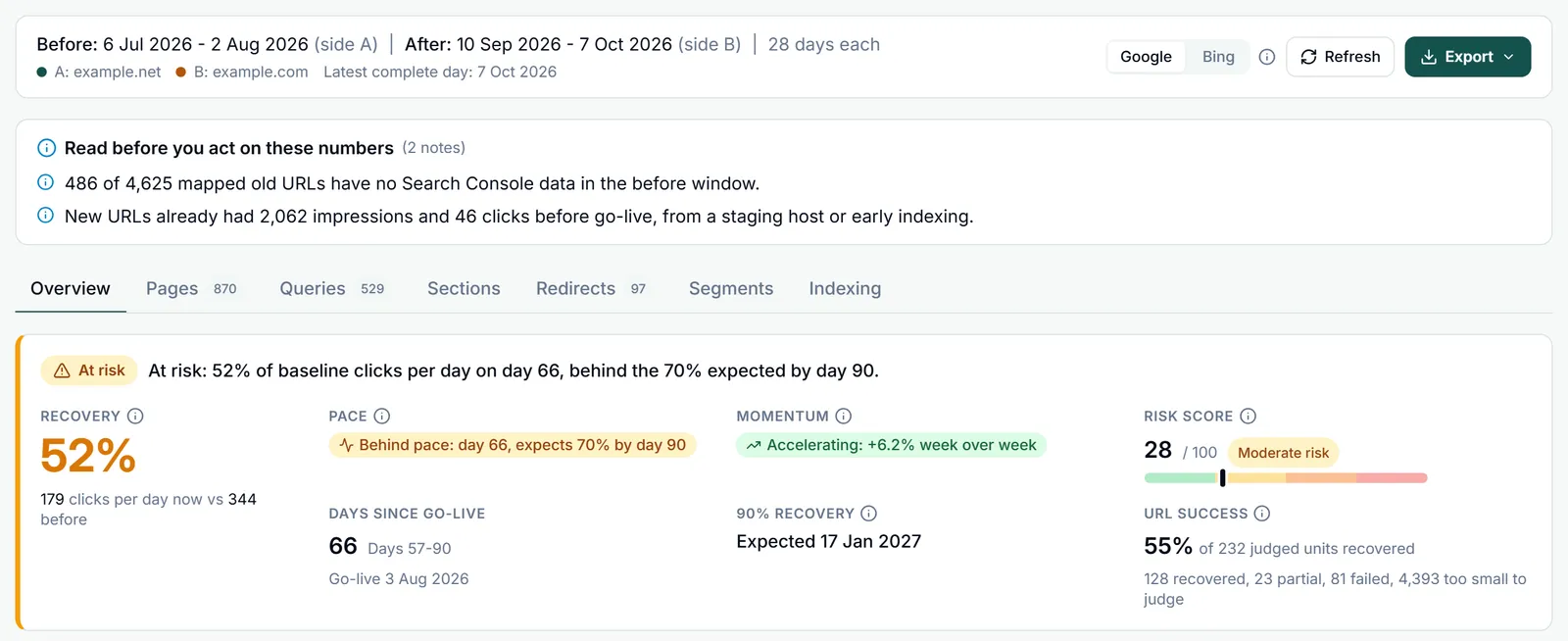
Migration Compare reads the old setup (side A) before go-live and the new setup (side B) after it. Both sides are compared per day, so windows of different lengths stay comparable. The result is one verdict: how much of the old traffic the new setup has won back, whether that is on pace for this stage of the migration, how much risk is left, and which fixes come first.
What it measures
- Recovery: the new side’s clicks per day as a share of the old side’s before go-live, judged against where a migration on track stands by the same day. See Health, recovery and risk.
- Risk: a score from 0 to 100, built from the recovery shortfall, failed URL groups, slowing momentum, unmapped traffic and the redirect problems the checks actually found.
- Redirects: every old URL in your redirect map requested on the live server, with a verdict such as migrated, redirect chain, wrong target or not redirected. See Redirect maps and verification.
- Google’s view: URL Inspection on old and new URLs, to see whether Google has seen each redirect, indexed the new URL and moved the canonical to it.
- Where the traffic went: pages, queries, URL sections, countries, devices and search types before and after, and how fast the old URLs fade from the results. See Reading the results.
Three ways to define old and new
Pick one under Compare at the top of the setup.
Property vs property
Old and new site are separate Search Console properties, for example a domain move or an http to https switch. Pick the Old property (A) and the New property (B). The same property on both sides works too, as long as a redirect map says which pages are old and which are new. This is the only mode that can also read Bing data.
URL prefixes
Old and new URLs live in one property under different paths, for example /blog/ moved to /articles/. Enter the Old URL prefix (A) and the New URL prefix (B), each as a path starting with / or as a full URL starting with https://.
Regex patterns
Old and new URLs live in one property and are told apart by a pattern, for example after a change of URL structure. Each pattern is an RE2 regular expression on the full page URL, as Search Console runs it, of at most 512 characters. A pattern Search Console cannot run, such as one with a lookahead or a backreference, is flagged in the form before anything is fetched.
With or without a go-live date
- With a Go-live date, side A is read over a window before it and side B over a window after it. The health verdict, recovery curve, risk score and recommendations need this mode, and it is the one to use for a real migration.
- Without one, both sides are read over the same date range, picked next to the Run analysis button. That compares two sections side by side, but with no before and after there is no recovery, pace or risk.
Run your first migration analysis
Six steps, from opening the report to saving it. The screens use example data: example.net moved to example.com on 3 August 2026.
Open Migration Compare
Open any property, expand SITE ANALYSIS in the left menu (it starts collapsed) and click Migration Compare. Outside a property it sits in the main menu under My Sites and Global Reports, and the direct address is tool.gscwizard.com/migration. The report is not tied to the property you came from: you pick both sides in the setup.
- Internationalization
- Property Sampling
- Migration Compare
Describe the migration
Under Compare, pick the mode, then the old and the new side. Set the Go-live date to the first day the new setup was live, usually the day the redirects went on. Windows and Window length decide which days are compared: the default, Most recent data (recommended) over 28 days, answers “where do we stand now”. The line under the dates previews both windows and explains any compromise, such as windows shortened because the migration is only a few weeks old. Fill in Name (used when saving) if you plan to keep the setup. Details in Windows and baselines.
Add the redirect map (recommended)
Open Redirect mappings under the setup and drop in a CSV with the old URL and the new URL of every page that moved. With a map, every old page is compared with its own new page, merged and split pages are judged as one move, and every redirect can be checked. Then click Verify redirects: GSC Wizard requests each old URL, follows its redirects and records where it lands. Without a map the analysis still runs, joining old and new pages that share a path. Details in Redirect maps and verification.
Click Run analysis
Nothing is fetched until you click Run analysis, so opening the page or a saved migration reads no data. A progress list shows each read while it runs. Properties synced to the warehouse in Dashboard Management are read from there; others are read from the Search Console API. After you change the setup the button reads Run analysis again. Two settings apply instantly, without a new run: Strict URL matching and Section depth.
Read the verdict, then the tabs
The Migration health banner gives the verdict in one sentence, with a status of Healthy, Recovering, At risk, Critical or Insufficient data, and recovery, pace, momentum, the risk score and URL success next to it. Further down the Overview tab, Recommendations lists what to fix first; click one to jump to the rows behind it. Anything that limits the data, such as a short window or a read that hit its row limit, is listed under Analysis warnings above the results. The seven tabs are covered in Reading the results.
At risk: 52% of baseline clicks per day on day 66, behind the 70% expected by day 90.
Save it and turn on alerts
Click Save, next to the Saved migrations menu at the top right. A saved migration keeps the whole setup, and its go-live date is added as an annotation to the properties you can edit. Then open Filters and matching, tick Alerts and click Save changes. A daily re-check then verifies the redirects again and posts to Slack, Microsoft Teams or a webhook when new redirect problems appear, or when recovery stalls or drops. Details in Saving, sharing and alerts.
Planning a domain move? Google’s Change of Address tool tells Google about the move; Migration Compare measures how the move went.
In this section
Windows and baselines
The go-live date, the three window strategies, same weeks last year, and every warning under the setup.
Redirect maps and verification
Upload the old-to-new map, check every redirect on the live server, and see what Google made of the move.
Health, recovery and risk
Recovery, pace, momentum, the projected curve, URL success, the 0-100 risk score and the checklist.
Reading the results
What the Overview, Pages, Queries, Sections, Redirects, Segments and Indexing tabs show.
Saving, sharing and alerts
Saved migrations, reports for clients, the daily re-check with alerts, Bing data and the MCP tools.
Part of Site analysis & annotations. Related: Annotations, URL Inspection, Alerts.