Connecting Copilot to GSC Wizard
Add GSC Wizard to a Microsoft Copilot Studio agent as an MCP server, so the agent answers SEO questions from your real Search Console, GA4 and Bing Webmaster data, in the test pane, in Teams and in Microsoft 365 Copilot.
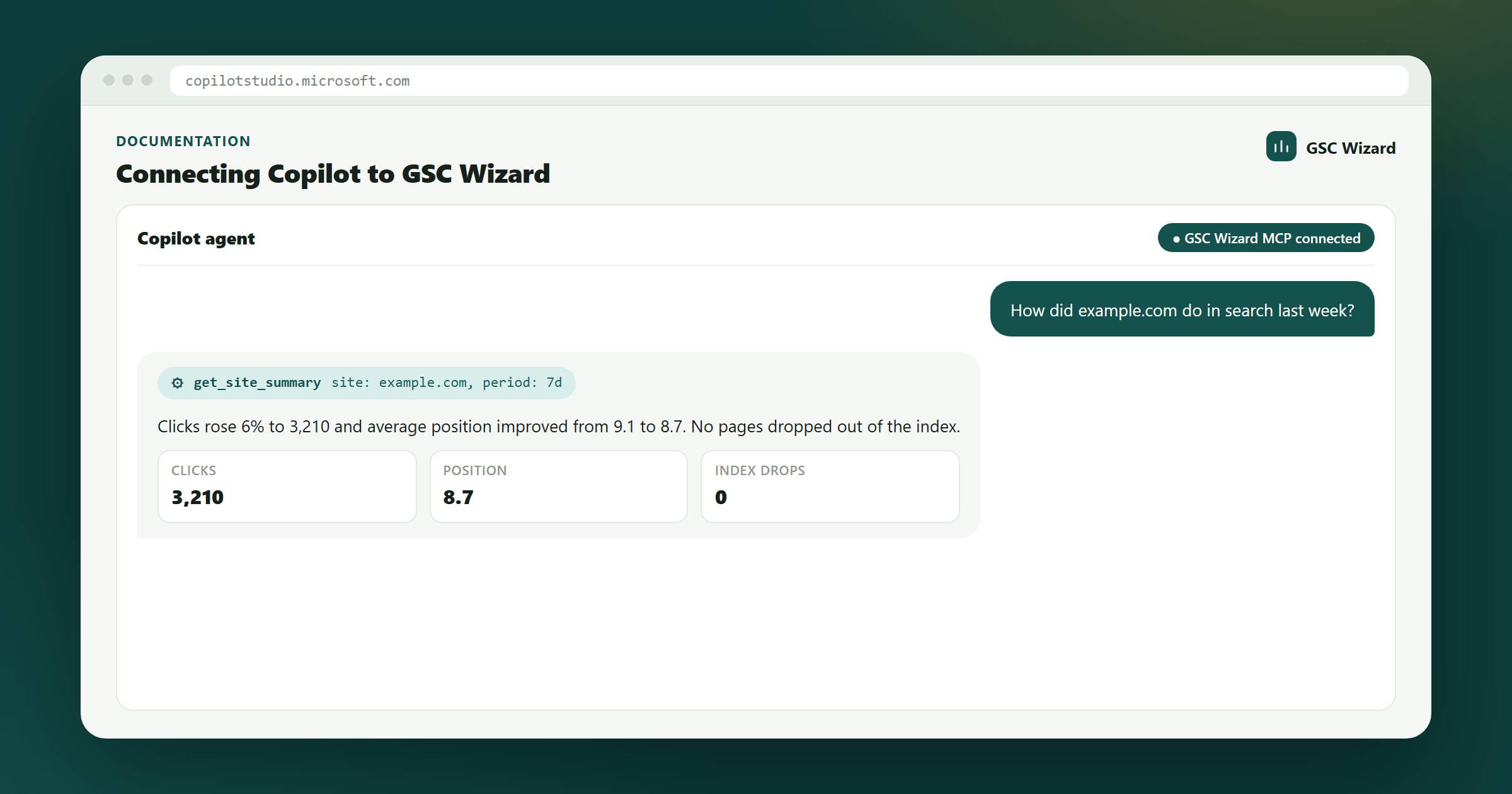
For the walkthrough with example prompts and agent instructions, see SEO data in Microsoft Copilot Studio. This page is the reference: every field, why each step exists, and what to check when something does not connect.
How the integration works
Copilot Studio agents can call tools on any Model Context Protocol server reachable over the internet. GSC Wizard is a hosted MCP server at https://mcp.gscwizard.com/mcp, the same endpoint Claude, ChatGPT and Grok use, so the agent gets the full tool set and the same server-side analysis.
OAuth 2.0, configured manually
You create a connection in GSC Wizard, which gives you a client ID and secret, and paste them into Copilot Studio. Copilot Studio then shows a redirect URL that you paste back into GSC Wizard. That exchange is the whole setup.
Everyone signs in as themselves
When the agent needs GSC Wizard, the person chatting signs in with their own GSC Wizard account and sees only the properties that account can read. Nobody shares a key.
Publish anywhere Copilot Studio publishes
The connection belongs to the agent, so the same tools work in the Copilot Studio test pane, in Microsoft Teams, and in Microsoft 365 Copilot once you publish the agent there.
Before you start
- A GSC Wizard account with an active subscription or trial, and the Search Console properties you want the agent to read already connected. See Connecting Search Console.
- A Copilot Studio license that lets you create agents in your environment. Without one, Copilot Studio shows You don’t have permission to create agents with User license not found; that is a Microsoft licensing setting, not a GSC Wizard error.
- About five minutes, with GSC Wizard and Copilot Studio open in two tabs. You move between them once.
Step 1: create a connection in GSC Wizard
- Open Account → MCP API keys and scroll to Microsoft Copilot Studio.
- Enter a connection name, for example the name of your agent. It is shown on the GSC Wizard sign-in screen, so people know which agent is asking for access.
- Click Create connection. The connection opens with every value Copilot Studio needs, each with a copy button.
Copy the client secret now. It is shown once, at creation, and only a hash is stored. If you lose it, delete the connection and create a new one; there is no way to show it again.
Step 2: add the MCP server in Copilot Studio
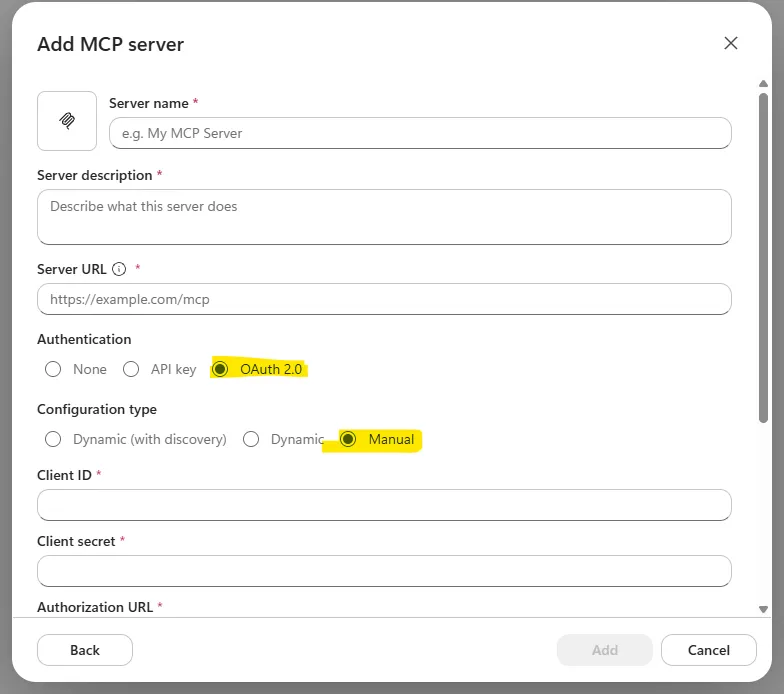
In Copilot Studio, open your agent, add a tool from the Tools section, and choose the Model Context Protocol option. The Add MCP server dialog opens. Fill in a server name and description, then the connection details:
| Copilot Studio field | Value |
|---|---|
| Server URL | https://mcp.gscwizard.com/mcp |
| Authentication | OAuth 2.0 |
| Configuration type | Manual |
| Client ID | The gscwc_… value from GSC Wizard |
| Client secret | The gscws_… value from GSC Wizard |
| Authorization URL | https://tool.gscwizard.com/oauth/authorize |
| Token URL | https://tool.gscwizard.com/api/oauth/token |
| Refresh token URL | https://tool.gscwizard.com/api/oauth/token |
| Scopes | mcp:read mcp:write, or mcp:read for a read-only agent |
Two details trip people up. The server URL needs the /mcp path: the bare domain serves the documentation, not the protocol. And the authorization URL has no /api/ in it, while the token URL does. Both are correct as written.
Choose Manual, not Dynamic. The two Dynamic options rely on Copilot Studio registering itself automatically, and that step currently fails inside Copilot Studio before it reaches GSC Wizard. Manual is the configuration we test against.
Write a useful server description. The agent reads it to decide when to call the server. Something like “Google Search Console, GA4 and Bing Webmaster data for my websites: clicks, impressions, rankings, indexing and SEO reports” works better than “GSC Wizard”.
Step 3: save the redirect URL
After you submit the details, Copilot Studio shows Save your redirect URL with a URL like https://global.consent.azure-apim.net/redirect/….
- Copy that URL.
- In GSC Wizard, paste it into Redirect URL from Copilot Studio on your connection and click Save. The status changes from needs redirect URL to ready to sign in.
- Only then click Next in Copilot Studio.
GSC Wizard only hands a sign-in to a redirect URL registered for that exact connection, and Copilot Studio generates a new one for every connector it creates. Only Power Platform’s consent addresses (consent.azure-apim.net) are accepted, so the connection cannot be pointed anywhere else. If you recreate the tool in Copilot Studio later, click Change on the connection and save the new URL.
Step 4: sign in and test
- Copilot Studio asks you to create a connection for the tool. Doing so opens a GSC Wizard sign-in window.
- Sign in, check that the consent screen names Microsoft Copilot Studio / Power Platform as the destination, and approve.
- In the test pane, ask “Which Search Console properties can you see?”. Copilot Studio may show Permission Required before it runs a tool; approve it.
Back in GSC Wizard, the connection now shows as connected with a last-used date. If the answer lists properties you did not expect, the sign-in used a different GSC Wizard account than you thought; ask the agent to run get_account_info to see which one.
Scopes, limits and security
Scopes
mcp:read mcp:write gives the agent every tool, including writes such as IndexNow submissions and annotations, which are audit-logged. mcp:read alone makes the connection read-only: write tools refuse, whatever the agent is asked to do. The consent screen lists the scopes requested.
Secrets
The client secret is stored only as a hash. Access tokens are short-lived and refreshed by Copilot Studio in the background; each person can also disconnect the agent from their own account settings.
Limits
Up to 10 Copilot Studio connections per GSC Wizard account. Tool calls are rate limited per account at 60 per minute and 1,000 per hour, shared with your API keys and other assistants.
Troubleshooting
“Invalid or unregistered redirect_uri for this client”
The redirect URL is missing or out of date. Copy the URL Copilot Studio shows for this tool, save it on the connection in GSC Wizard, and sign in again.
“You don’t have permission to create agents”
A Microsoft licensing message: your account has no Copilot Studio license in that environment. Start a trial or ask your Microsoft 365 admin to assign one.
“MCP server rejected the request (HTTP 400)”
In our testing this comes from the Dynamic configuration types. Remove the tool and add it again with Manual.
The tool connects but no properties appear
The signed-in GSC Wizard account has no connected Search Console properties, or it is not the account you meant. Ask the agent for get_account_info, then see Connecting Search Console.
Every tool call fails after sign-in
Tool calls need an active GSC Wizard subscription or trial on the signed-in account.
Lost the client secret
Delete the connection, create a new one, and update the client ID, secret and redirect URL in Copilot Studio.