Slack, Teams & webhooks
Put your Search Console reporting, and the bad news, where your team already works. GSC Wizard posts scheduled property reports and event-driven SEO alerts into the Slack channels you choose, posts the same alerts as cards into Microsoft Teams, and can POST them to any URL.
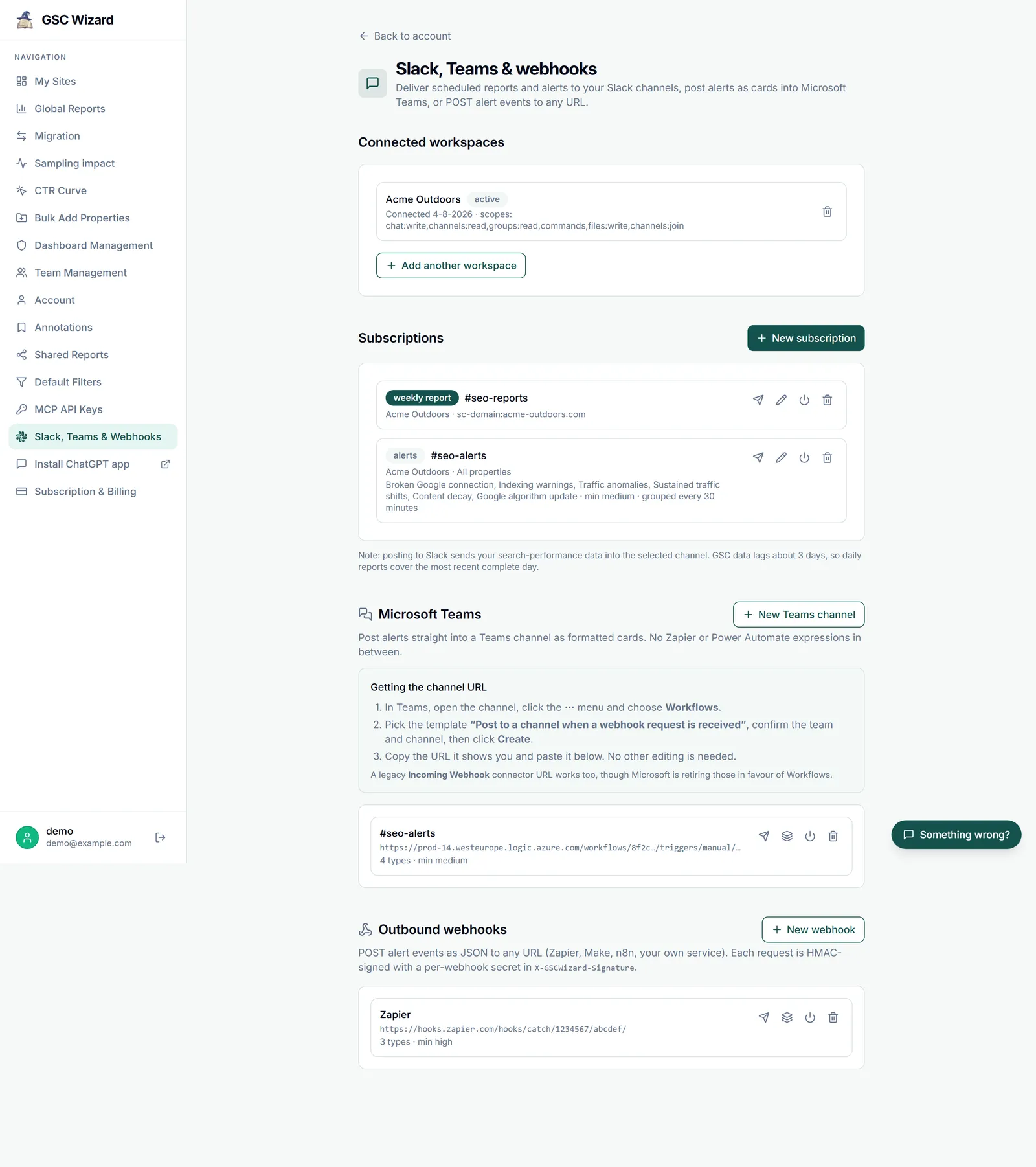
Everything is configured in the app under Account → Slack, Teams & Webhooks (/account/alerting-setup). The install starts there rather than in Slack, because a subscription needs a Search Console property as well as a channel. Microsoft Teams and outbound webhooks live on the same page and need no Slack workspace at all.
Set it up in four steps
- Connect Search Console. Sign in to GSC Wizard with Google and add the properties you want to report on. See Connecting Search Console.
- Add to Slack. Open Account → Slack, Teams & Webhooks and click Add to Slack. Approve the app for the workspace and you land back on the settings page.
- Create a subscription. One subscription is one channel plus one property plus one type: a scheduled report or alerts. Create as many as you need.
- Send a test message. The send icon on a subscription posts a test into the channel, so you know the wiring works before the first scheduled send.
Step by step, with every permission explained: Adding the Slack app. Using Microsoft Teams or an outbound webhook instead? Skip step 2: paste a URL on the same page and you are done.
In this section
Adding the Slack app
Connect a workspace, what each permission is for, channels, reconnecting, and disconnecting.
Scheduled reports
Daily, weekly, or monthly property reports posted to a channel, section by section.
Alerts
The alert types, severity, real-time vs bundled delivery, and detector tuning.
Using it from Slack
The /gscwizard slash command, and the Acknowledge and Mute controls on an alert.
Microsoft Teams
Post the same alerts into a Teams channel as formatted cards, with nothing in between.
Outbound webhooks
POST the same alert events as signed JSON to Zapier, Make, n8n, or your own service.
How it fits together
Three ideas cover the whole feature.
Workspace
The Slack workspace you authorised. You can connect several, and each one can be disconnected on its own. Disconnecting revokes the bot token and removes that workspace’s subscriptions.
Subscription
A route: workspace + channel + property + type. A scheduled report posts one property’s numbers on a cadence you set. An alerts subscription posts when a detector fires, and can cover a single property or all of them. The workspace, channel, and type are fixed once created; everything else stays editable.
Alert event
Detection is separate from delivery. A detector writes one event, and that event fans out to every subscription, Teams channel, and outbound webhook that asked for its type and meets its minimum severity. The same event never posts twice to the same channel.
Worth knowing before you start
- Slack delivery needs an active subscription or trial, the same gate as the rest of the app.
- Search Console data lags about three days, so every report states the window it covers and a daily report describes the most recent settled day, not yesterday.
- Posting to Slack sends your search-performance data into the channel you pick. Anyone in that channel can read it, so choose private channels for client data.
- Only properties you own or have been granted access to appear in the property picker. See Sharing & team access.
- The app has no message-history permission and cannot read your conversations.
Not on Slack? Microsoft Teams gets the same alerts as native cards, and outbound webhooks deliver them as signed JSON to Zapier, Make, n8n, or your own service. Neither needs a Slack workspace. Prefer email? The indexing digest and the Core Web Vitals check already mail you. Product overviews live on the Slack page and the Microsoft Teams page.