Connecting Search Console
GSC Wizard uses Google OAuth to read your Search Console data. Connecting takes about a minute and never gives up your Google password.
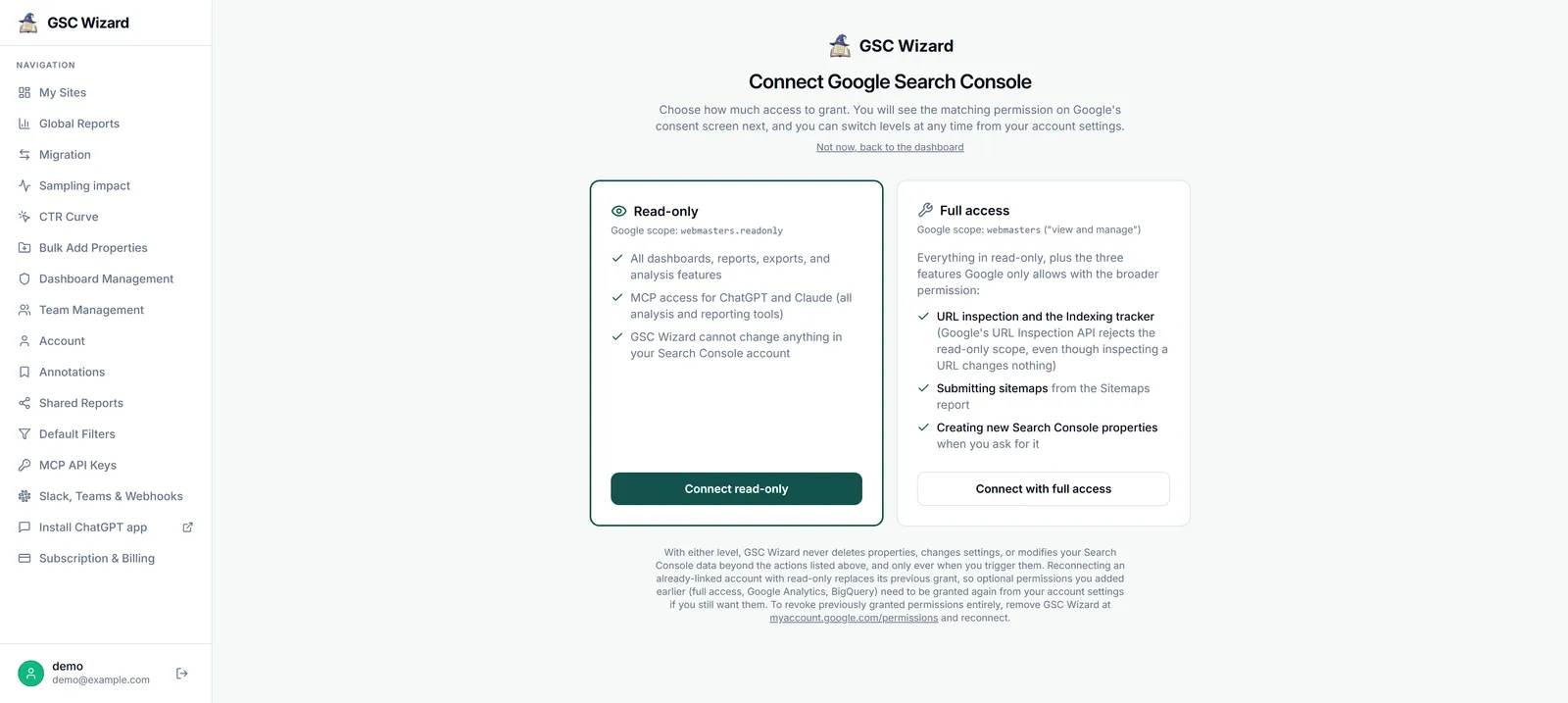
Sign in with Google
On the sign-in screen, choose the Google account that already has access to your Search Console properties.
- Open the app and choose Continue with Google.
- Grant read-only access to your Search Console data. GSC Wizard stores a revocable access token, not your credentials, and only ever reads.
- You land on My Sites, listing every property you can access.
Note: you can revoke access at any time from your Google Account permissions, or by disconnecting the account from your Account settings.
Domain vs URL-prefix properties
Search Console has two property types, and GSC Wizard supports both. They are treated separately in Google, so the same site can appear twice.
A Domain property (sc-domain:example.com) covers every subdomain and protocol. A URL-prefix property covers exactly one URL path. Not sure which to use? See the FAQ on Domain property vs URL prefix.
Linking more than one Google account
You are not limited to a single login. From Account settings you can link additional Google accounts so their Search Console properties all appear in one place, and unlink any of them later.
Adding properties to Search Console
If a property does not exist in Google Search Console yet, you can create URL-prefix properties without leaving GSC Wizard.
Bulk Add Properties
Run analysisPoint the tool at one source property and it reads your page structure, then suggests new URL-prefix properties for folders with enough pages (for example /blog/ or /products/). Select the ones you want and it registers them in your actual Search Console account. New properties auto-verify only when you already own the parent domain property; otherwise verify them manually in Google.
See Administration → Bulk Add Properties for the full workflow.
Live data vs stored history
Every connected property can be read live from Google (about 16 months of history). You can additionally opt a property into full warehouse storage, which imports up to 16 months immediately and then keeps building toward a 10-year, unsampled archive.
You choose which properties are live on your dashboard and which are stored, in Dashboard Management. Stored properties power faster reports and history that reaches far beyond Google’s own 16-month window.
Per-property setup
Each property has a Property Setup page (Settings) where you configure the things reports depend on:
- Branded keywords (plain text or
/regex/) so reports can split branded from non-branded traffic. - Topic clusters and content groups to organise queries and pages. See Content Groups & Topic Clusters.
- Saved filters you reuse across reports. See Filters, dates & privacy.