Google Merchant Center
Connect Merchant Center to see how your products perform in free listings, which products a feed issue is holding back, and how your catalog scores on a feed audit, next to your Search Console data.
Connecting Merchant Center
Setting up Merchant Center takes two steps, each done once.
- Once per Google account: in Account settings, open the Merchant Center section, click Connect Merchant Center, and approve Google’s permission screen with the Merchant Center box ticked.
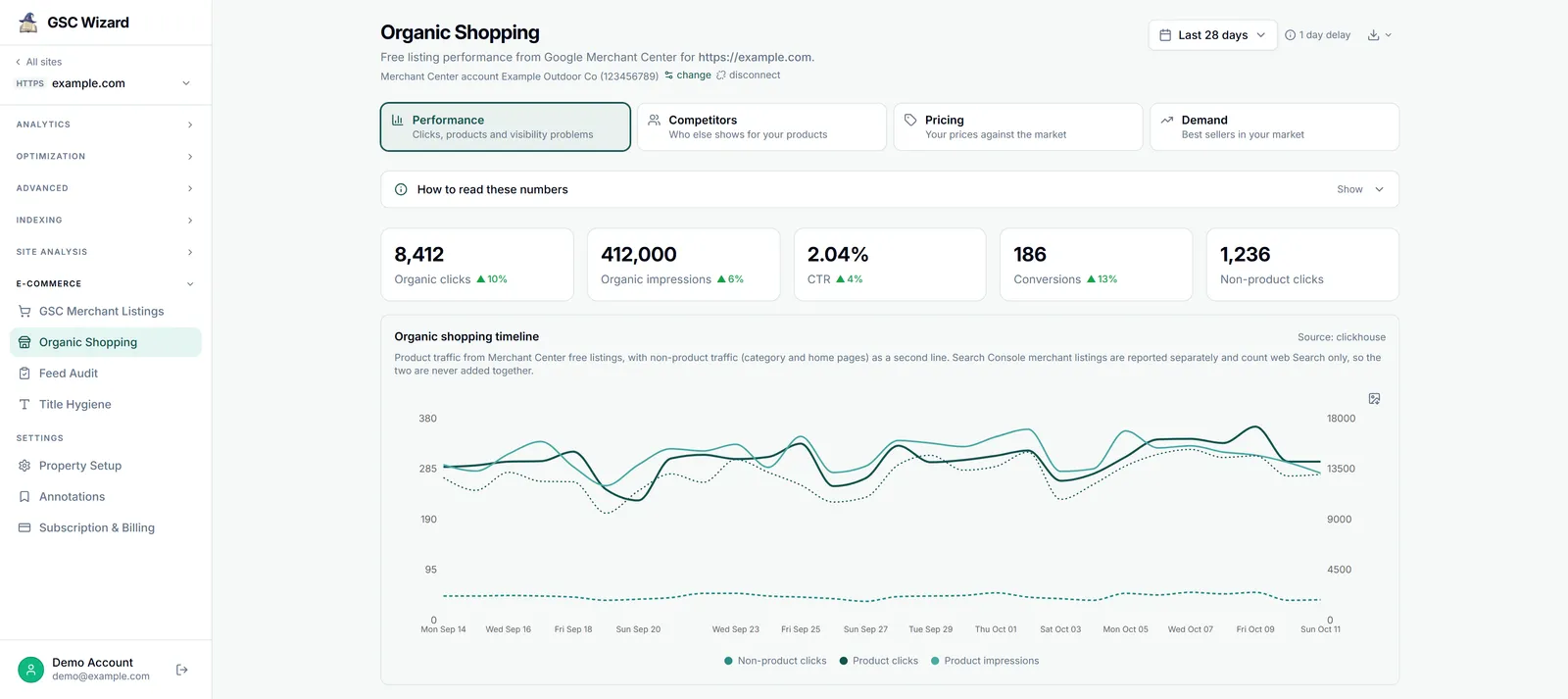
- Once per property: open the property, expand E-COMMERCE in the left sidebar, click Organic Shopping, choose the account under Choose a Merchant Center account, and click Save.
Screen by screen: the visual guide to connecting Merchant Center walks every screen in order, and covers what to do when no account is listed.
Use the Google account behind the property’s Search Console connection. Any Google login with Merchant Center access works for the live reports, but the nightly sync, Feed Audit runs and Merchant Center alerts read Merchant Center only through the Google account that connects the property to Search Console.
About the permission
Google publishes no read-only Merchant Center scope. The only one is content, so Google’s consent screen reads “Manage your product listings and accounts for Google Shopping”. GSC Wizard only issues read calls with it: it lists your Merchant Center accounts and reads performance, product status and diagnostics, and your Merchant API quota. It never creates, edits or deletes products, feeds, prices, promotions, or account settings.
Merchant Center reports
All four sit under E-COMMERCE in a property’s left sidebar, a section that starts collapsed. GSC Merchant Listings reads Search Console and works without Merchant Center; the other three need a linked Merchant Center account. Organic Shopping, GSC Merchant Listings and Title Hygiene load as soon as you open them. Feed Audit shows its stored results, and runs when you start it or on its monthly schedule.
Connecting Merchant Center
The visual walkthrough: grant access once per Google account, then pick the Merchant Center account on the property’s Organic Shopping page.
GSC Merchant Listings
Product results in web Search from Search Console, by search appearance, product page, and query. No Merchant Center connection needed.
Organic Shopping
Free listing clicks and impressions, visibility problems, competitors, pricing, and demand.
Feed Audit
Twenty-one checks over the synced catalog and its product pages, scored out of 100.
Title Hygiene
Title and description lengths, duplicate titles, repeated words, top words, and the feed-versus-page title diff.
What you need
- An active subscription or a running trial. There is no plan tier or admin gate: Merchant Center is open to every subscriber.
- The property connected through Search Console in GSC Wizard, as a property you own.
- A Google account with access to the Merchant Center account, ideally the one behind the property’s Search Console connection (see above).
- A standalone Merchant Center account or a sub-account. Advanced (multi-client) accounts are parents, and Google does not report on them.
- Only if Google asks for it: a one-time registration of GSC Wizard as a Merchant API developer on your Merchant Center account, done by an admin of that account. The connect guide shows where.
Merchant Center numbers and Search Console numbers
The two sources count different things, so they never add up to one figure.
- GSC Merchant Listings counts the enriched product result in web Search only, for the property’s own URLs. It excludes the Shopping tab.
- Organic Shopping uses Merchant Center free listing numbers, which cover the Shopping tab, Search, Images, Lens, YouTube and Maps, and count a click only when it lands on the product detail page. They are usually the higher number.
Merchant Center alerts
Four alert types watch a linked property and can go to Slack, Microsoft Teams or a webhook: Shopping traffic anomalies, Feed Score drops, High-potential products not eligible, and Click potential drops. They go to the owner, and to collaborators whose invite carries Merchant Center access. Set them up under Alerts.
The GSC Wizard MCP server reads the same Merchant Center data for AI assistants: see the Merchant Center MCP page. More on the features page.