Dashboard Management
One table for every property your connected Google accounts can see. Two checkboxes per row decide what shows up on your dashboard and what we store for the long term.
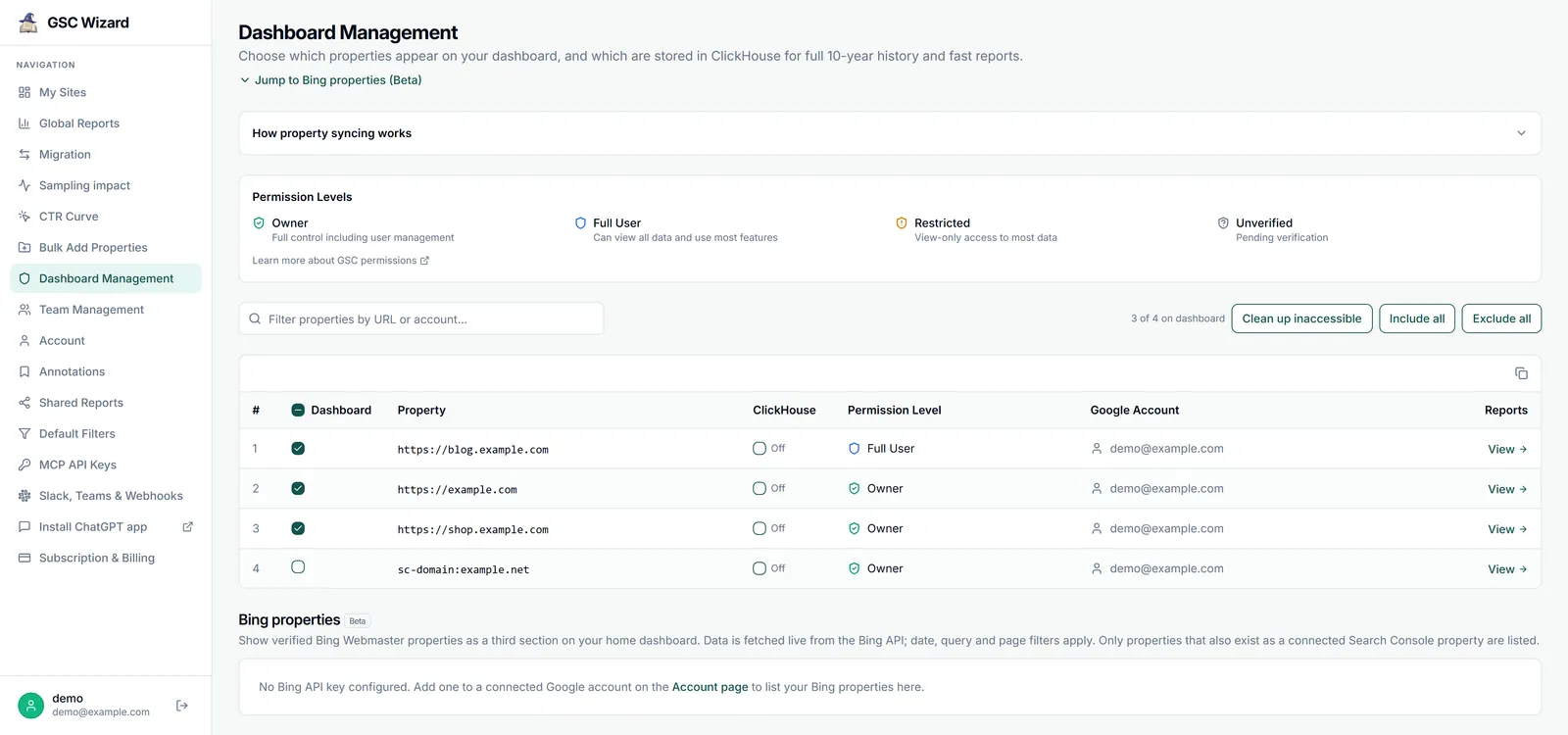
Open it from Dashboard Management in the left menu, or from the link under Account. The page lists every Search Console property from every Google account you have connected, so an agency with several logins manages everything in one place. Nothing on this page changes your Search Console account: the checkboxes only decide what GSC Wizard shows and stores.
| # | Dashboard | Property | ClickHouse | Permission Level | Google Account |
|---|---|---|---|---|---|
| 1 | sc-domain:example.com | Synced |
Owner | you@example.com | |
| 2 | https://shop.example.com/ | Importing 47% |
Owner | you@example.com | |
| 3 | sc-domain:client-site.com | Free |
Full | you@example.com | |
| 4 | https://blog.example.com/ | Off |
Owner | you@example.com | |
| 5 | https://example.com/en/ | Off |
Full | agency@example.com | |
| 6 | https://old.example.com/ | Off |
Restricted | agency@example.com |
The two checkboxes
Each row has two independent switches, and each one counts against its own plan limit. The two cards at the top of the page show how many of each you are using.
Dashboard (live Search Console API)
Tick it to show the property on My Sites and in the property menu. Its reports are fetched live from Google’s Search Console API: about 16 months of history, subject to Google’s sampling and row limits. Counts against the Dashboard properties limit.
ClickHouse (full storage)
Tick it to store the property in our ClickHouse data warehouse. We import up to 16 months of history straight away, then add every new day, so the archive keeps growing toward 10 years, far beyond Google’s own 16-month window. Reports for a stored property are faster and unsampled. Counts against the ClickHouse full storage limit.
A synced property is always on your dashboard, and does not use a dashboard slot. You don’t need to tick both. Use Dashboard for properties you want to look at, and ClickHouse for the ones you want long-term history and fast reports for.
Choosing what is on your dashboard
- Type in Filter properties by URL or account to narrow the list, for example to one client’s domain or one Google account.
- Tick or untick Dashboard per row. Changes save immediately; there is no save button.
- To change many at once, use Include all / Exclude all, or the checkbox in the Dashboard column header. These act on the filtered rows only, so filter first to bulk-change a subset.
- The counter next to the buttons (5 of 6 on dashboard) shows how many properties are currently shown.
If a change would take you past your plan’s dashboard limit, it is refused and the row says Dashboard property limit reached. Untick a property you no longer need, sync one to ClickHouse instead (synced properties don’t use a dashboard slot), or upgrade on the billing page.
Syncing a property to ClickHouse
Tick ClickHouse on a row. It starts at once, and the message under the checkbox tells you which of three things happened:
- Importing up to 16 months of history. A new property: the backfill is queued and the row shows Importing.
- Connected to shared data, free. Another GSC Wizard account already stores this property, so you are attached to that data immediately. It costs no slot.
- Re-synced. Filling the N missed days. You unsynced this property less than 30 days ago. The stored history was kept, so only the days missed while it was off are fetched.
Syncing also ticks Dashboard for that row. The import runs in the background, and the property stays usable while it backfills.
Status labels
The label next to the ClickHouse checkbox shows where each property stands.
| Off | Not stored. Reports for this property use the live Search Console API. |
| Importing 47% | The backfill is running or queued. Hover or tab to the label for a progress bar, the number of units done and left, and an ETA. Failed chunks are retried automatically. |
| Synced | The full history is stored. Reports are fast and unsampled, and new days are added automatically. |
| Free | Already stored through another account. It is on for you automatically at no slot cost, so the checkbox stays ticked and locked. |
| Limit | You have used all your ClickHouse slots, so this box can’t be ticked. Unsync another property, or upgrade. |
Why imports take turns
Google limits how fast any app can pull Search Console data. To stay within those limits, properties are imported one at a time. If you tick several at once they queue and backfill one after another, so some can sit at Importing with little progress until the ones ahead of them finish. That is expected, not stuck: hover the label to see the ETA.
Unsyncing a property
Untick ClickHouse to stop storing a property and free its slot. Because this affects stored data, a confirmation dialog asks first.
- The history already imported is kept for 30 days, then permanently deleted.
- Re-sync within those 30 days and only the missing days are fetched again. After 30 days, a re-sync imports everything from scratch. Google only serves the last 16 months, so history older than that is gone for good.
- Unsyncing leaves the property on your dashboard, where it now uses a dashboard slot. Untick Dashboard as well if you want it gone.
- A Free (shared) property can’t be unsynced from here: the data belongs to the account that stores it.
Cleaning up properties you lost access to
When a client removes you from their Search Console property, it can linger in your list. Clean up inaccessible re-reads your live property list from Google and hides every property that is no longer in it.
- It only acts on a complete, successful answer from Google. If Google can’t be reached, you see Couldn’t verify your live properties just now; nothing changed.
- The result says how many properties it hid, or No inaccessible properties found.
Permission levels
The Permission Level column is your access in Search Console, per Google account: Owner (full control, including user management), Full (can view all data and use most features), Restricted (view-only access to most data) and Unverified (pending verification). The Google Account column shows which of your connected logins the property comes from.
Plan limits
- Your plan sets two separate limits: dashboard properties (live API) and ClickHouse properties (full storage). Both are shown in the usage cards at the top of the page and on the billing page.
- ClickHouse sync needs an active subscription or trial. Without one, ticking the box shows ClickHouse sync requires an active subscription or trial.
- When you hit the storage limit, the message reads ClickHouse property limit reached (N on your plan). Unsync one or upgrade to add more. Other unsynced rows show Limit until a slot frees up.
- Free (shared) properties never count toward either limit.
Common questions
Do I need ClickHouse to use GSC Wizard?
No. Every report works on the live Search Console API. Sync the properties you care about most: they get faster reports, unsampled numbers, and history beyond 16 months.
Why does a property I just ticked still show Importing?
Imports run one property at a time. If others are ahead in the queue, yours starts when they finish. Hover the label for the ETA.
I removed a property in Search Console. Why is it still here?
Run Clean up inaccessible. It hides every property Google no longer lists for your connected accounts.
Part of Administration. Related: Connecting Search Console, Subscription & billing, Sharing & team access.