Connecting Yandex Webmaster
The screens, in order. One connection in Account settings covers every property you own: there is no per-property step, because each property is matched to its Yandex host automatically.
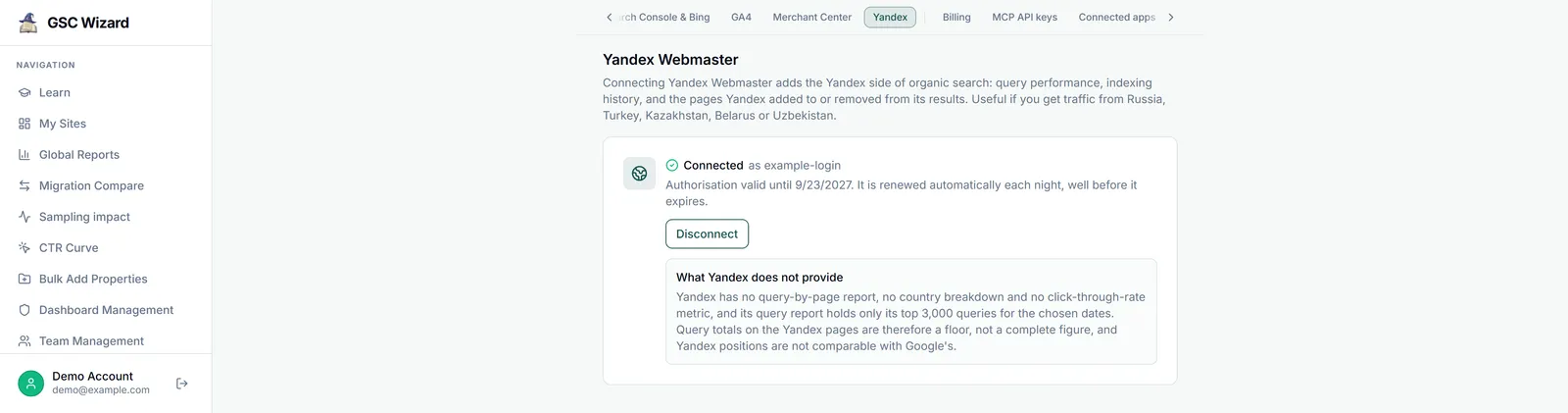
Unlike GA4 and Merchant Center, Yandex is connected in one place only: the Yandex Webmaster section of Account settings. After that, every property you own whose host is in your Yandex account shows Yandex data under Yandex Overview in its left sidebar.
Before you start
- Add and verify the site in Yandex Webmaster, signed in with the Yandex login you are about to connect. Yandex reports nothing for a site until it is verified, and data can take a few days after that. Connecting first is fine: GSC Wizard keeps looking for the site each time you open a report.
- The site must also be a Search Console property you own in GSC Wizard. A site that is only in Yandex Webmaster cannot be viewed in the app.
- You need an active subscription or a running trial. Without one, Connect Yandex Webmaster takes you to the subscription page.
- GSC Wizard reads Yandex through one Yandex login per account, so sites spread across two Yandex logins cannot be read at the same time. To switch to another login, click Disconnect first, then connect the other one.
Open the Yandex section in Account settings
Open Account from the left sidebar, or click your profile at the bottom of it. On the Account Settings page, click Yandex in the jump bar at the top, or go straight to /account#yandex-webmaster. The Yandex Webmaster section shows Not connected. Click Connect Yandex Webmaster.
Connecting Yandex Webmaster adds the Yandex side of organic search: query performance, indexing history, and the pages Yandex added to or removed from its results.
Approve both permissions on Yandex
Yandex asks you to sign in and approve access. GSC Wizard requests two permissions, webmaster:hostinfo and webmaster:verify, and needs both: with webmaster:hostinfo alone, Yandex returns only the site list and every report comes back empty. Yandex has no read-only permission that returns data, so its screen describes webmaster:verify as covering adding and verifying sites. GSC Wizard only issues read calls with it, and never adds, verifies or removes a site.
webmaster:hostinfothe list of your siteswebmaster:verifyneeded by every report’s data
Check which Yandex login is active. GSC Wizard does not ask Yandex for an account chooser, so Yandex may connect the login already signed in to this browser. It must be the login that owns your verified sites. Finish within an hour, or the connect link expires.
Land back on Account settings
Yandex sends you back to Account settings with a green banner, and the page scrolls down to the Yandex section. The card now reads Connected, usually followed by your Yandex login, and says until when the authorisation is valid. A nightly check renews it automatically in the last week before that date, so you do not need to do anything.
Authorisation valid until 8 Jan 2027. It is renewed automatically each night, well before it expires.
Open a property and the Yandex reports
Open a property from My Sites. In the left sidebar, expand ANALYTICS (it starts collapsed) and click Yandex Overview, directly below Bing Overview. Yandex Queries and Yandex Indexing open beneath it. On a phone, open the menu with the ☰ button at the top left first.
- GSC Dashboard
- Queries
- Pages
- Countries
- New & Lost Rankings
- Rank Changes
- Google Analytics (exp.)
- Bing Overview
- Yandex Overview
- Yandex Queries · Yandex Indexing
- Page Performance
Check that it took
Yandex Overview shows four tiles, Site quality index, Pages in search, Excluded pages and Open site problems, above a daily impressions and clicks chart. If you see a panel instead, the troubleshooting list below says what it means.
How a property is matched to a Yandex host
The first time you open a Yandex report for a property, GSC Wizard looks for its host in your Yandex account and remembers the match.
- Both sides are reduced to a bare hostname:
sc-domain:,http://orhttps://, the path, and one leadingwww.are ignored. Sosc-domain:example.com,https://example.com/andhttps://www.example.com/all match the Yandex hostsexample.comandwww.example.com. - Other subdomains are not merged:
sc-domain:example.comdoes not pick upshop.example.com. Add that subdomain as its own property. - When several Yandex hosts match, a verified host wins, then one that is its own main mirror, then https. If that host names another main mirror in your account, the reports use the mirror, because Yandex keeps the data there.
- A URL-prefix property with a path, such as
https://example.com/blog/, matches the whole host, and the reports say the figures cover the entire host. - A miss is not remembered, so a site you add to Yandex later is picked up on a later visit.
What happens next
There is no import or sync to wait for: the reports read Yandex live, through your connection, when they load.
- A verified, indexed site shows data straight away. A recently verified site can take a few days before Yandex has data.
- Yandex’s last finished day is about four days behind, so the most recent days are always missing.
- Each report is cached for 60 minutes per property, date range and device, so a change you make in Yandex Webmaster can take up to an hour to show. A new range or device is fetched afresh.
Troubleshooting
What you see, why it happens, and what to do.
- Connect Yandex Webmaster lands on the subscription page: your trial has ended and there is no active subscription. Subscribe, then connect again from Account settings.
- “Yandex Webmaster access was cancelled or refused on the provider’s screen”: access was denied on Yandex. Connect again and approve both permissions.
- “The Yandex Webmaster connect link expired before you were sent back”: more than an hour passed, or the browser dropped the cookie. Start again and finish the Yandex screens in one go.
- “The Yandex Webmaster connection failed a security check”: two connect rounds ran at once. Close any other tab where you started a connect, then try again from one tab.
- The connection came back incomplete, your session ended, or something went wrong on our side: try again, signing in first if your session ended. Contact support if it keeps happening.
- “Yandex Webmaster isn’t connected”: there is no Yandex connection on your account. Use Go to account settings and connect.
- “This property isn’t in your Yandex account”: no host in the connected Yandex account matches the property. Often the connected Yandex login is not the one that owns the site, or the Yandex site is a different subdomain. Add and verify the exact host under the connected login (or disconnect and connect the right one), then reload the page.
- “This site isn’t verified in Yandex Webmaster yet”: finish verification in Yandex Webmaster. Data follows a few days later.
- “Yandex hasn’t indexed this site yet”: the site is verified but Yandex has not crawled it yet. This usually resolves within a few days of verification.
- “Reconnect Yandex Webmaster” in a report, or Reconnect needed in Account settings: Yandex rejected the saved authorisation, or it predates
webmaster:verify. Click Reconnect Yandex. - “Yandex data is available to the property owner”: the property is shared with you, and Yandex reads use the owner’s connection. The owner views the Yandex reports.
- “Yandex rate limit reached”: Yandex caps how many requests it answers per account per day. Come back after the reset time shown. Each switch of range or device is another request.
- “Yandex lookup failed” or “Failed to load Yandex data”: Yandex did not answer in time or returned an error. Reload the page in a few minutes; it is not retried automatically.
- A chart reads “Yandex returned no data for this range.”: widen the range. The last four days are always missing, and recently verified sites need a few days.
- “Failed to disconnect Yandex. Please try again.”: retry. You can also withdraw the permission from your Yandex account directly.
Reconnecting and disconnecting
Both live on the same card in Account settings.
- Reconnect Yandex replaces the connect button when the connection needs granting again. It runs the same flow, and reconnecting the same Yandex login updates the connection in place.
- Disconnect revokes the authorisation at Yandex, removes it from GSC Wizard, and forgets every property’s Yandex host match. There is no confirmation step.
- To move to a different Yandex login, disconnect first and then connect the new one. Each property is then matched again against the new account.
Part of Yandex Webmaster. Related: Yandex Overview, Yandex Queries, Yandex Indexing.