Custom Dimensions
Report on your own event parameters and user properties, not just the standard GA4 fields.
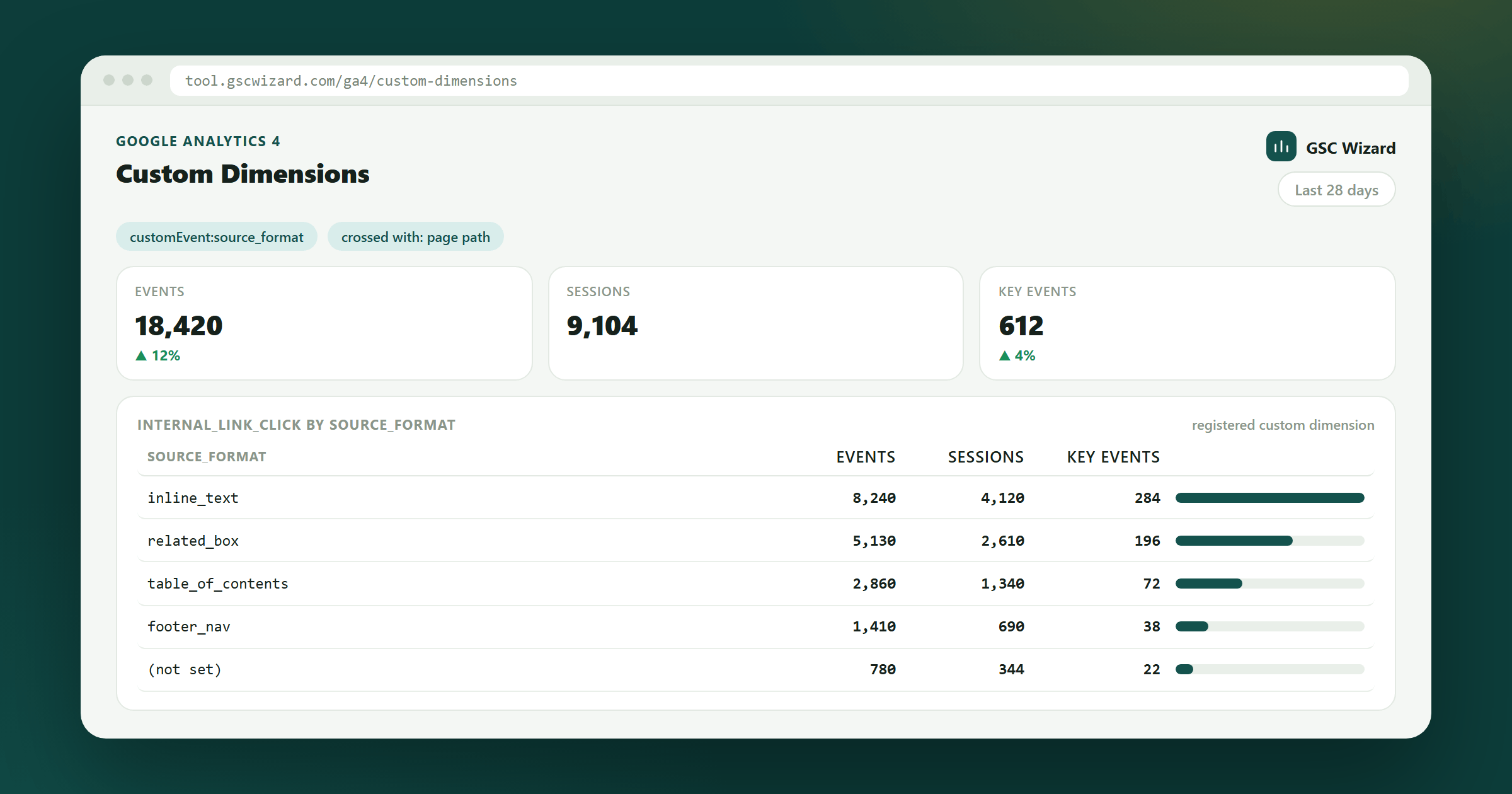
If you send your own parameters with an event – say source_format and target_path on an internal_link_click – this is where you read them. GA4 can only report on a parameter once it is registered, so the report works from the property’s own list of custom definitions and shows you exactly what is there.
Register the parameter in GA4 first
A raw event parameter is not queryable by any tool, including this one, until GA4 knows about it.
- In GA4, open Admin › Custom definitions and create a custom dimension for the parameter, choosing the right scope (event, user, or item).
- Give it the exact parameter name you send. GA4 addresses it as
customEvent:your_param(orcustomUser:/customItem:). - Wait for data. Registration is not retroactive: GA4 collects the dimension from the moment the definition exists, so history before it stays empty.
- Come back to this report. The dimension picker lists everything the property registers, and the panel at the bottom shows each one with its scope and API name.
What you get
- A dimension picker listing every custom dimension the property registers, plus a “crossed with” picker for a second dimension – another custom one, or a standard field such as event name, page path, landing page, channel, source, country, or device.
- Cards for events, sessions, active users, total users, and key events over the filtered period, with comparison.
- A trend chart of events and sessions.
- The breakdown table: one row per value (or per pair of values when two dimensions are crossed), with events, sessions, active users, and key events. Click a value to drill into it.
- An events table – click an event to scope the whole report to it, which is usually the first thing you want.
- Optional extra columns for any custom metrics the property registers.
- CSV/HTML export.
Crossing two dimensions
This is what answers “which one led to which”.
- Set the first picker to the source parameter and the second to the destination parameter, then filter to the event that carries them.
- Each row is then one pair, so a hub article and the page it sent readers to sit on the same line with the count between them.
- Clicking a value adds it as a filter, so you can start from all sources and zoom into one.
Two values to know: (not set) means the parameter was not sent with that event, and item-scoped custom dimensions are listed but not selectable here – they only combine with item metrics, which live in the E-commerce report.
Part of Google Analytics 4. Related: Key Events.