Connecting a GA4 property
The four screens, in order. GA4 is coupled per property, so the connect button lives inside a property – not on My Sites and not in your account settings.
Every Search Console property in GSC Wizard points at one GA4 property, so the two can be joined page by page and query by query. That is why there is no global “connect GA4” switch: you open the site you want, and connect GA4 from inside it, under ANALYTICS → Google Analytics (exp.) in the left menu.
It is two things, each done once. Granting GSC Wizard read-only access to Google Analytics happens once per Google account (step 3). Choosing which GA4 property belongs to a site happens once per property (step 4). Both live on the same screen, so you will usually do them back to back.
Open the property you want
Start on My Sites and click through to the Search Console property you want GA4 numbers for. The property you open decides which site the GA4 data is joined to, so if you manage several, pick the one that matches the GA4 property you have in mind.
In the left menu, open Google Analytics
In the left sidebar, expand the ANALYTICS section – it starts collapsed – and click Google Analytics (exp.), just below Rank Changes. On a phone, open the menu with the ☰ button at the top left first. The direct address is /property/<your-site>/analytics, and the property’s Property Setup page links to it too.
- GSC Dashboard
- Queries
- Pages
- Countries
- New & Lost Rankings
- Rank Changes
- Google Analytics (exp.)
- Channels · Sources · Pages · Landing Pages · Error Pages · Countries · E-commerce · Key Events · LLM Traffic · Blended (GSC + GA4)
Click Connect Google Analytics
If none of your Google accounts has granted Analytics access yet, the page shows this empty state. Click Connect Google Analytics, then approve the read-only analytics.readonly permission for the Google account that can see your GA4 property. Google sends you straight back to this page.
Grant read-only access to Google Analytics to see GA4 traffic, engagement, and conversion dashboards for this property.
Connect Google AnalyticsThe Google account you approve here does not have to be the one you use for Search Console. Approving it once covers every property you connect afterwards, so if you have done this before you will land on step 4 directly.
Pick the GA4 property and save
Now Choose a GA4 property appears. The dropdown lists every GA4 property across all your connected Google accounts as Account / Property name (numeric id). Type in the filter box to match on account name, property name, the numeric id, or the connected account’s email address. Select the right one and hit Save.
Couple a Google Analytics 4 property to example.com to see traffic, engagement, and conversion data here.
- Example Inc / Blog (987654321)
- Example Inc / example.com – GA4 (123456789)
- Client Ltd / client.com (456789123)
Property on a different Google account? Connect another account
Which number is mine? In Google Analytics, open Admin → Property details: the property id is the 123456789 in properties/123456789. Pasting that number into the filter box is the fastest way to find the property in a long list.
Check that it took
The page reloads into the GA4 dashboard, and the coupled property is named in the header with change and disconnect beside it. Every GA4 sub-report – Channels, Sources, Pages, Landing Pages, Error Pages, Countries, E-commerce, Key Events, LLM Traffic and Blended (GSC + GA4) – now works for this property.
Changing or disconnecting later
Both controls sit in that same header, next to the property name.
- change reopens the picker. Choose a different GA4 property and Save to re-couple the site.
- disconnect asks for a confirmation, then unlinks the GA4 property from the site. Nothing in Google Analytics is touched, and you can couple it again at any time.
- To remove GSC Wizard’s Analytics access altogether, unlink the Google account in Account settings, or revoke it from your Google Account permissions.
When your property is not in the list
Almost every failed connection is one of these four.
- “No GA4 properties found for your connected Google accounts.” The GA4 property lives on a Google account you have not connected yet. Use Connect another account under the picker and approve with that account. Also check that the account has at least Viewer on the property in Google Analytics.
- An amber message under the picker. That is Google’s own error, shown verbatim – usually a permission problem or the Analytics Data API being disabled on the project. It is surfaced deliberately so an empty list is explainable rather than mysterious.
- “GA4 analytics isn’t available for shared properties yet.” GA4 is owner-only by default. On a property that was shared with you, the reports appear only when the owner’s grant includes GA4 access.
- The reports load but everything is zero. Check the date range at the top of the page, then compare the id in the header with Admin → Property details in GA4 – a site with several properties is easy to mis-couple. GA4 has no data from before the property started collecting.
What the Account page does, and does not, do
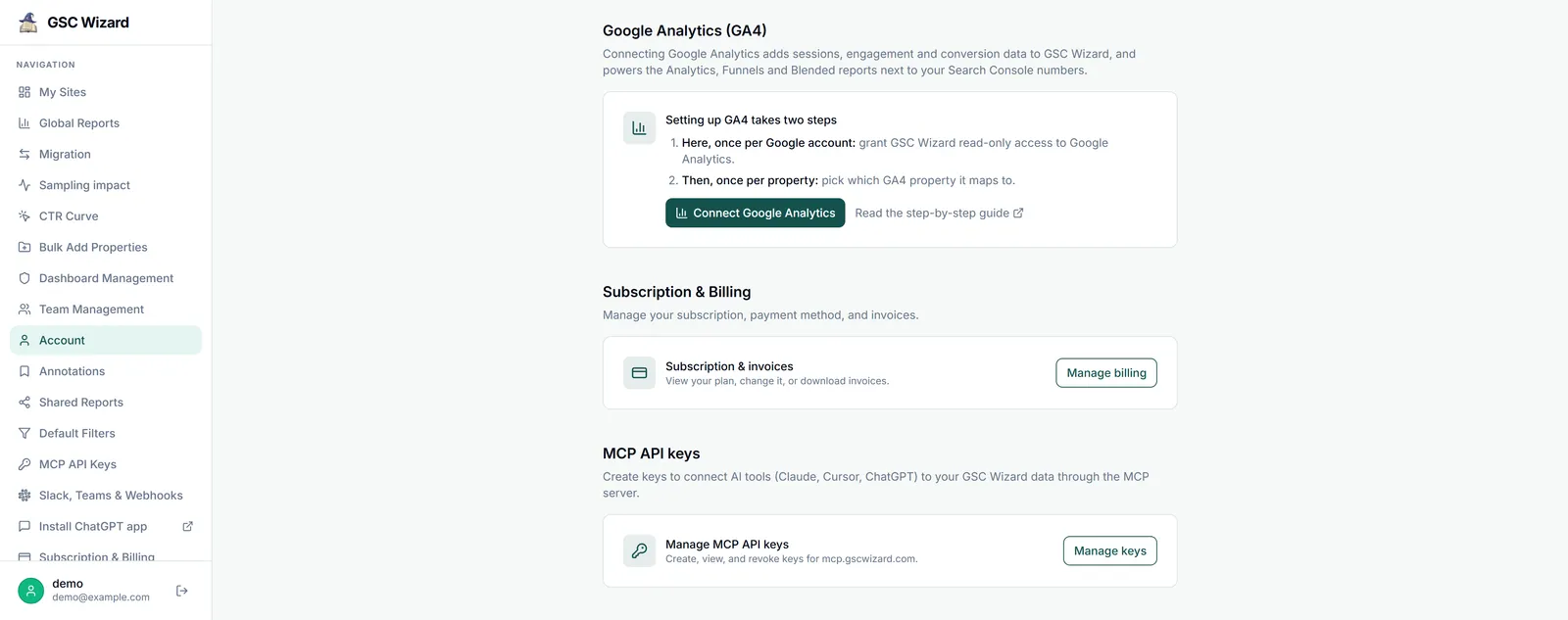
There is a Google Analytics section in Account settings, and it is only half of the job – a common source of confusion.
- It does: grant the read-only Analytics permission for a Google account, once. Accounts that have it show a GA4 label in the linked-accounts list.
- It does not: pick a GA4 property. That is always per property, on the screen in steps 2–4 above, because each site maps to its own GA4 property.
Wondering how the two data sources differ in the first place? See Search Console vs Google Analytics.
Part of Google Analytics 4. Related: GA4 Overview, Blended (GSC + GA4).