Scheduled reports
One property, one channel, one cadence. The message carries the numbers, what moved, and what needs attention.
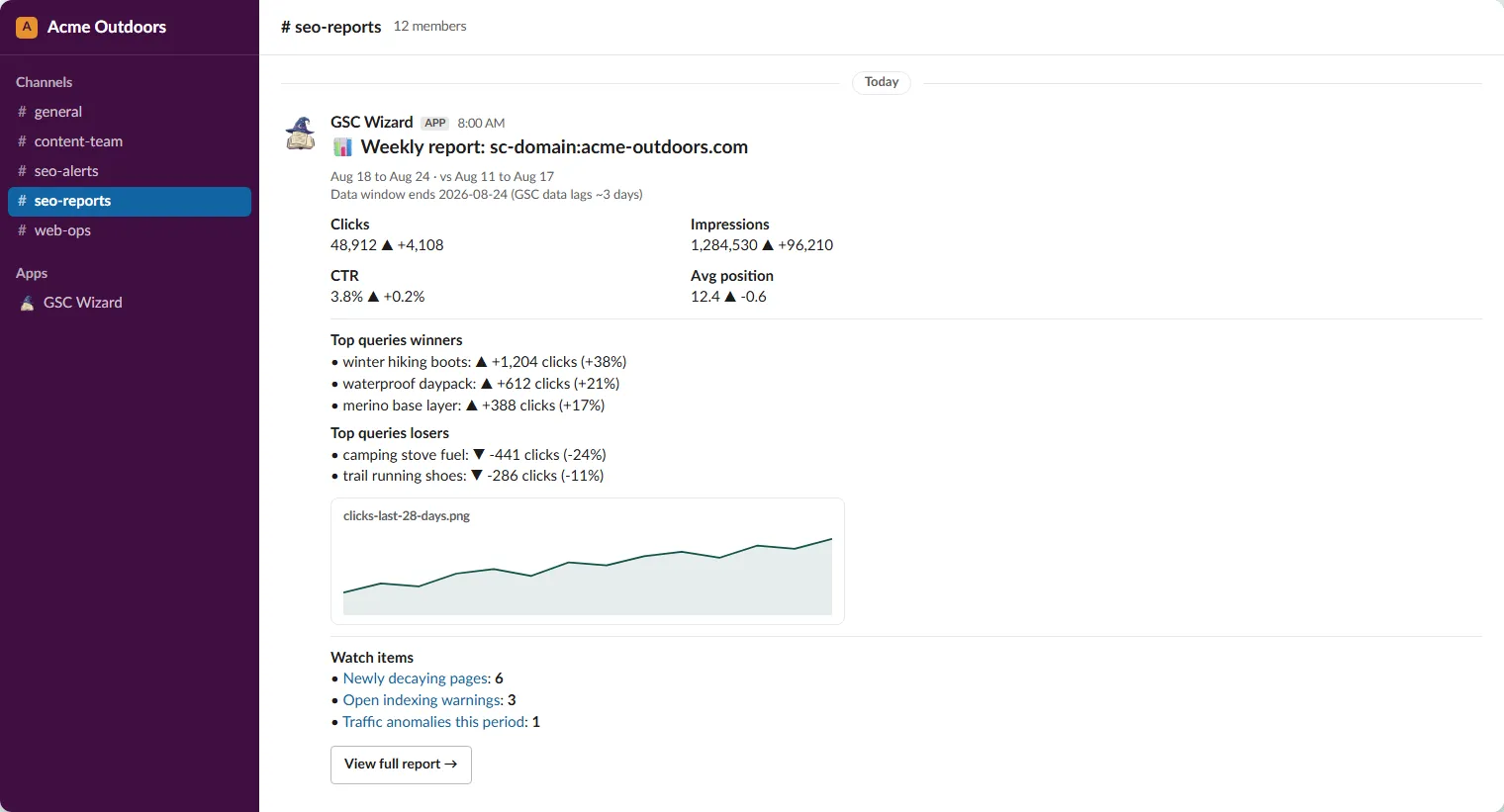
A scheduled report subscription posts a property’s performance into a channel on a cadence you set. Create one from Account → Slack, Teams & Webhooks → New subscription, choose Scheduled report as the type, and pick a channel and a property. Reports always cover exactly one property, so All properties is not offered here.
Cadence and timing
You choose the wall-clock time, in the timezone you name, and the delivery job checks every ten minutes for a subscription whose local hour has come round.
- Daily, Weekly, or Monthly.
- Send hour is local to the timezone field, which defaults to your browser’s. Any IANA zone works, for example
Europe/Amsterdam. - Weekly adds a day of week; monthly adds a day of month, where 31 means the last day of whatever month it is.
- Each period sends once. The delivery job runs again ten minutes later and every ten minutes after that, and does not repost inside the same period.
The period it covers, and the lag
Search Console data lags roughly three days, so a report never describes today. Every message states the window it used.
- Daily covers the most recent settled day and compares it with the same weekday a week earlier, so Monday is judged against Monday.
- Weekly covers the last seven settled days against the seven before them.
- Monthly compares against the prior calendar month.
The six sections
All six are on by default and each can be switched off per subscription. Switching one off also skips the reads behind it, so the report costs less and arrives sooner.
- Headline metrics: clicks, impressions, CTR, and average position against the comparison period.
- Winners and losers: the biggest click gains and drops on the dimension you choose below.
- Ranking movers: page-one entries and exits, plus the largest rank gains and drops. Position is too noisy day to day, so this section is skipped on a daily report whatever the toggle says.
- Watch item: newly decaying pages: how many pages started losing clicks against their baseline this period.
- Watch item: open indexing warnings: unacknowledged warnings from the Index Tracker for this property.
- Watch item: traffic anomalies: days inside the period whose clicks fell outside the expected range.
Turn every section off and the report arrives with nothing but its heading. The form warns you before you save.
Queries or pages
The Movers setting picks the dimension for both the winners/losers and the ranking-movers sections.
- Top queries answers “which search terms moved”.
- Top pages answers “which URLs moved”, and lets the decaying-pages count reuse the same rows instead of reading again, which makes the report cheaper.
- With both of those sections off, the setting has no effect.
The trend chart
When the workspace granted the file-upload permission, the report carries a trend chart image alongside the numbers. A workspace connected before that permission existed posts a text-only report until it is reconnected, and the settings page prompts for it. See Adding the Slack app.
Test, pause, and edit
- The send icon on a subscription posts it to the channel right now, exactly as saved. Save your edits first, then test.
- The power icon pauses and resumes a subscription without deleting it.
- Channel, property, sections, cadence, and timezone are all editable. The workspace and the type are fixed at creation: to change those, create a new subscription.
- Repeated delivery failures auto-disable a subscription, with the reason on its row.
From a report page in the app, the Send to Slack button opens a new subscription with that property pre-selected. Want a report on demand instead of on a schedule? Run /gscwizard report in the channel: see Using it from Slack.
Part of Slack, Teams & webhooks. Related: Adding the Slack app, Alerts.