Microsoft Teams
The same alerts, as native cards in a Teams channel. No Zapier and no Power Automate expressions to write.
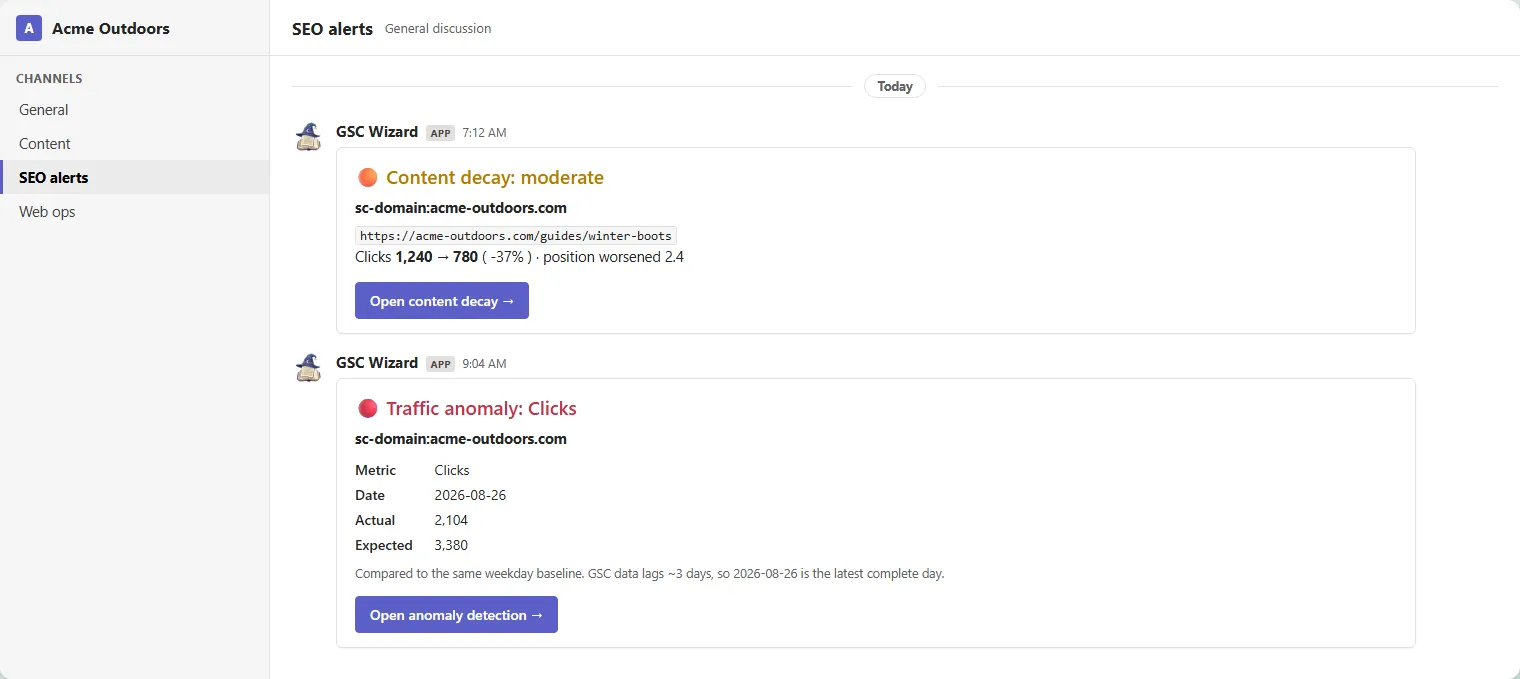
A Teams channel subscribes to alert events exactly the way a Slack channel does. It receives them as an Adaptive Card: the same headline, numbers, and link to the report you would get in Slack, rendered natively by Teams. Set it up under Account → Slack, Teams & Webhooks; a Slack workspace is not needed. A product overview lives on the Microsoft Teams page.
Getting the channel URL
Teams hands out the URL, so start there.
- In Teams, open the channel you want the alerts in, click the ··· menu on it, and choose Workflows.
- Pick the template “Post to a channel when a webhook request is received”, confirm the team and channel, and click Create.
- Copy the URL the workflow shows you. Nothing inside the workflow needs editing: GSC Wizard sends a card it already knows how to render.
An older Incoming Webhook connector URL works too, though Microsoft is retiring connectors in favour of Workflows.
Adding it in GSC Wizard
- Open Account → Slack, Teams & Webhooks and click New Teams channel in the Microsoft Teams section.
- Give it a name you will recognise, for example #seo-alerts, and paste the URL.
- Tick the alert types the channel should receive and set a minimum severity, the same choices an alerts subscription offers. Choose info if you also want the recovery notices.
- Click the send icon on the row to post a test card, so you know the wiring works before the first real alert. The icon beside it posts four example alerts instead: real cards built by the same code production uses, on a fictional property, so you can see what each kind actually looks like in the channel.
What a card contains
One card per alert, matching what the same event posts to Slack.
- A title line naming the alert, tinted by severity: red for critical and high, amber for medium.
- The property, the metric, and the numbers behind the alert, for example the actual against the expected value and the size of the change.
- A short note on how to read it, such as the roughly three-day Search Console lag.
- A button opening the exact report the alert came from, already filtered to the property.
Delivery behaviour
- Deliveries run on the same job as Slack, which ticks every ten minutes, so a card appears within minutes of detection.
- Each request times out after ten seconds. Failures that look temporary are retried on a later run; a channel that keeps failing is disabled, with the reason shown on its row.
- Alert types and severity stay editable. A channel can be paused and re-enabled at any time, and deleting it stops delivery immediately.
- A channel receives alerts for every property you can see. To split properties across channels, add one Teams channel per property in the app and give each its own alert types.
If a test fails with HTTP 400, the URL is almost certainly not a Teams webhook: a Slack URL, a Zapier catch hook, or a workflow that was edited to expect something else. Re-copy it from the channel’s Workflows trigger. Private and internal addresses are rejected outright, and every redirect is re-checked.
Teams or a generic webhook?
Both deliver the same events from the same outbox; they differ in what arrives.
- Choose Microsoft Teams when a person should read the alert in a channel. You get a formatted card and no configuration beyond the URL.
- Choose an outbound webhook when software should act on the alert. You get the raw JSON event, HMAC-signed, for Zapier, Make, n8n, or your own service.
- Nothing stops you doing both: add the channel and the webhook separately, each with its own alert types.
Part of Slack, Teams & webhooks. Related: Alerts, Outbound webhooks.