Adding the Slack app
Connect a workspace once, then route as many channels as you like. It takes about a minute.
Before you start
Three things need to be true.
- Your Search Console properties are connected to GSC Wizard. See Connecting Search Console.
- You have an active subscription or trial. Slack connect, subscriptions, and slash commands are all gated on it.
- You can install apps in the Slack workspace. Some workspaces require an admin to approve a new app; if yours does, Slack shows a request screen instead of the approval screen.
Connect a workspace
- In GSC Wizard, open Account → Slack, Teams & Webhooks.
- Click Add to Slack. You are sent to Slack’s approval screen.
- Pick the workspace at the top right of that screen, review the permissions, and click Allow.
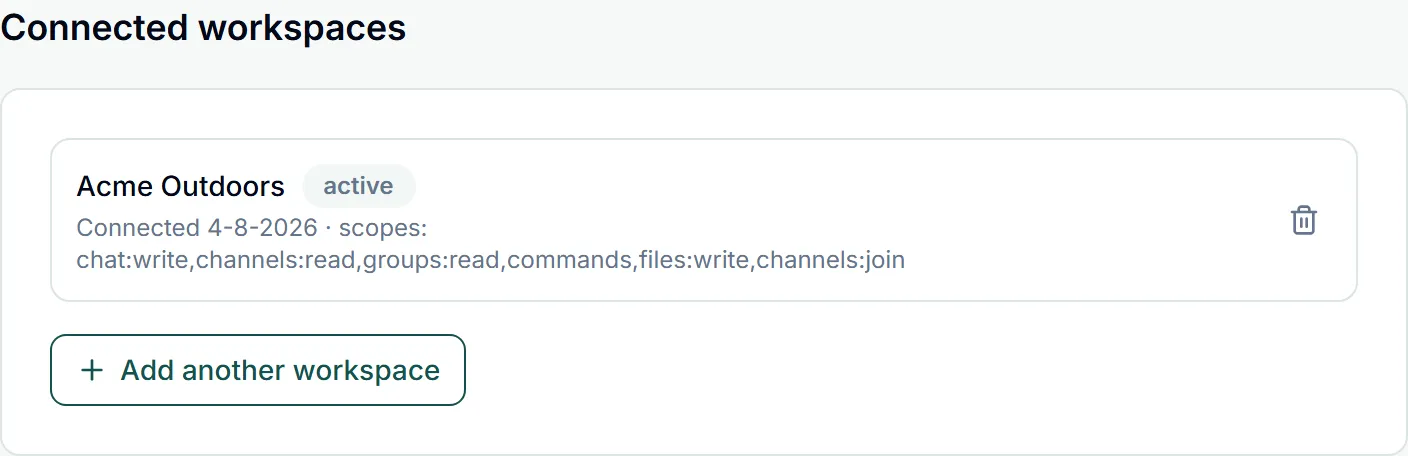
- Slack returns you to the settings page with Slack workspace connected. The workspace is now listed as active, with the date and the granted scopes.
You can connect more than one workspace. Use Add another workspace and pick a different workspace on Slack’s screen. Each subscription belongs to one workspace.
What each permission is for
GSC Wizard asks for six bot scopes and nothing else. It has no message-history permission, so it cannot read your conversations.
- chat:write posts the report and alert messages into the channel you subscribe.
- channels:read lists public channels so the subscription form can offer a destination.
- groups:read does the same for private channels the bot has been invited to.
- commands registers and receives
/gscwizard. - files:write uploads the trend chart image on a scheduled report.
- channels:join lets the bot join a public channel you picked but never invited it to, so the first send does not fail. It is used only to recover from that one error, never speculatively.
Public and private channels
The channel picker in the subscription form groups channels by whether GSC Wizard is already in them.
- Public channels are all listed, including ones the bot has never been in. It joins on the first post, so a test message is enough to get it in.
- Private channels appear only after you invite the bot. In Slack, run
/invite @GSC Wizardin the channel, then hit Reload next to the picker. - Renamed a channel or created a new one? The list is cached, so use Reload to fetch it again.
Reconnecting a workspace
Slack grants permissions at install time and never adds them to an existing token. When GSC Wizard starts using a new permission, workspaces connected before it keep working but without that one capability, and the settings page shows a Reconnect prompt explaining what is missing.
- Missing files:write: scheduled reports arrive as text, with no trend chart. Everything else is unaffected.
- Missing channels:join: the bot cannot add itself to a public channel, so you have to invite it with
/invite @GSC Wizard.
Reconnecting is just Add to Slack again on the same workspace. Your subscriptions, schedules, and settings are untouched.
Disconnecting and removing
There are two sides to the connection, and either one can end it.
- From GSC Wizard: the bin icon next to a workspace revokes its bot token and deletes that workspace’s subscriptions. Other workspaces are unaffected.
- From Slack: removing the app in the workspace’s app settings invalidates the token. GSC Wizard notices on the next send, marks the workspace connection broken, and pauses its subscriptions rather than deleting them, so reconnecting brings them back.
When a message does not arrive
The test button reports Slack’s own reason, and the settings page translates it.
- GSC Wizard is not in that channel yet. Invite it with
/invite @GSC Wizard, or reconnect the workspace so it can join public channels itself. - The channel no longer exists, or is archived. Pick another channel on the subscription.
- The connection is no longer valid. The token was revoked or expired: reconnect the workspace.
- Slack is rate limiting us. Temporary, and the next run retries.
- Repeated failures auto-disable a subscription and the reason is shown on its row. Fix the cause, then switch it back on with the power icon.
Part of Slack, Teams & webhooks. Related: Scheduled reports, Alerts, Using it from Slack.