Connecting ChatGPT
Ask ChatGPT about your own Search Console, GA4 and Bing data, through the GSC Wizard app, a developer-mode connector, or the Responses API.
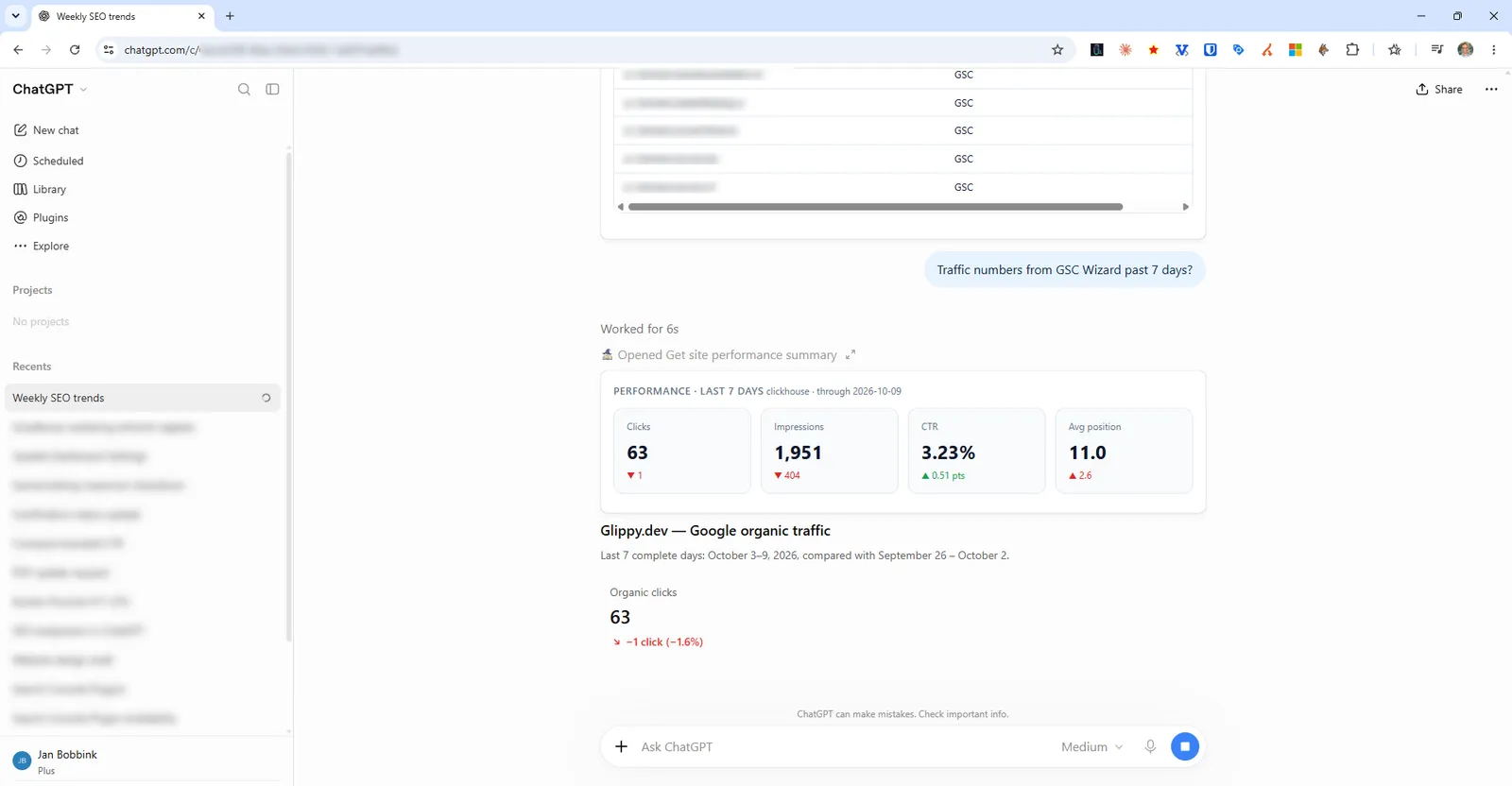
There are three ways to bring GSC Wizard into ChatGPT, and they suit different people. The GSC Wizard app from the ChatGPT app directory is the quickest and shows results as interactive cards and tables. A developer-mode connector adds the MCP server at https://mcp.gscwizard.com/mcp directly, so ChatGPT always has the server’s full and newest tool list. And the Responses API takes the same server for your own scripts and agents.
Before you start: you need a GSC Wizard subscription or trial, and your properties connected in the app at tool.gscwizard.com, not in ChatGPT. The setup overview explains both.
Option 1: the GSC Wizard app
- Open the GSC Wizard app in the ChatGPT app directory and add it.
- ChatGPT opens GSC Wizard’s sign-in screen. Check the account it says you are signed in as, decide whether ChatGPT may make changes, and approve.
- In a chat, pick GSC Wizard from the tools in the composer, or name it in your message, and ask about your site.
Answers to the common questions, such as a performance summary or top queries, come back as cards and tables inside the chat. The ChatGPT app page shows what each one looks like.
The directory app carries the tools of its last reviewed version. OpenAI reviews every update before it reaches the directory, so a tool added to the server recently can be missing from the app for a while. If you need every tool, use the connector below.
Option 2: a developer-mode connector
Developer mode needs ChatGPT Plus, Pro, Business, Enterprise or Edu; it is not offered on Free or Go.
- In ChatGPT, open Settings, then Apps, and turn on Developer mode under the advanced settings. On a Business or Enterprise workspace, an admin may have to allow developer mode or custom apps first.
- Create a new app. Name it GSC Wizard, enter
https://mcp.gscwizard.com/mcpas the server URL, and set authentication to OAuth. Leave the client ID and secret empty: ChatGPT registers itself with the server. - Sign in and approve on GSC Wizard’s screen, then pick GSC Wizard from the tools in the composer. ChatGPT asks before a tool call that can make changes.
There is no field for an API key, and that is expected. ChatGPT cannot send a fixed key to a remote server, so it always signs in. Keys are for the Responses API below and for config-file clients.
Check that it works
Ask something you can compare with the app, so you know ChatGPT reads the right account:
List my GSC Wizard properties, then give me clicks, impressions and average position for example.com over the last 28 days, with the dates.
The numbers should match the property dashboard for the same dates, give or take the last settled day, which the answer names.
Option 3: the Responses API
For scripts, scheduled reports and your own agents, the OpenAI Responses API takes the server as a remote MCP tool with a key in the header. Create the key on the MCP API keys page in GSC Wizard, read-only unless the job has to change something.
{
  "type": "mcp",
  "server_label": "gsc-wizard",
  "server_url": "https://mcp.gscwizard.com/mcp",
  "headers": { "Authorization": "Bearer gscw_live_..." },
  "allowed_tools": [
    "list_sites",
    "get_site_summary",
    "query_top_queries",
    "query_top_pages",
    "get_ranking_changes",
    "find_decaying_content"
  ],
  "require_approval": "never"
}
The allowed_tools list is optional, but every tool definition costs context on every turn and the server has more than 130, so a job that needs six tools should list six. Keep the key out of your source code.
OpenAI Dots
Dots are always-on agents that keep working in the background. They use the same GSC Wizard plugin: open the dot’s profile, then Customize and Plugins, pick GSC Wizard, review its permissions and sign in once. The OpenAI Dots guide has monitoring routines to give a dot.
What to ask ChatGPT
In your own words. Name the property when you have more than one; you never need the tool names.
- Give me a weekly report for example.com: clicks, the biggest movers, and anything that needs attention.
- Which queries am I close to page one for, and how many clicks would each be worth there?
- Inspect https://example.com/pricing in Google and tell me why it is or is not indexed.
- Make a one-page client report for October and share it with the client.
Selling online? The same connection also answers questions about Merchant Center: free listings, products Google holds back, prices against the market and feed health. Merchant Center in ChatGPT has the prompts and the shopping tools.
Troubleshooting
A tool is missing
Check whether the chat uses the directory app or your developer-mode connector. The app carries the tools of its last reviewed version; the connector reads the live list. If the connector itself lacks a tool, refresh it under Settings, Apps, or remove it and add it again.
Developer mode is not in Settings
It needs ChatGPT Plus, Pro, Business, Enterprise or Edu. On a work account, ask the workspace admin whether developer mode and custom apps are allowed.
ChatGPT and Codex answer for the wrong account
A GSC Wizard connection added through ChatGPT’s apps is shared with Codex when it uses ChatGPT’s sign-in. Signing out in the browser does not change it: remove the connection and add it again while you are signed in at tool.gscwizard.com as the right account.
A tool that changes something returns 403
The key or the sign-in is read-only. Create a read-and-write key, or connect again and leave the box that allows changes ticked, or make the change in the app instead.
Part of Connecting AI assistants. Related: Connect Search Console to ChatGPT, The ChatGPT app, Claude, Codex, Gemini, Cursor & VS Code, Grok, Microsoft Copilot.