Connecting Claude
Ask Claude about your clicks, rankings, decaying pages and indexing, and get answers from your own Search Console data, in the Claude app or in Claude Code.
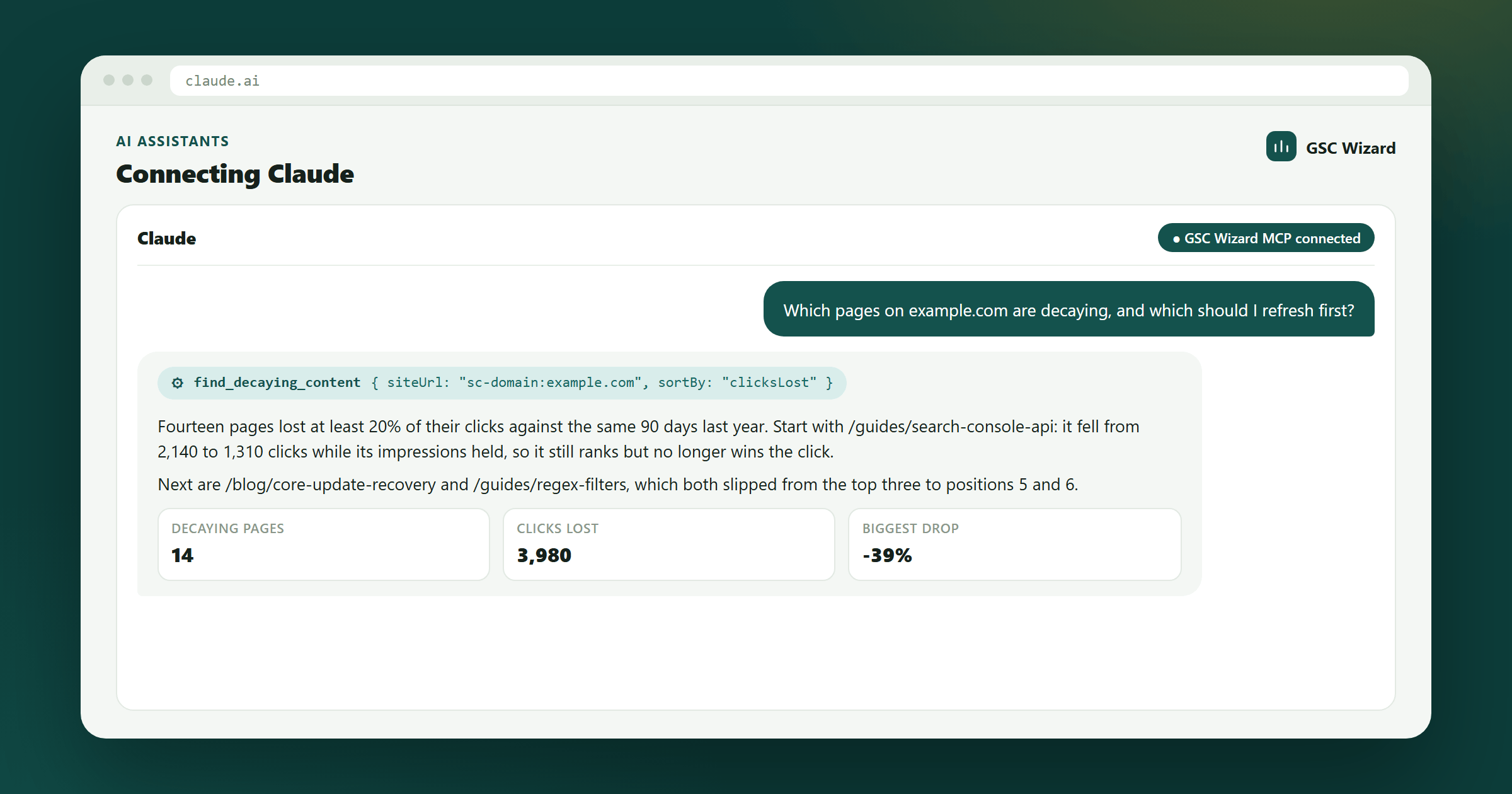
Claude reaches your data through the GSC Wizard MCP server at https://mcp.gscwizard.com/mcp. In the Claude app it is a custom connector that you add once and switch on per chat; in Claude Code it is one plugin or one command; and from your own code the Claude Agent SDK takes it as an HTTP server.
Before you start: you need a GSC Wizard subscription or trial, and your properties connected in the app at tool.gscwizard.com, not in Claude. The setup overview explains both.
Add GSC Wizard as a custom connector
In Claude on the web or in the desktop app, open Settings, then Connectors, and click Add custom connector. Name it GSC Wizard and enter the URL below. Leave the OAuth client ID and secret empty: Claude registers itself with the server, so there is nothing to copy.
https://mcp.gscwizard.com/mcpConnectors you add on the web also appear in the desktop app, and the other way round. On a Team or Enterprise plan, an owner may have to add the connector for the organisation first, after which each member connects their own GSC Wizard account.
Sign in and approve
Click Connect. Claude opens GSC Wizard’s sign-in screen, which says Claude wants to access your GSC Wizard account and, below it, which account you are signed in as. Check that it is the right one. Leave Also allow Claude to make changes ticked if Claude should be able to add annotations, submit URLs to IndexNow and the like, or untick it for a read-only connection, then approve.
Turn it on in a chat
Open the tools menu in the message box and make sure GSC Wizard is switched on for the conversation. Claude asks before it calls a tool for the first time; you can allow a tool once or always.
Working on one site? Put it in a Claude Project and name the property in the project instructions, for example “The site is sc-domain:example.com. Always state the date range behind a number.” Every chat in the project then starts from the right place.
Check that it works
Ask something you can compare with the app, so you know Claude reads the right account:
List my GSC Wizard properties, then give me clicks, impressions and average position for example.com over the last 28 days, with the dates.
The numbers should match the property dashboard for the same dates, give or take the last settled day, which the answer names.
Claude Code
The quickest route is the GSC Wizard plugin, which adds the server and the ready-made SEO skills in one step. In Claude Code, run:
/plugin install seo-gsc-wizard@claude-communityThen type /mcp, select gsc-wizard and choose to authenticate; your browser opens the same sign-in screen as above. The skills appear as /seo-gsc-wizard:site-audit, /seo-gsc-wizard:content-decay and so on, and Claude also picks one up when your request matches it.
Prefer the server on its own? One command adds it, here for every project on your machine:
claude mcp add --transport http --scope user gsc-wizard https://mcp.gscwizard.com/mcpFor scripts and CI, where no browser is available, create a key on the MCP API keys page and pass it as a header instead. Pick a read-only key unless the job has to change something.
claude mcp add --transport http gsc-wizard https://mcp.gscwizard.com/mcp \
  --header "Authorization: Bearer gscw_live_..."
With a site’s code open, Claude Code can tie a Search Console finding to the template behind it: ask it for the pages with the worst CTR for their position, then to find where the repository builds their titles and meta descriptions.
The Claude Desktop config file
The Connectors screen above is the simplest way into the desktop app. Its config file, claude_desktop_config.json, only starts local programs, so an entry with "type": "http" is rejected as invalid. To use a key there, bridge the remote server through mcp-remote, which needs Node.js:
{
  "mcpServers": {
    "gsc-wizard": {
      "command": "npx",
      "args": [
        "-y", "mcp-remote",
        "https://mcp.gscwizard.com/mcp",
        "--header", "Authorization: Bearer gscw_live_..."
      ]
    }
  }
}
Quit Claude Desktop fully and reopen it after saving the file.
The Claude Agent SDK
Building your own agent? Declare the server as an HTTP MCP server in the agent options; the SDK handles the handshake.
mcpServers: {
  "gsc-wizard": {
    type: "http",
    url: "https://mcp.gscwizard.com/mcp",
    headers: { Authorization: `Bearer ${process.env.GSCW_API_KEY}` }
  }
}
Use a read-only key for anything unattended. If the agent only needs a handful of tools, list just those in its allowed tools as well: a smaller tool list costs less on every turn and narrows what a prompt injection in fetched page content could reach.
What to ask Claude
In your own words. Name the property when you have more than one; you never need the tool names.
- Audit example.com and tell me the five things to fix first, with the data behind each.
- Why did clicks drop in the second week of September? Check rankings, demand, indexing and Google updates.
- Which of my pages are decaying, and which are worth refreshing first?
- Compare organic sessions in GA4 with Search Console clicks for my top landing pages. Where do they disagree?
Selling online? The same connection also answers questions about Merchant Center: free listings, products Google holds back, prices against the market and feed health. Merchant Center in Claude has the prompts and the shopping tools.
Troubleshooting
The GSC Wizard tools do not show up in a chat
Check that the connector is switched on in the tools menu of that conversation. If it is on and a tool is still missing, disconnect the connector in Settings and connect it again, so Claude reloads the server’s tool list.
Claude asks for an OAuth client ID
Leave both fields empty. The server supports dynamic client registration, and a client ID typed in by hand gets in the way of it.
Claude Desktop calls the config file invalid
The file starts local programs only. Use the Connectors screen, or the mcp-remote entry above.
Every call returns 401
With a key, check that the header is exactly Authorization: Bearer gscw_live_... with the full key, that the key has not been revoked on the MCP API keys page, and that the account still has an active subscription or trial. With a sign-in, connect again.
A property is missing
The assistant only sees properties that are connected and active in GSC Wizard. Add the property in the app first, then ask for the list of properties again. Domain properties carry the sc-domain: prefix.
Part of Connecting AI assistants. Related: Connect Search Console to Claude, ChatGPT, Codex, Gemini, Cursor & VS Code, Grok, Microsoft Copilot.