Connecting Merchant Center to Claude
Ask Claude which products Google is holding back, how free listings performed, where your prices sit against the market, and whether a feed broke, and get answers from your own Merchant Center account.
Claude has no Merchant Center integration of its own. It reaches your shop through the GSC Wizard MCP server at https://mcp.gscwizard.com/mcp, a hosted connector that holds the Merchant Center access and turns your account’s reports into answers. You add it once, and every chat can use it.
Before you start
- A GSC Wizard subscription or trial. MCP access is part of every plan.
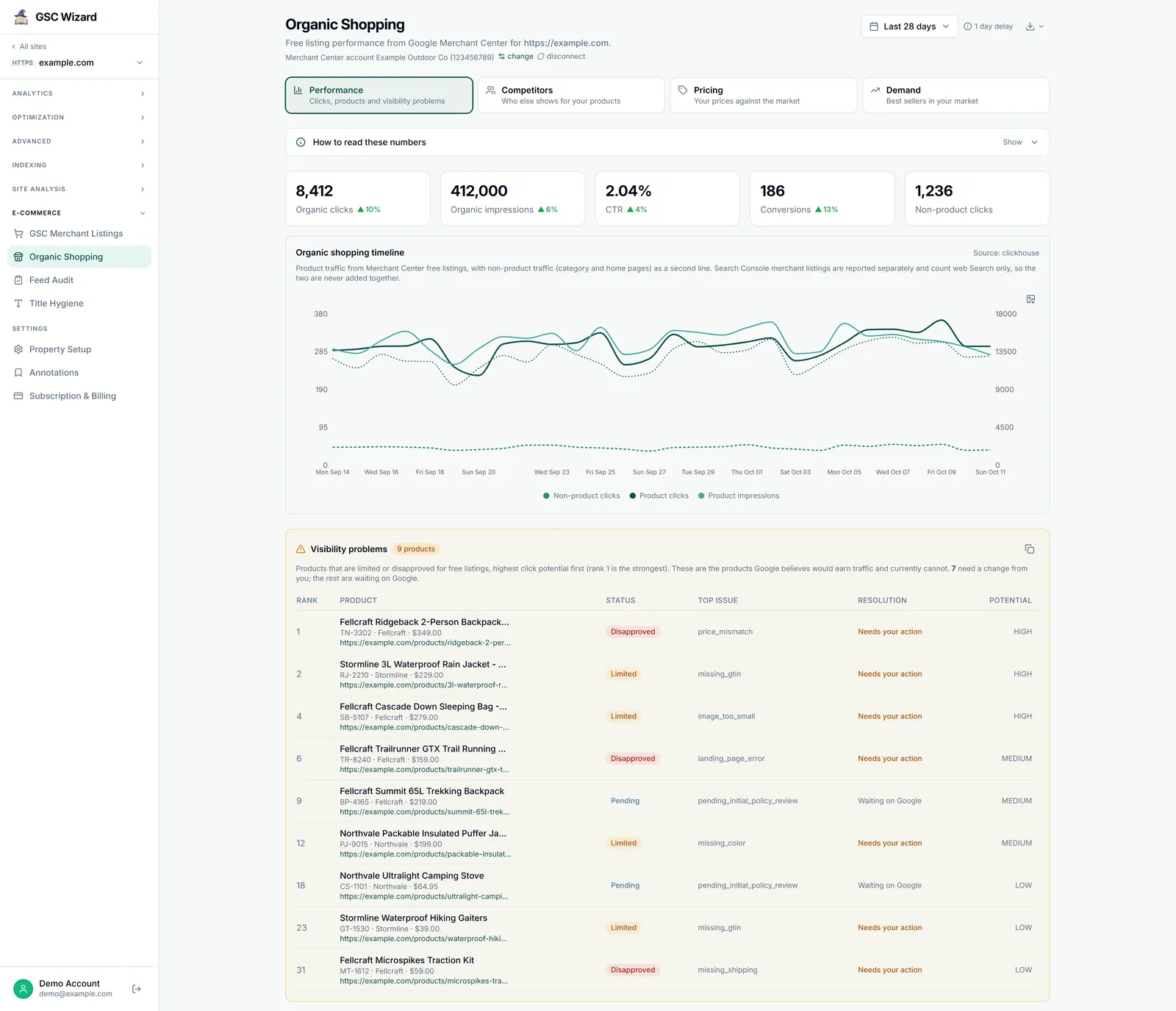
- Merchant Center linked to the property in the GSC Wizard app, not in Claude: see Connecting Merchant Center. If the property’s Organic Shopping report shows numbers, Claude can read them.
Already using GSC Wizard in Claude for Search Console? There is nothing to add: the shopping tools are on the same server.
Add GSC Wizard as a custom connector
In Claude on the web or in the desktop app, open Settings, then Connectors, and click Add custom connector. Name it GSC Wizard and enter the URL below. Leave the OAuth client ID and secret empty: Claude registers itself with the server, so there is nothing to copy.
https://mcp.gscwizard.com/mcpConnectors you add on the web also appear in the desktop app, and the other way round. On a Team or Enterprise plan, an owner may have to add the connector for the organisation first, after which each member connects their own GSC Wizard account.
Sign in and approve
Click Connect. Claude opens GSC Wizard’s sign-in screen, which says Claude wants to access your GSC Wizard account and, below it, which account you are signed in as. Check that this is the account that holds the shop. Leave Also allow Claude to make changes ticked if you want Claude to be able to queue feed audits, or untick it for a read-only connection, then approve.
Turn it on in a chat
Open the tools menu in the message box and make sure GSC Wizard is switched on for the conversation. Claude asks before it calls a tool for the first time; you can allow a tool once or always.
Working on one shop? Put it in a Claude Project and add the property to the project instructions, for example “The shop is sc-domain:example.com. Compare trends between Search Console and Merchant Center, never totals.” Every chat in the project then starts from the right place.
Check that it works
Ask something you can compare with the app, so you know Claude reads the right account:
“List my Merchant Center accounts and their sites, then show free listing clicks for example.com over the last 28 days, with the dates.”
The clicks should match the Organic Shopping report for those dates. A notConfigured note instead names a reason, explained in the reference.
Claude Code
In the terminal, one command adds the same server. Claude Code then runs the sign-in in your browser the first time you use it.
claude mcp add --transport http gsc-wizard https://mcp.gscwizard.com/mcpStart Claude Code, type /mcp, select gsc-wizard and choose to authenticate. For scripts and CI, where no browser is available, create a key under Account → API keys and pass it as a header instead. Pick a read-only key unless the job has to queue audits.
claude mcp add --transport http gsc-wizard https://mcp.gscwizard.com/mcp \
  --header "Authorization: Bearer gscw_live_..."
With the shop’s code open, Claude Code can tie a Merchant Center issue to the line that causes it. Ask it to read the top issues from get_product_listing_status, then find where the repository renders the price or the Product structured data the issue is about. The Codex guide has more prompts of that kind, and they work the same way here.
Prefer the Claude Desktop config file to the Connectors screen? It only starts local servers, so a remote server has to go through the mcp-remote bridge. The Claude setup guide has the exact config.
What to ask Claude
In your own words. Name the property when you have more than one.
“Which of my products are disapproved or limited in free listings, and which fixes would win back the most clicks?”
“How did free listing clicks and conversions change per brand over the last 28 days, compared with the 28 days before?”
“Compare merchant listing clicks in Search Console with free listing clicks in Merchant Center. Are the two trends moving together?”
“Queue a feed audit for example.com, and when it has run, tell me the Feed Score and which checks fail most often.”
All thirteen shopping tools, how to read their numbers and what Claude can change are in the shopping tools reference.
Troubleshooting
The GSC Wizard tools do not show up in a chat
Check that the connector is switched on in the tools menu of that conversation. If it is on and a shopping tool is still missing, disconnect the connector in Settings and connect it again, so Claude reloads the server’s tool list.
Claude asks for an OAuth client ID
Leave both fields empty. The server supports dynamic client registration, and a client ID typed in by hand gets in the way of it.
Claude answers with a notConfigured note
The note names a reason, and the reference explains each one. Most mean the Merchant Center link on the property is missing or broken, which is fixed in the app, not in Claude.
Part of Google Merchant Center. Related: Connecting Merchant Center, Shopping tools reference, ChatGPT, Codex, Grok.