Connecting Google Ads
The screens, in order. Grant access once per Google login, link one or more Ads accounts per property, then import the data.
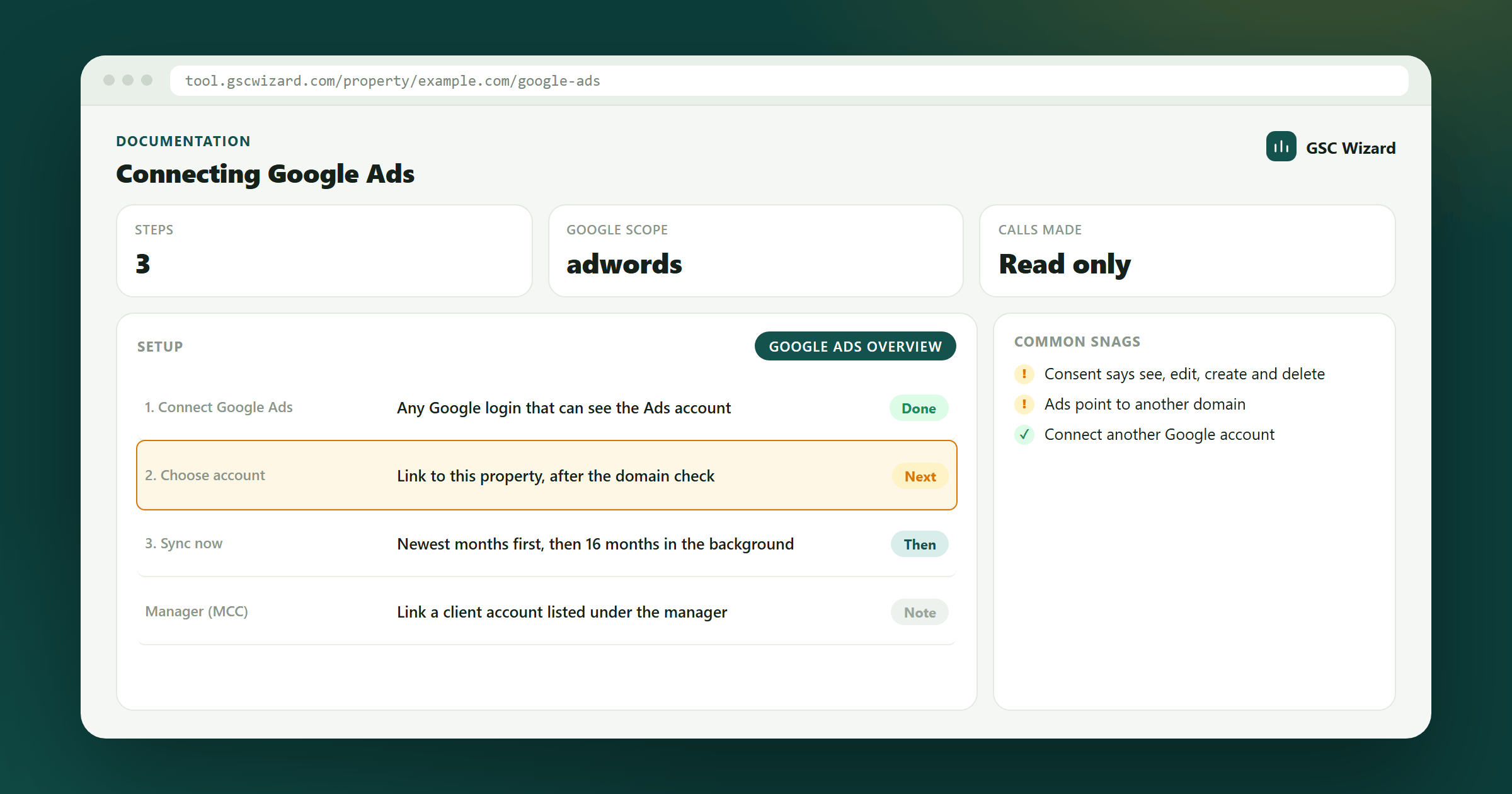
Connecting takes three steps, and all three happen on the property’s Google Ads Overview page: grant access with a Google login that can see your Ads accounts, link the Ads account that advertises this site, then import the data. Granting access is done once per Google login; linking is done once per property.
Before you start, you need an active subscription or a running trial, the property added in GSC Wizard, and a Google login with access to the Google Ads account, directly or through a manager account. To link, you must own the property in GSC Wizard or have full access to it as a collaborator.
Open Google Ads Overview on the property
Open the property, expand PAID SEARCH in the left sidebar (it starts collapsed) and click Google Ads Overview, its first item. The direct address is /property/<your-site>/google-ads. On a phone, open the menu with the ☰ button at the top left first.
The top of the page is a Setup card with three numbered steps, and the step to do next is highlighted. Its introduction says what the rest of this page explains: “The consent screen says ‘see, edit, create and delete’ because Google has no read-only Ads scope; GSC Wizard only runs reporting reads. Data is copied into the warehouse (16 months of history, then a daily 14-day refresh) and every report reads from there.”
The connection can only start from inside the app. A connect link opened from another site, including the GSC Wizard marketing site, lands on your Account page instead, so go to the property first.
Connect a Google account that has Google Ads access
Click Connect Google Ads. Google’s account chooser opens, so you can pick any Google login you use: the one that can see the Ads account does not have to be the one behind your Search Console properties. Agencies often keep Google Ads on a separate login, and that works.
Google then shows its consent screen, which reads “See, edit, create, and delete your Google Ads accounts and data”. That wording is Google’s, and it is the only Google Ads permission Google offers: there is no read-only variant. GSC Wizard uses it for reporting reads only. It never creates, edits or deletes anything in an Ads account, and GSC Wizard makes no write calls to the Google Ads API. If Google shows a checkbox for Google Ads, tick it before you click Continue.
You come back to the property’s Google Ads page, and the login appears under Google accounts with Ads access. On its own this links nothing yet: it only lets GSC Wizard see which Ads accounts that login can reach. To add a second login, for example one that manages other clients, click Connect another Google account.
The permission belongs to your Google login, not to the property. You can withdraw it at any time at myaccount.google.com/permissions, or by unlinking the Google account in Account settings, which also deletes the Google Ads data stored for it.
Choose the Google Ads account for this property
When you come back from Google with nothing linked yet, the account list opens by itself. Otherwise click Choose account. The list shows every Google Ads account your connected logins can reach, including client accounts under a manager (MCC) account, which are marked under the manager’s name. Each entry shows the account id, its currency and time zone, and the Google login it comes through.
- Click Link to this property next to the account that advertises this site.
- Manager accounts and deactivated accounts are listed with the reason they cannot be linked. Link the client account under a manager, not the manager itself.
- With two or more linkable accounts you can tick several and click Link N selected to this property. Accounts under one manager can be ticked together, which suits an agency that runs one account per country for the same site.
Each property is linked separately, so repeat this step on every property whose ads you want to see.
Let the domain check confirm the account
Before it links, GSC Wizard checks the account’s landing pages of the last 90 days against the property, so a typo in a long account list does not mix another client’s spend into this site’s reports. When the ads point here, the account links straight away. When most of the ad traffic goes elsewhere, the page holds the link back and says “This account’s ads do not point to this property.” or “Most of this account’s ad traffic goes to other websites.”, lists the hosts the ads point to, and offers Link anyway or Cancel.
Linking anyway is right when the ads point to a related domain on purpose, such as a separate shop domain. A linked account also has a Check domain link in its row to run the check again later; it needs the same access as linking. The check is one Google Ads API operation from your own daily allowance described under Sync, history & data. Linking through an AI assistant skips it.
Whichever way you link, GSC Wizard first asks Google, at that moment and with your own Google login, whether you can read the account. When Google does not confirm it, nothing is linked and no stored data is copied.
Import the data
Click Sync now. It runs for up to four minutes (the button says Syncing (up to 4 minutes)), imports the newest months first, and shows a live ticker of what it is reading, such as Campaigns, Search terms, Keywords and Quality Score or Landing pages, with the rows stored. Stop ends the run at the next Google Ads call. Finished months are kept, and a month that was half read is read again by the background sync, which runs every 10 minutes.
You do not have to wait. Close the page and the background sync keeps importing until 16 months of history are in, then refreshes the account every day. Most reports work as soon as the first months have arrived.
Check the linked accounts table
Once linked, the Setup card lists each account with its name and id, the manager it is reached through, its currency and time zone, the dates stored (first to last, and the number of days), the history state (importing back to a date, complete, or paused), the last sync with its last error, the rows written, and Unlink.
Further down, the Overview has a Setup check behind a button. It reads GA4 live and reports whether GA4 is linked to the Ads account, which conversion actions are GA4 imports, whether the attribution settings agree, whether Merchant Center is linked (and whether it is the one this property uses), and where to look for the Search Console link.
Several accounts and several properties
Accounts and properties do not have to match one to one.
- Several Ads accounts on one property. Link each one. Reports add them up, and when more than one account is linked they show an account filter, a row of toggles that narrows a report to some of the accounts. When the accounts report in different currencies, a Report currency setting on the Overview picks the currency every report shows, as described under currency.
- One Ads account on several properties, for example a .nl and a .be shop run from one account. Link it on each property. Once the links are in place, the extra property costs no extra Google Ads API quota: the account is still fetched once per run and written under every linked property. The new link itself does cost operations once, as the next point explains.
- Linking an account that is already synced for another of your properties copies its stored rows to the new property at once, so most reports work immediately, and then reads the whole 16-month history and the weekly snapshots again in the background so the per-property parts fill in too. That re-read spends operations from the shared daily budget described under Sync, history & data, like the first import did. When another user syncs the same account too, one person can restart its history this way at most 3 times per account in 30 days; a further property still gets the stored data and every new day, only not the re-read. Linking a pair that is already linked changes nothing.
Collaborators: who can do what
Google Ads follows the property’s sharing in Team Management.
| Action | Who can do it |
|---|---|
| Read the reports | The property owner, and each collaborator the owner turns on Google Ads for, per person, in Team Management or on the invite, as for GA4 and Merchant Center. Without it, a collaborator sees no Google Ads data, with read-only or full access. The GA4 parts also need the GA4 opt-in and the Merchant Center parts the Merchant Center opt-in, as for the GA4 and Merchant Center reports themselves. |
| Link an Ads account | The property owner, or a collaborator with full access and Google Ads turned on. The link belongs to the person who made it and syncs with their own Google login. The table then says “Linked by <email>, a collaborator with full access. It syncs with their Google account.” |
| Unlink | The owner can unlink any account on the property. A collaborator can unlink only the accounts they linked; for the others the row says Owner can unlink. |
| Sync now, report thresholds, report currency | The owner and collaborators with full access and Google Ads turned on. Read-only collaborators with Google Ads turned on see the values but cannot change them. |
| Google Ads alerts | The property owner only. See Google Ads alerts. |
An account another user already linked to this property cannot be linked a second time, and GSC Wizard never takes a link over: the message is “That Google Ads account is already linked to this property by another user. The property owner can unlink it first.” When a collaborator’s access is revoked or reduced to read-only, the links they made are removed and the Ads data stored through them is deleted.
Unlinking an account
Click Unlink on the account’s row. The confirmation asks “Unlink and delete its stored data for this property?” with Unlink and Keep.
- Unlinking deletes this property’s stored Google Ads data, the link itself, its sync state when no other link of yours needs it, and the experiment readings saved in Natural Experiments. For the property’s last Ads account, the state of its Google Ads alerts is cleared too.
- Other properties linked to the same account keep their data.
- The savings ledger in Brand Savings stays: its entries are your own notes per search term for the property, not data read from the account. Delete them in the ledger if you no longer want them; they also go when the property or the GSC Wizard account that owns it is deleted.
- Nothing changes in Google Ads. Linking again imports 16 months of history again.
When the person who linked an account loses access
A link syncs with the Google login of the person who made it. When Google no longer lets that login read the account, for example because their access was removed in Google Ads, the sync stops for that account.
- The Setup card says so on the account’s row, with the date Google first refused: “Since <date>, Google no longer lets <person> read this account.”
- For 7 days the account’s stored data stays visible in the reports, and the row says until when. After that the reports leave the account out and say why, until a sync works again: link the account again with a Google account that has access, or restore the access in Google Ads and click Sync now.
- Nothing is deleted. The stored data comes back as soon as a sync of the account works again; to remove it, unlink the account.
Troubleshooting
What you see, why it happens, and what to do.
- The consent screen asks to “see, edit, create, and delete”: that is the only Google Ads permission Google offers. GSC Wizard only reads with it.
- You came back from Google and nothing was granted: the Google Ads box on Google’s permission screen was left unticked, or the screen was cancelled. Click Connect Google Ads again and approve with the box ticked.
- The connect started from a bookmark or another site and you landed on your Account page: the connection only starts from inside the app. Open the property’s Google Ads Overview and click the button there.
- The account you need is not in the list: none of your connected logins can see it. Click Connect another Google account and approve with a login that has access, or ask for access in Google Ads first. A manager account itself cannot be linked: pick the client account listed under it.
- “This account’s ads do not point to this property.”: the account’s landing pages of the last 90 days are on other hosts. Check that you picked the right account. If the ads point to a related domain on purpose, click Link anyway.
- “That Google Ads account is already linked to this property by another user.”: a collaborator linked it already, and the reports already show it. The owner can unlink it if you need to link it with your own login instead.
- Listing accounts or Check domain is refused for now: either your own daily allowance of Google Ads lookups is used up, and the message says when it works again, or the daily Google Ads API budget that all GSC Wizard users share is spent. The reports keep working, since they read the warehouse. Try again later.
- “You already have 25 Google Ads accounts linked, the most one user can link.”: one user can hold 25 account links over all properties. Unlink an account you no longer need, or email support@gscwizard.com if you need more.
- “The Google Ads reports of this property are not shared with you.”: the property is shared with you, but Google Ads is not turned on for you. Ask the property owner to turn on Google Ads for you in their Team Management settings.
- History says paused: Google reported that GSC Wizard can no longer reach the account, usually because the permission was revoked or the login lost access in Google Ads. Restore the access, then connect the login again or click Sync now, which reactivates a paused account.
- Link and Sync now are missing: you are a read-only collaborator on this property. The owner, or a collaborator with full access and Google Ads turned on, can link accounts.
- “Google no longer lets the person who linked <account> read it, so its data is not shown.”: the login that made the link lost access to the account more than 7 days ago. Link the account again with a Google account that has access, or unlink it. Nothing was deleted (see when the person who linked an account loses access).
- “Google Ads data for <account> is missing from <start> to <end>”: Google kept refusing that month of the account’s history. GSC Wizard tries it again about once a week and fills it in when Google returns it; until then, figures for that period are incomplete. See the history import.
Part of Google Ads. Related: Sync, history & data, Google Ads Overview, Sharing & team access.