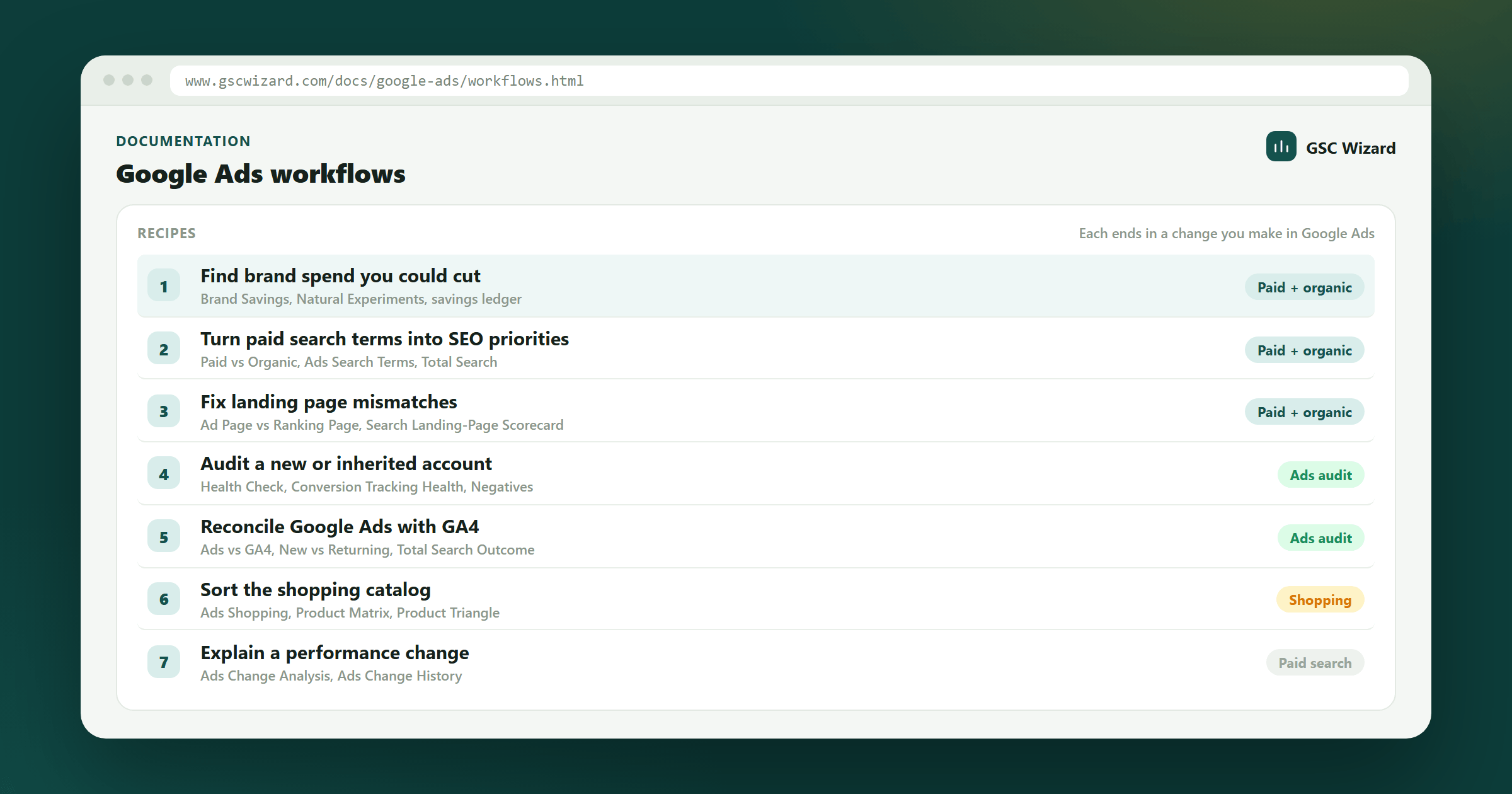
Ten recipes that take you from a question to the change you make in Google Ads, through the reports that answer it.
Each workflow runs through the reports that answer one question, from brand spend to a shopping catalog.
10 recipes
Each recipe below is a sequence through the real reports, from the question to the change you make in Google Ads. They assume an account is linked and has synced; the connection guide covers that. GSC Wizard never makes the change for you: where a step ends in an action, you export a CSV for Google Ads Editor or change the setting in Google Ads.
Paying for clicks on your own brand is often money organic search would have earned anyway, but not always. This recipe finds the candidates, measures a pause honestly, and keeps a record of what it saved.
Make sure the property’s branded keywords are set in Property Setup (see Filters, dates & privacy). Every Google Ads report decides what counts as brand from that one list.
Open Brand Savings and start on Replaceable spend. It weights each paid term’s cost by Google’s published share of incremental clicks for the organic position you hold. Treat it as a research prior that ranks where to look, not as a measured saving.
Switch to Lone brand terms: brand terms where you rank about first organically and nothing on the paid side suggests a competitor is bidding. These are the safest to test.
Check the shortlist on Brand test pre-screen, which scores five signals that a brand test is worth running.
Export the chosen terms as a CSV for Google Ads Editor, pause them in Google Ads yourself, and mark them as acted on in the Savings ledger with the date and an optional note.
After a few weeks, open Ads Natural Experiments. It finds the pause in the stored data on its own. Click Run analysis to read how many of the paid clicks organic picked up. A conclusive reading of a full pause can be saved from its card, and Brand Savings then uses it instead of the prior for the terms it measured.
Follow the weekly before and after per action in the Savings ledger, and use the after-the-cut monitor in Natural Experiments to watch brand demand and total search outcome for up to a year.
The verdict rules in Natural Experiments are strict on purpose, so a small account often gets no conclusive verdict. Loosening a safeguard shows an exploratory result, which cannot be saved and never replaces the prior. See Report settings.
Turn paid search terms into SEO priorities
Search terms you pay for are demand you have already priced. Where you rank on page two for the same query, better organic rankings could take over part of that spend.
Open Paid vs Organic. Every paid search term is joined to the same Search Console query and split by where the site already ranks. Start with terms where organic sits in positions 4 to 20, and terms that are paid only.
Look at the cost of each term and at its organic clicks priced at your own CPC: that figure is what the organic clicks would cost as ads.
In Ads Search Terms, look at the n-grams (1, 2 and 3-word groups) to find the themes behind many small terms, and at the converting terms Google shows. The coverage line says how much of the spend the visible terms explain.
Use Ads Landing Pages to see which page each paid term lands on and how that page does organically.
Check Total Search for double coverage: queries where two or more of your pages rank and an ad shows too.
Hand the list to the SEO work: the Page Poaching and Queries reports show what it takes to move each query into the top three.
Fix landing page mismatches
An ad that sends people to a different page than the one Google ranks for the same query splits your signals, and the two pages often convert differently.
Open Ad Page vs Ranking Page. For queries with both paid traffic and an organic ranking, it puts the page the ads use next to the page Google ranks. Click Run analysis to compare the two pages’ conversion rates in GA4.
Open Search Landing-Page Scorecard and click Run analysis. It flags pages where paid converts far worse than organic, and pages with ad spend and no organic visibility.
In Ads Keywords, check the landing page experience component of Quality Score for the keywords that use those pages. This is where SEO work on a page shows up in Google Ads.
Run the Ads Health Check: one of its checks lists paid landing pages Google does not index, from your stored URL Inspection and Index Tracker results.
Change the final URLs in Google Ads, or improve the page that should win, and compare the scorecard again after a few weeks.
Audit a new or inherited account
The first hour with an account you did not set up. Everything here reads the stored data, so the audit costs no Google Ads quota and changes nothing.
Start with the Ads Health Check: a 0-100 score and 13 checks, among them search partners, location targeting by presence or interest, the broad match campaign setting, automatically created assets, final URL expansion, Performance Max or AI Max without a brand exclusion, campaigns without negatives, ad groups with too few ads, and bids or budgets unchanged for a long time. Each check says what to do in Google Ads and which spend it affects.
Open Conversion Tracking Health: every conversion action with its settings in plain language, a daily series per action that detects one that stopped firing, and the conversion lag curve. Wrong conversion data makes every other report wrong, so fix this first.
Review Ads Negative Keywords: negatives that block a keyword you still run, converting search terms that are now excluded, and negatives repeated across campaigns. The tables export to CSV as a work list for the negatives you change yourself in Google Ads or Google Ads Editor.
Look at Search Term Insights for search terms served by more than one campaign or ad group, with the CPC and conversion rate spread between them.
Check Budgets and Targets for campaigns limited by budget, targets far from similar campaigns, and the month-end spend projection.
Read Ads Recommendations last: Google’s optimisation score and open recommendations with Google’s own impact estimates, and invalid clicks per campaign. They are shown as Google states them and nothing is applied.
Reconcile Google Ads with GA4
Google Ads and GA4 never agree exactly. What matters is whether the gap between them suddenly changes, because that usually means broken tagging or a changed setting.
On Google Ads Overview, run the Setup check. It reports whether GA4 is linked to the Ads account, which conversion actions are GA4 imports, and whether the attribution settings agree.
Open Ads vs GA4 and click Run analysis. Per day and campaign it compares Ads clicks with GA4 sessions and Ads conversions with GA4 key events, and flags a break against each campaign’s own usual ratio. Small accounts see the ratios without a verdict until they have enough volume.
Open New vs Returning to see how much of each campaign’s sessions, key events and revenue comes from returning users, with brand campaigns marked.
Use Total Search Outcome to see paid and organic search as one series in GA4, with the blended cost per key event next to the paid-only one.
Subscribe to the Ads vs GA4 gap changed alert so the next break reaches you (Google Ads alerts).
Sort the shopping catalog
Which products earn their ad spend, which ones drag, and which ones the feed is holding back.
Open Ads Shopping for paid performance per product across Standard Shopping and Performance Max. Product ids are Merchant Center offer ids.
Open Product Matrix. Every product with impressions lands in one bucket (heroes, sidekicks, villains, zombies, below target) against the target ROAS of the campaigns that served it. Set a target on the page for campaigns that have none. A product without conversions is only called a villain once it had enough clicks to expect some; otherwise it says “no conversions yet”.
Link Merchant Center to the property (Connecting Merchant Center) and the matrix adds a sixth bucket: catalog products that were never shown.
Open Product Triangle: per product, what Google Ads pays, what free listings and the product page earn organically, and whether the feed holds the product back (Merchant Center status, item issues, the latest Feed Audit).
For Performance Max, Performance Max shows spend by channel, asset groups, search categories, and whether each campaign has a brand exclusion list.
Explain a performance change
Conversions fell or cost jumped. Before you guess, split the change into its parts.
Open Ads Change Analysis with the current period and a comparison period. It splits the change in conversions, conversion value or cost exactly into impressions, CTR, conversion rate and value per conversion (or clicks and CPC), per campaign, device and network, with the change log of the period beside it.
Open Ads Change History for the structural changes in that window: campaigns, budgets, ad groups, keywords, ads and bid adjustments, with who made them. GSC Wizard keeps them beyond Google’s 30 days.
On Budgets and Targets, the before and after tab shows the effect of each bidding or budget change in the log.
For organic, the same property’s Search Console reports show whether demand moved at the same time.
Value content by what ads would cost
Organic clicks have a price: what the same clicks would cost as ads. Putting that next to ad spend per content area shows where content already earns its keep.
Open Content P&L. Per group and cluster it shows what ads buy (cost, clicks, conversions) next to what search earns (organic clicks priced at the group’s own CPC).
Click Run analysis to add GA4 landing-page revenue and key events.
Groups with high ad cost and little organic value are candidates for content work; groups that earn a lot organically may need less paid support.
Get told when something breaks
Daily checks so you hear about a dead conversion tag or a spend spike from Slack rather than from the invoice.
In Account, then Slack, Teams & Webhooks, create an alerts subscription or a webhook for a property you own (Google Ads alerts).
Tick at least conversion action stopped, conversions dropped to zero and spend anomaly. Add health check regression and new lone brand term once the account is in shape.
Pick the minimum severity and real-time or bundled delivery, and save. The standing checks stay quiet on their first run and then report what is new.
Ask an AI assistant
The same data in a conversation, useful for a quick question or a client write-up.
Ask “Which Google Ads accounts are linked to example.com, and how current is their data?” so you know the assistant reads the right account.
Then ask the question in your own words, for example “Which paid terms do we also rank in the top 3 for, and what do they cost a month?” or “Run the Ads health check and list the failed checks by spend.”
Ask the assistant to state the date range and source behind every figure. Google Ads in AI assistants lists the 16 tools and more prompts.