ClickUp
The same alerts, as tasks in the ClickUp list your team works from. A traffic drop or a deindexed page lands in the list with its numbers, a priority from its severity and a link to the report.
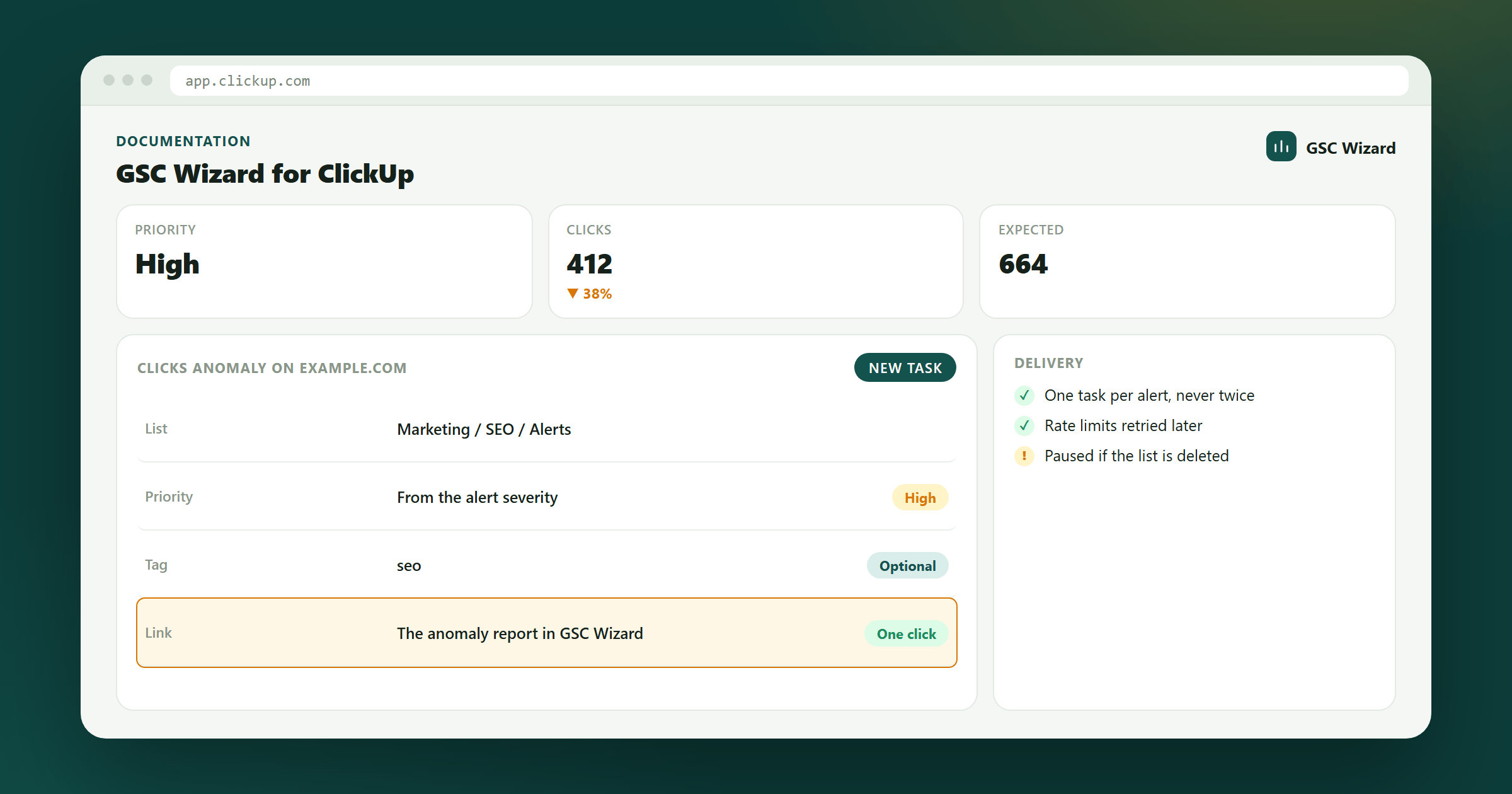
A ClickUp list subscribes to alert events exactly the way a Slack or Teams channel does, and receives each one as a new task. GSC Wizard only creates tasks: it never edits, comments on or deletes anything in your workspace. Set it up under Account → Slack, Teams & Webhooks; Slack is not needed. It needs a 7-day free trial or a paid plan.
Connecting ClickUp
- Open Account → Slack, Teams & Webhooks and click Connect ClickUp in the ClickUp section.
- ClickUp asks which of your workspaces GSC Wizard may use. Tick the workspaces whose lists should receive alerts and approve.
- You land back on the settings page with the form open. To add a workspace later, click Connect another account and tick it on the same screen.
Sending alerts to a list
- Pick the workspace, the space and the list. Lists inside folders are grouped under the folder name. The picker shows what your ClickUp account can see.
- Optionally pick a tag to put on every task, for example seo. The list shows the tags that already exist in the space.
- Tick the alert types and choose a minimum severity, the same choices an alerts subscription offers. Each matching alert becomes one task.
- Click Send alerts to this list, then the send icon on the new row: it creates a test task in the list, so you know it works before the first real alert. Close or delete that task afterwards.
To split properties or alert types across lists, add one row per list, each with its own types and severity.
What a task contains
The same content an alert posts to Slack, written as a task.
- Name: the alert’s headline, for example Clicks anomaly on example.com for 14 Nov 2026.
- Description: a link to the report the alert came from at the top, already filtered to the property; then the property, the numbers behind the alert (actual against expected, the change, the affected URL) and a note on how to read them, such as the roughly three-day Search Console lag.
- Priority from the alert’s severity: critical becomes Urgent, high High, medium Normal, low Low, and info (algorithm updates) no priority.
- The tag you picked, and the list’s default status for new tasks. Nobody is assigned, and ClickUp notifies the list’s watchers as it does for any new task.
- A short GSC Wizard reference line at the end. It is how a retried delivery recognises a task it already created.
Delivery behaviour
- Tasks are created on the same job as Slack, which runs every ten minutes, so a task appears within minutes of detection.
- An alert becomes one task per list, never two. ClickUp has no way to set a task’s id in advance, so GSC Wizard records each alert before creating its task; if the answer to a create is lost, the retry looks for the task by its reference line before it creates anything.
- ClickUp outages and rate limits are retried on later runs. ClickUp allows 100 requests a minute on its Free, Unlimited and Business plans; GSC Wizard waits for the limit to reset instead of retrying straight away.
- A row is paused, with the reason on it, when ClickUp stops accepting the connection or the list, space or workspace is no longer available to it. Rows can be paused and resumed at any time. Deleting a row stops new tasks at once; tasks already created stay in ClickUp.
Permissions and data
ClickUp does not ask apps for narrow permissions: approving GSC Wizard lets it act in the workspaces you ticked as you can. GSC Wizard uses that access for three things only.
- Reading the workspaces, spaces, folders, lists and tags, for the picker and to check a list before it is saved.
- Creating the alert task in the list you picked.
- Reading the tasks of that list created since a delivery started, only when a retry has to check whether its task already exists.
- The access token is encrypted at rest (AES-256-GCM). Nothing from ClickUp is stored beyond your ClickUp user id and username, the names and ids of the workspace, space, folder, list and tag, and the id and link of each task an alert created.
- The task carries the alert’s content into your workspace: the property, and depending on the alert, page URLs, search queries and metric values. Everyone who can see the list can read it.
See the privacy policy for how GSC Wizard handles data.
Disconnecting
- Disconnect next to the account deletes the token here, together with every list row on that connection.
- ClickUp gives apps no way to give a token back, and does not tell an app when it is removed. To withdraw the access on ClickUp’s side as well, remove GSC Wizard from the apps authorized on your ClickUp account. GSC Wizard notices on the next alert and pauses the rows until you reconnect.
Troubleshooting
“Reconnect your ClickUp account first”
ClickUp no longer accepts the connection, usually because the app was removed or your access to the workspace ended. Click Reconnect; rows paused for this reason resume on their own.
A workspace is missing from the picker
It was not ticked when you approved GSC Wizard. Click Connect another account, tick it on ClickUp’s screen and approve again.
“Paused: the list is no longer available”
The list, its space or its workspace was deleted, archived or taken off the app’s access. Delete the row and add it again with a current list.
“ClickUp refused the task” on a test
Usually a tag that was deleted from the space, or a list your ClickUp account may no longer add tasks to. Pick another tag or list and add the row again.
Still stuck? Email info@gscwizard.com.