Discord
The same alerts Slack and Teams get, posted into a Discord channel. A traffic drop, a page that fell out of Google’s index or an algorithm update arrives with its numbers, a colour for its severity and a link to the report.
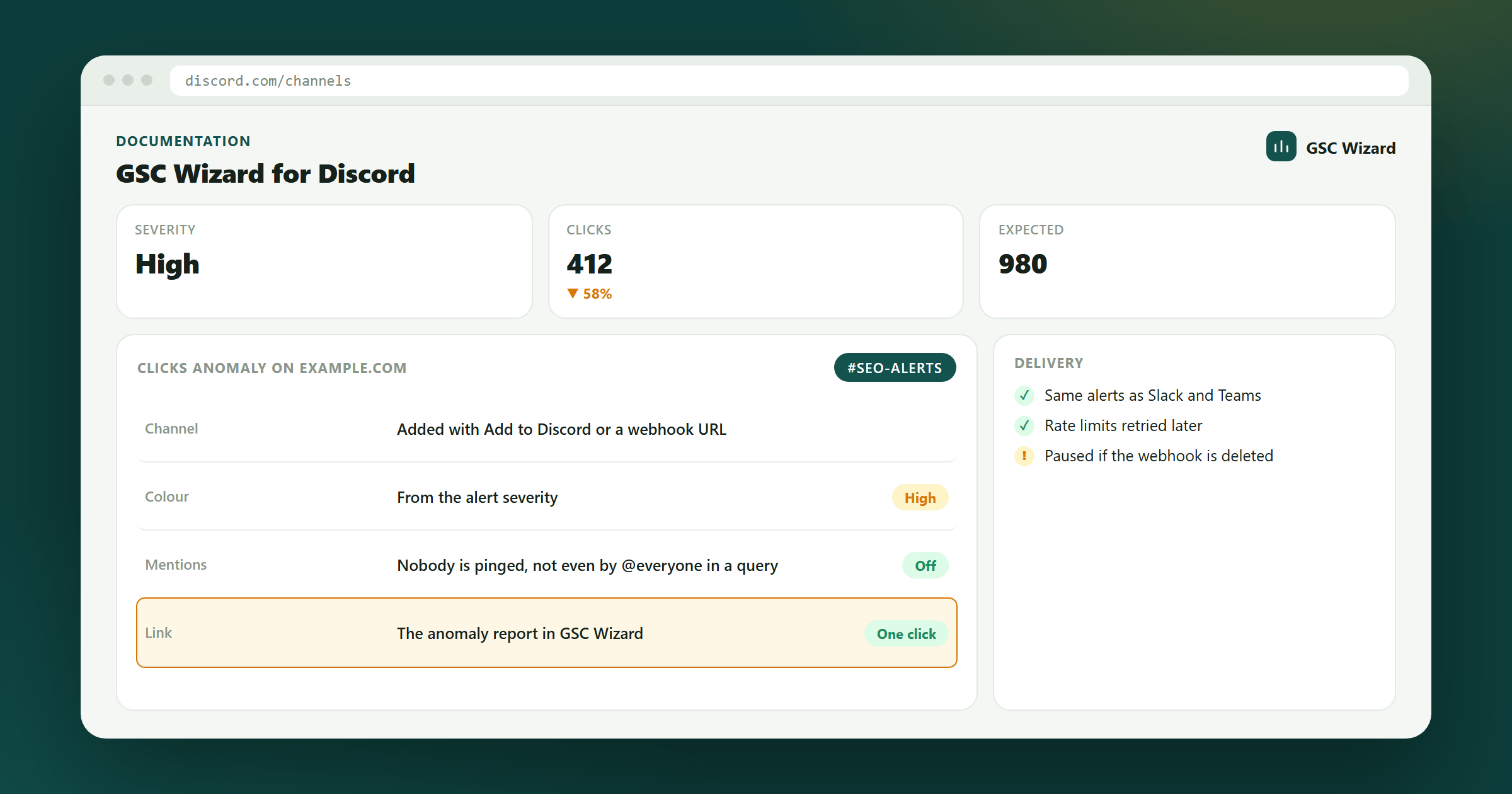
A Discord channel subscribes to alert events exactly the way a Slack or Teams channel does. GSC Wizard posts each one through a channel webhook, so it never reads messages, members or anything else in your server. Set it up under Account → Slack, Teams & Webhooks; Slack is not needed. It needs a 7-day free trial or a paid plan.
Adding a channel with Add to Discord
The quickest way, if you may manage the server.
- Open Account → Slack, Teams & Webhooks and click New Discord channel in the Discord section.
- Tick the alert types and choose a minimum severity, the same choices an alerts subscription offers. Optionally give the row a name, for example
#seo-alerts. - Click Add to Discord. Discord asks for a server and a channel. You need the Manage Server permission in that server to add an app.
- Approve, and you land back on the settings page with the channel added. Click the send icon on the row: a test message appears in the channel.
Adding a channel with a webhook URL
Works without adding the app, for example when you may manage webhooks but not the server.
- In Discord, open Server Settings, then Integrations, then Webhooks.
- Click New Webhook, pick the channel, name it (for example GSC Wizard) and click Copy Webhook URL.
- In the Discord section, tick the alert types, paste the URL under Or paste a channel webhook URL and click Add channel.
The URL looks like https://discord.com/api/webhooks/…. A URL that ends in /slack or /github is refused: GSC Wizard sends Discord’s own format. To post into a thread, add ?thread_id=<thread id> to the URL.
What a message looks like
The same content an alert posts to Slack, as a Discord embed.
- Title: the alert’s headline, for example Clicks anomaly on example.com, linked to the report.
- Body and fields: the property, the numbers behind the alert (actual against expected, the change, the affected URLs) and a note on how to read them.
- Colour from the severity: red for critical, orange for high, amber for medium, blue for low and teal for info (algorithm updates).
- Link: the report the alert came from, already filtered to the property.
- Nobody is pinged. Alerts can contain search queries and page addresses, so GSC Wizard tells Discord not to turn any text into a mention, even when a query reads @everyone.
The /gscwizard command
Added with the app. Only you see the answers.
/gscwizard status
Says whether this channel receives GSC Wizard alerts. It shows nothing about your properties: Discord users are not linked to GSC Wizard accounts.
/gscwizard help
What the app posts and where to set it up.
Delivery behaviour
- Alerts are posted on the same job as Slack, which runs every ten minutes, so a message appears within minutes of detection.
- When Discord rate limits the channel, the post waits a moment or is retried on a later run.
- When the webhook or its channel is deleted in Discord, the row is paused with the reason on it. Remove it and add the channel again.
- Rows can be paused and resumed at any time. Removing a row that Add to Discord created also deletes its webhook in Discord; a webhook you pasted stays yours.
Permissions and data
Add to Discord asks for three things and uses them for nothing more.
webhook.incoming: Discord creates a webhook in the channel you pick. Alerts are posted through it.applications.commands: the/gscwizardcommand in that server.botwith no permissions: adds GSC Wizard to the member list as an app, so the server shows where the alerts come from. It is given no permissions and never connects, so it cannot read, send or manage anything.- The webhook URL is encrypted at rest (AES-256-GCM). Besides it GSC Wizard stores the server name and the server, channel and webhook ids. No Discord tokens are kept.
- A message carries the alert’s content into your server: the property, and depending on the alert, page addresses, search queries and metric values. Everyone who can read the channel can read it.
See the privacy policy for how GSC Wizard handles data.
Troubleshooting
“Add to Discord is not available yet”
Paste a channel webhook URL instead; it delivers exactly the same messages.
“Discord says this webhook does not exist”
The webhook was deleted in Discord, or the URL was copied incompletely. Make a new webhook and copy its URL again.
Paused: the webhook was deleted in Discord
Someone removed the webhook or the channel. Remove the row and add the channel again.
No server to pick in the Discord window
Adding an app needs the Manage Server permission. Ask a server admin, or use a webhook URL.
Still stuck? Email info@gscwizard.com.