Ads and Assets
How each headline and description does against the other texts in the same ads, which ads no longer test, and which ads and assets Google disapproved or limited.
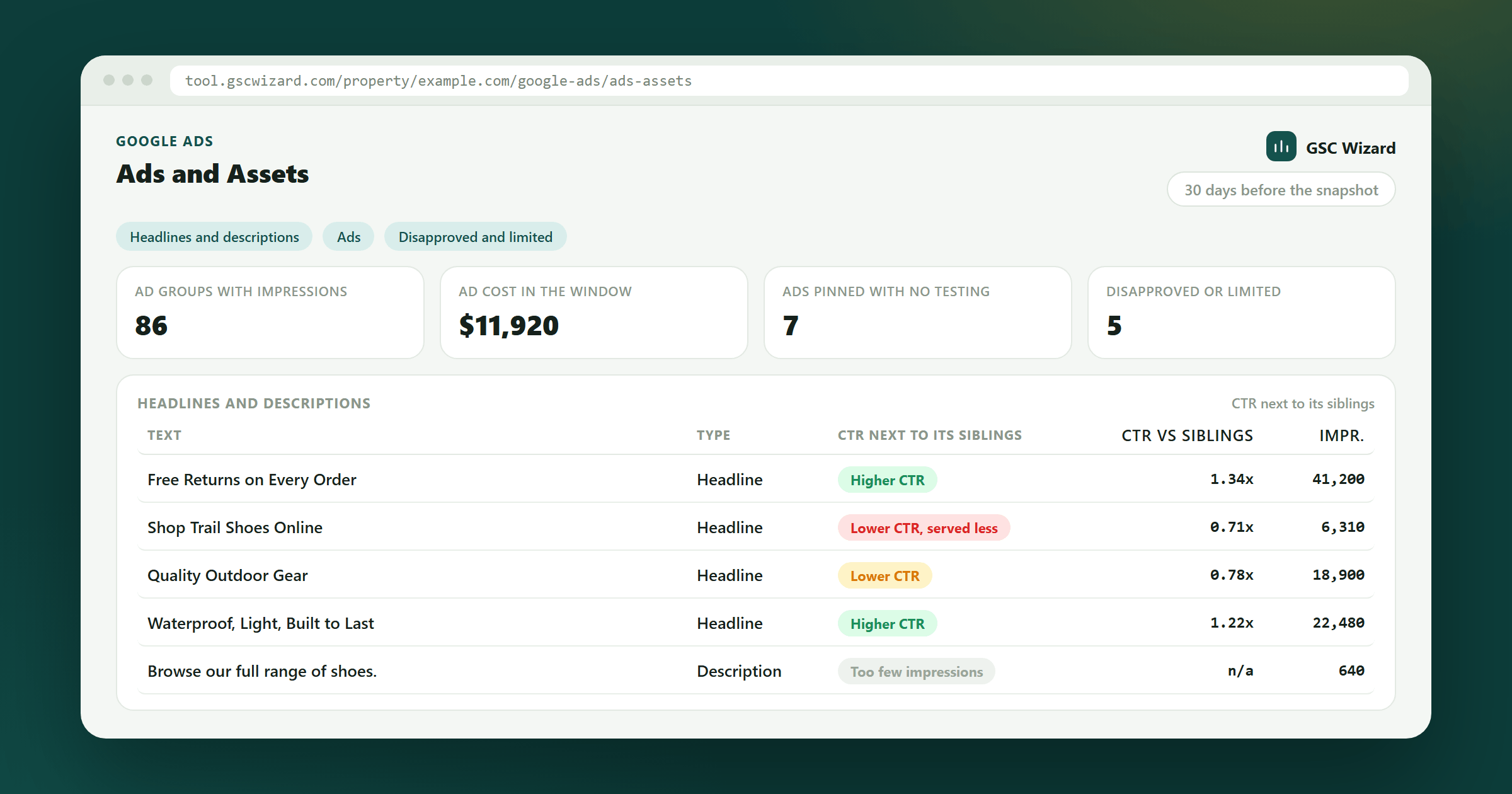
Google Ads shows asset performance as a label. This report compares each headline and description with its siblings on the impressions Google actually served it on, so a text that Google serves less and that earns a lower CTR stands out.
Open a property and click Ads and Assets under PAID SEARCH in the left sidebar (/property/<site>/google-ads/ads-assets). It reads GSC Wizard’s stored copy of your Ads data, never Google live, and the stamp under the title says when each account last synced (Sync, history & data).
What you see
Tiles for Ad groups with impressions, Ad cost in the window, Ads pinned with no testing and Disapproved or limited, then three tabs.
Headlines and descriptions
Up to 5,000 assets with a verdict badge next to their siblings (Lower CTR, served less, Lower CTR, Higher CTR, Too few impressions), the CTR index against the siblings, impressions, clicks, CTR, the number of ads it is shown in, conversions, pinning and source. Filters by type (headlines, descriptions) and verdict, including Pinned and Automatically created.
Ads
Up to 3,000 ads with ad strength, headline pins, the ad group’s main keyword and how many headlines contain it, near-duplicate headline pairs, and traffic. Filters: Pinned, no testing, Near-duplicate headlines, Main keyword in no headline and Poor or average strength. Click an ad to see all its headlines and descriptions with their pins.
Disapproved and limited
Ads and assets Google disapproved or limited, with the policy topics, sorted by the clicks, impressions and cost of their ad group: the traffic a fix protects, not traffic measured as lost.
Controls and exports
- No date selector: the figures are the totals of the 30 days before the newest weekly snapshot of ads and assets, and the page says which days those are.
- The Accounts chips and the report currency work as on every Google Ads report (shared controls).
- CSV per tab and filter; the file names carry the snapshot window. Tables sort, hide columns and export CSV (shared controls).
- Settings this report uses, changeable per property in its thresholds panel (see Report settings): Impressions an asset needs before it is judged (1,000) and Clicks expected at the sibling CTR before an asset is judged (10), both safeguards; CTR index at or below which an asset has a lower CTR (0.80x), at or above which it has a higher CTR (1.20x), and Serving index at or below which Google serves an asset less (0.50x), all judgement calls.
How to act on it
- Start with Disapproved and limited: fix or appeal in Google Ads, busiest ad groups first. The list is read-only.
- For ads marked Pinned, no testing, unpin some headlines, or pin two or more to a position, so the ad tests again.
- Replace headlines marked Lower CTR, served less in Google Ads or Google Ads Editor; the CSV is the work list. This table shows where to look, but to learn whether a new text is better, test it as an ad variation or a pinned slot.
Caveats
- The page fills in after the first weekly snapshot of ads and assets; until then it says none is stored yet.
- A CTR comparison within the same ads is not a controlled test: Google picks which combinations to serve.
Part of Paid search reports. Related: Ads Keywords, Ads Health Check, Report settings.