Ads Search Terms
What people actually typed before an ad showed, across Search, Shopping and Performance Max, with n-gram mining to find the words that waste or earn money.
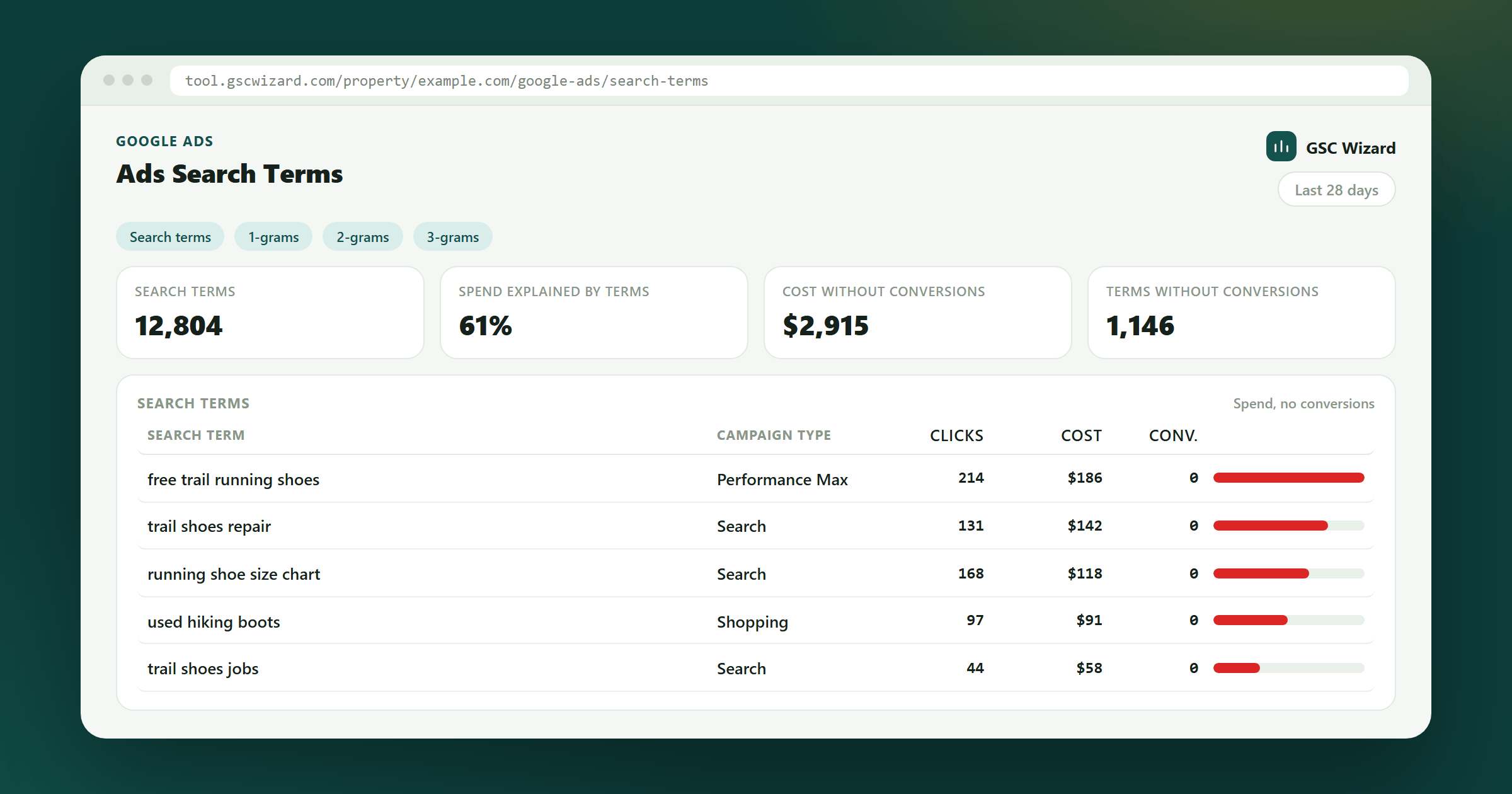
Search terms from every campaign type sit in one table here, so a word that wastes money in Shopping and in Performance Max shows up once rather than in two Google Ads screens. The n-gram views sum the terms into their words and word pairs, which is where a negative keyword that covers hundreds of terms at once becomes visible.
Open a property and click Ads Search Terms under PAID SEARCH in the left sidebar (/property/<site>/google-ads/search-terms). It reads GSC Wizard’s stored copy of your Ads data, never Google live, and the stamp under the title says when each account last synced (Sync, history & data).
What you see
Tiles
Search terms (all terms in the range), Spend explained by terms (term cost as a share of campaign cost), Cost without conversions (terms in the top 5,000 by cost with spend and zero conversions) and Terms without conversions.
Search terms
The top 5,000 terms by cost, filtered with All, Spend, no conversions or Converting. Columns: search term, campaign type, impressions, clicks, CTR, cost, CPC, conversions, conversion rate, cost per conversion, conversion value and ROAS, with the match source as a hidden column.
1-grams, 2-grams, 3-grams
Each term’s figures added into every distinct word, pair or triple it contains (a gram counts once per term), with the number of terms behind each gram. The top 1,000 grams are listed. A costly gram with no conversions is a negative keyword candidate across many terms at once. Terms in languages written without spaces between words, such as Japanese, Chinese and Thai, are split into words first, so they form grams like any other language; the 20,000 costliest such terms are split, and when there were more the page says the rest are left out of the grams.
Controls and exports
- Date range (no comparison figures) and a Filter box on each table.
- The Accounts chips and the report currency work as on every Google Ads report (shared controls).
- One CSV per filter and per n-gram size. Tables sort, hide columns and export CSV (shared controls).
How to act on it
- Open the 1-grams view and sort by cost. Words with real spend and no conversions are candidates for a broad negative.
- Switch to Search terms with Spend, no conversions to see the full terms behind a word before you exclude it.
- Export that view to CSV as your work list. It carries the table’s own columns, not a Google Ads Editor import format, so add the negatives in Google Ads or Google Ads Editor yourself, with the match type and level you choose.
- Check Ads Negative Keywords afterwards: a new negative can block a keyword you pay for.
Caveats
- Google hides low-volume search terms for privacy. When the visible terms explain less than 80% of campaign cost, the page says so: read the table as a sample, not the whole account. Money totals elsewhere come from the campaign table for that reason.
- Shopping and Performance Max terms have no keyword behind them, so the match source is empty for them.
In AI assistants: the get_google_ads_search_terms tool of the GSC Wizard MCP server returns the same terms with an filter: 'non_converting' option, or n-grams with ngram: 1 to 3, together with the coverage of campaign cost. See Google Ads in AI assistants.
Part of Paid search reports. Related: Search Term Insights, Ads Negative Keywords, Paid vs Organic.