Budgets and Targets
Where spend will land this month, which campaigns are held back by their budget, how CPA and ROAS compare with their targets, and what happened after each bidding or budget change.
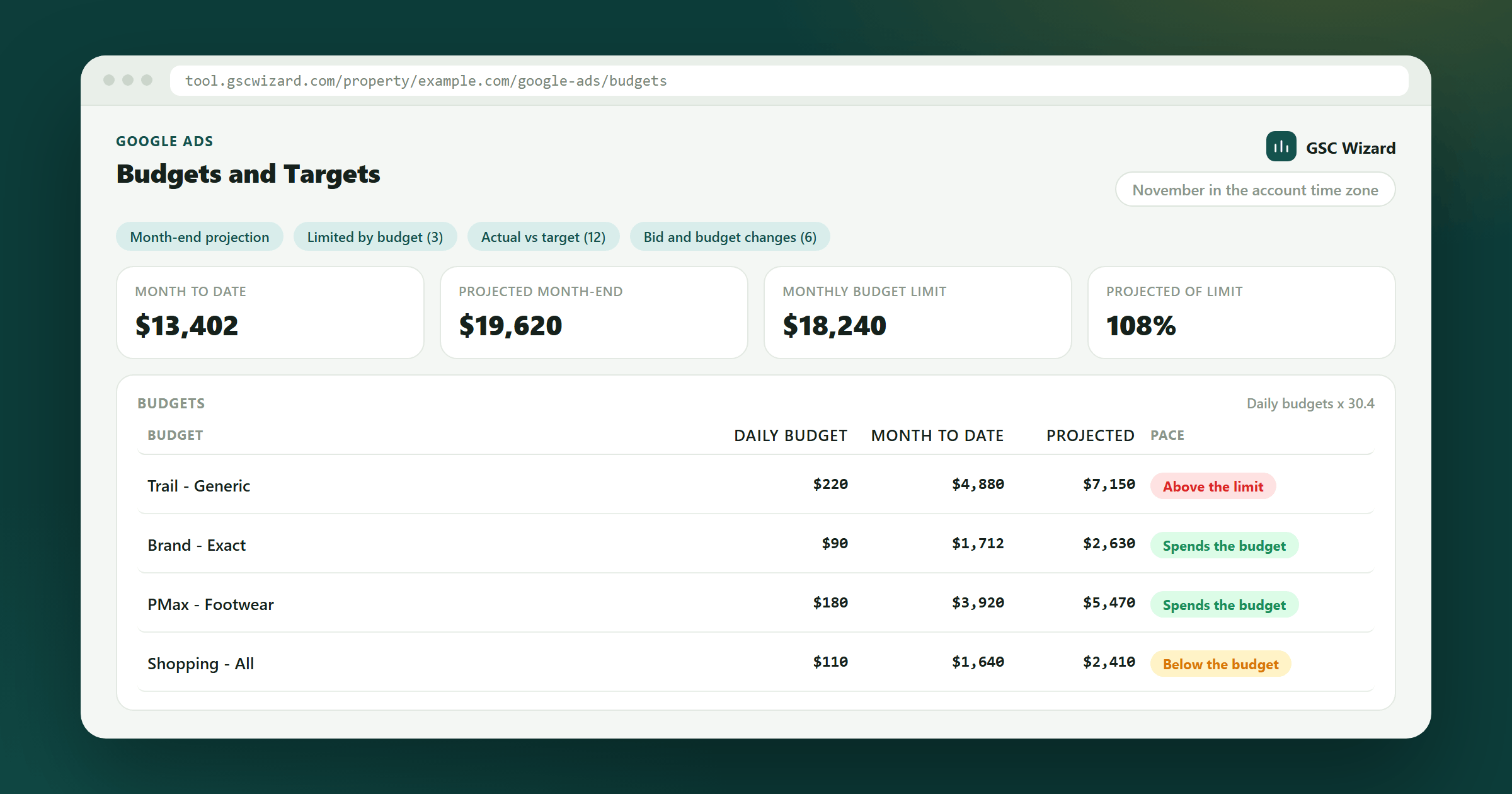
Four tabs for the questions an account manager asks every week. All four read the stored Google Ads data: daily spend, the daily settings snapshot, weekly budget simulations and the change log.
Open a property and click Budgets and Targets under PAID SEARCH in the left sidebar (/property/<site>/google-ads/budgets). It reads GSC Wizard’s stored copy of your Ads data, never Google live, and the stamp under the title says when each account last synced (Sync, history & data).
What you see
Month-end projection
Always the current calendar month in the account time zone, whatever the date range. Tiles for Month to date, Projected month-end, Monthly budget limit (daily budgets times 30.4, each shared budget once, enabled campaigns only) and Projected of limit; a cumulative line of spend to date with the projection dashed and the monthly limit as a reference line; and tables per budget (with a Pace such as “Above the limit” or “Spends the budget”) and per campaign. It is a projection, not a forecast with a confidence range.
Limited by budget
Campaigns held back by their budget, with the reason (Google recommends a higher budget, status limited by budget, or impression share lost to budget), impression share lost to budget, daily budget, Google’s recommended budget with its estimated clicks and cost per week, and a Budget simulation chart of Google’s estimated clicks and conversions at other budgets. Simulations are Google’s model output, not measurements.
Actual vs target
Per campaign with a CPA or ROAS target: the target and whether it is set on the campaign or a portfolio, the actual figure on the judged days, the gap, and how far the target is from the median of similar campaigns. Filters: All, Off target, Far from peers.
Bid and budget changes
Every bidding or budget change in the range with cost, conversions, CPA and ROAS per day before and after it. This shows what happened around a change, not what the change caused.
Controls and exports
- Date range for the last three tabs; a campaign picker for the simulation chart.
- The Accounts chips and the report currency work as on every Google Ads report (shared controls).
- CSV of every table. Tables sort, hide columns and export CSV (shared controls).
- Settings this report uses, changeable per property in its thresholds panel (see Report settings): Impression share lost to budget that counts as budget-limited (10%) and How far from its group a target must be to stand out (2x), judgement calls; Conversions below which an actual CPA or ROAS is marked noisy (15) and the two conversion lag values, safeguards.
How to act on it
- Check the projection early in the month and change budgets in Google Ads if a campaign will overshoot or underspend.
- For a budget-limited campaign that converts well, compare Google’s recommended budget with the simulation before raising it.
- Targets 2x or more away from their peers are highlighted; either bring them closer or write down why they differ.
Caveats
- Budgets and targets arrive with the daily settings snapshot and simulations with the weekly one; until then the tabs say they are not stored yet.
- Recent days are left out of the actual-vs-target judgement while their conversions are still arriving. When a budget changed during the month, Google’s real limit for the month differs from the one shown.
Part of Paid search reports. Related: Google Ads Overview, Ads Change Analysis, Ads Recommendations.